Projects
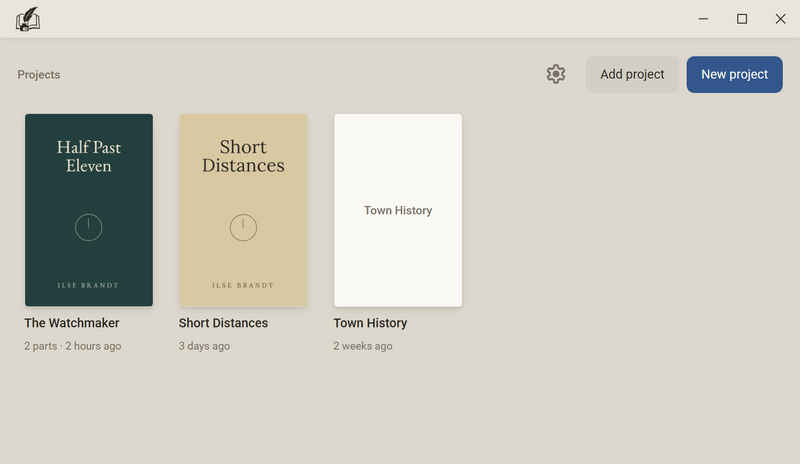
A project is a folder on your computer. It holds all the books and binders for one piece of work, for example a novel and the notes for it. In the window Projects you choose which project you work on.
Opening a project
- Open the window Projects.
- Click the project's tile. One click is enough.
Adding a project
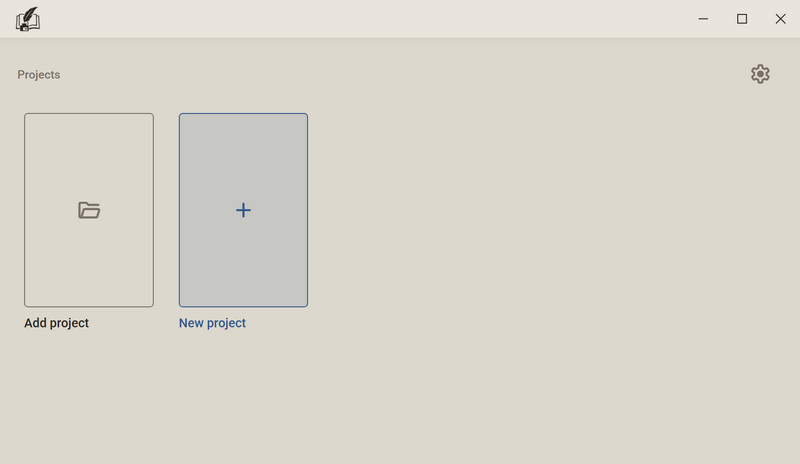
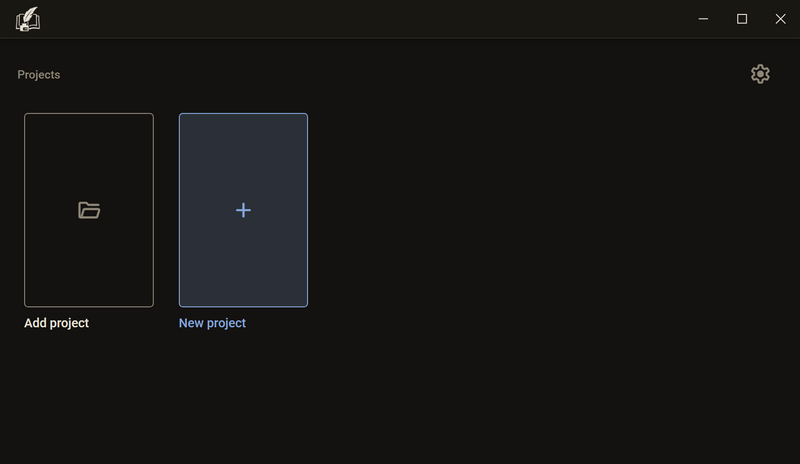
- Click Add project.
- Choose the folder of a project that is already on your computer, for example from a backup.
Creating a new project
- In the window Projects, click New project.
- Name of the project: This is also the name of the project's folder.
- Enter the Name of the author.
- Location: Your folder for projects is suggested. With the folder button next to it you choose another one.
- Click Create. The project opens and is still empty.
Good to know
- A project can hold any number of books and binders. You need a new project only for a new piece of work.
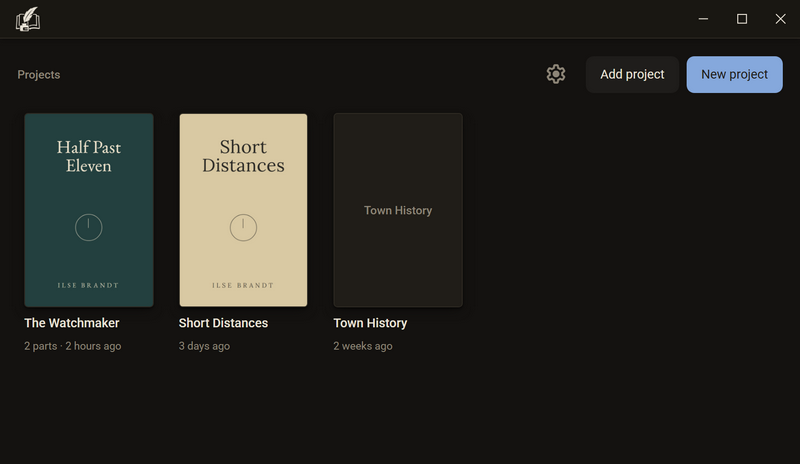
- Projects are sorted by last change. Under the name it says when something was last written in it, and from two books on, their number, for example 2 parts.
- Renaming: F2 on the tile or Project → Project settings → Name. Only the name changes, the folder keeps its own.
- If a project has no cover of its own, its tile shows the cover of the first book.
- If you choose a folder with no project in it, There is no Regletto Writing project here. appears.
- If a project's folder was moved or renamed, its tile has a dashed outline and shows Folder not found. With right-click → Find folder you choose the new place.
- If you close the window without choosing a project, the open project comes back. If none was open, Regletto Writing exits.
The library
The library shows what is in the open project: the books at the top, the binders below. Above both is the project's name.
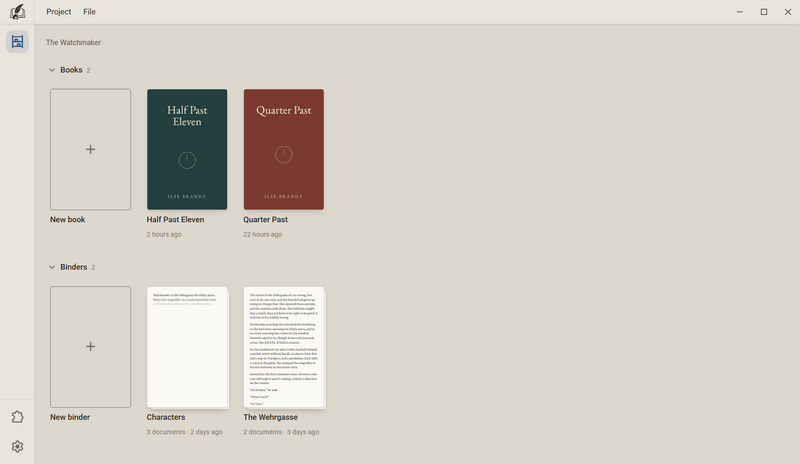
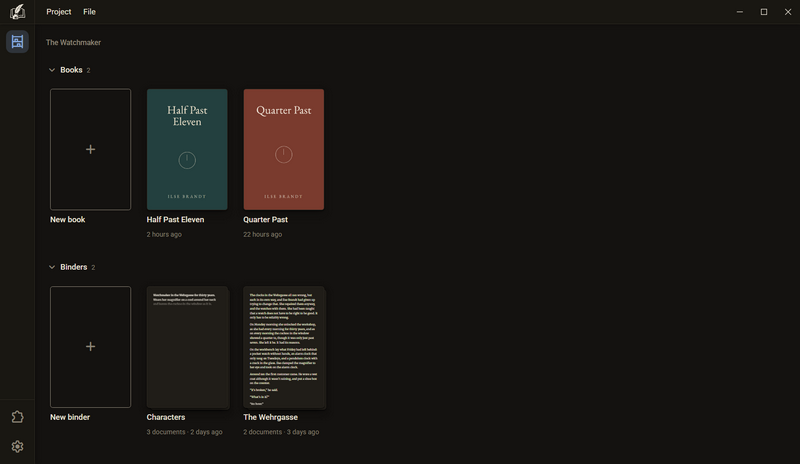
- Press Ctrl + 2 or click the shelf in the rail on the left.
- Click a tile. The manuscript of the book or binder opens.
- A right-click on a tile opens its menu, see The tile.
Good to know
- With the arrow in front of Books and Binders you fold the group shut. The number next to it is the number of books or binders. Once folded, it stays folded, even after a restart.
- You decide the order yourself: drag a tile to another place or press Alt + ← and Alt + →. Books stay with books, binders with binders. Ctrl + Z undoes the move.
- If the project has only one book and it is named like the project, its tile says Manuscript.
- Under a book it says when something was last written in it. Under a binder it also says how many documents it has.
- A binder without a cover shows the beginning of its first document on its tile.
- If you click the shelf again while you are in the library, you return to where you were before.
The tile
Books, binders and projects stand as tiles: the cover on top, below it the name and a line with the state. A right-click opens the tile's menu, with the keyboard the Menu key or Shift + F10.
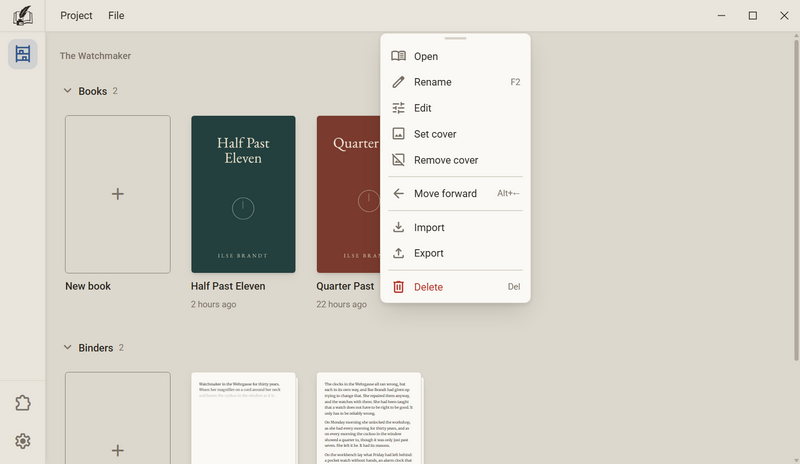
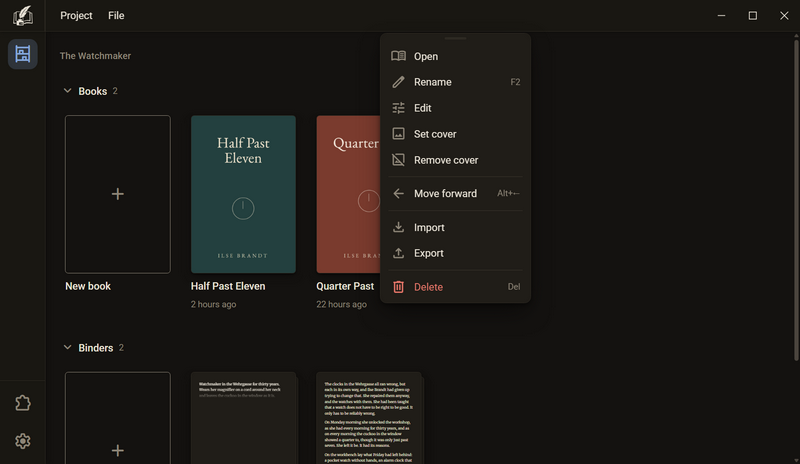
The menu of a book or binder
| Entry | What happens | Key |
|---|---|---|
| Open | Opens the manuscript. | Enter |
| Rename | The name becomes editable on the tile. Enter saves, Esc cancels. | F2 |
| Edit | Opens the book dialog. | |
| Set cover | Choose an image as the cover: JPG, PNG or WebP. | |
| Remove cover | Takes the cover off again. | |
| Move forward Move back | Moves the tile one place forward or back. | Alt + ← Alt + → |
| Import | Brings text from a file into the book. | |
| Export | Saves the book as a file. | |
| Delete | Puts the book in the recycle bin, see Deleting a book. | Del |
The menu of a project has fewer entries: Open, Rename, Set cover, Remove cover and Remove, see Removing a project.
Dragging a file onto the tile
- An image (JPG, PNG or WebP) becomes the cover.
- A document (
.docx,.epub,.txt,.mdor.rtf) is imported into the book or binder. - As long as you hold the file over the tile, it shows what will happen: Set as cover, Import or Import and set as cover.
- Onto a project tile you can drag only an image.
Good to know
- The cover is shown on the tile in the ratio 2 : 3. If the image has another ratio, it is cropped in the middle. The image file itself stays as it is.
- What does not work at the moment is missing from the menu: without a cover there is no Remove cover, for the first book no Move forward.
Creating a book
A book has its own manuscript, its own typesetting and its own cover. It is created in the book dialog.
Library → New book- In the library, click the tile New book. You also find New book in the menu Project and after a right-click on a free spot in the library.
- Enter the Title of the book.
- Check the Language. Spell check and grammar check go by it.
- If you like, set the typesetting. That also works later.
- Click Create. The book now stands in the library.
A book from a file
- Drag a file (
.docx,.epub,.txt,.mdor.rtf) onto a free spot in the library. - A dashed tile appears there: As a new book. Among the binders it says As a new binder.
- Let go. The import opens, and afterwards the book stands in the library with the text. It is named like the file.
Good to know
- A new book takes over the settings of the last book in the library: print format, paragraph opening, page number, chapter opening, language and the advanced settings. It does not take over title, subtitle and cover.
- A new binder takes over the settings of the last binder, never those of a book.
- A book from a file takes over nothing and starts with the defaults.
- Every book is a folder in the project, in the subfolder
books. The folder is named like the title at creation. If you rename the book later, the folder keeps its name. - A book never becomes a binder and a binder never becomes a book.
The book dialog
In the book dialog you create a book and change it later. On the left are the settings, on the right a page with sample text that shows every change at once.
Right-click the tile → Edit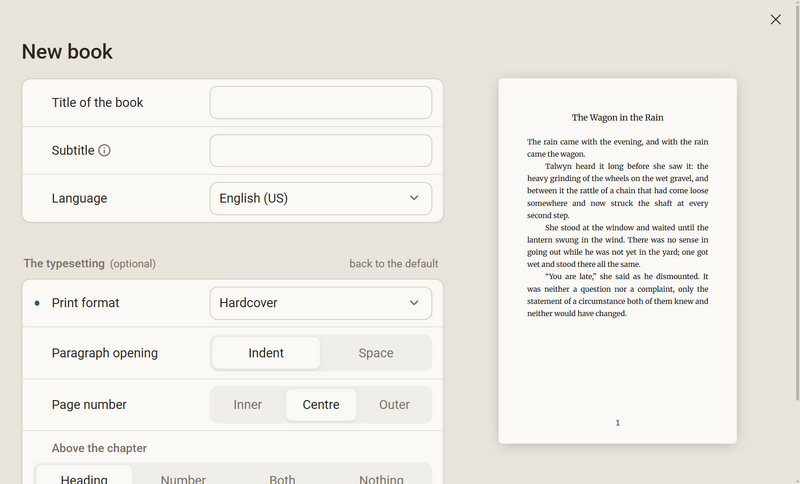
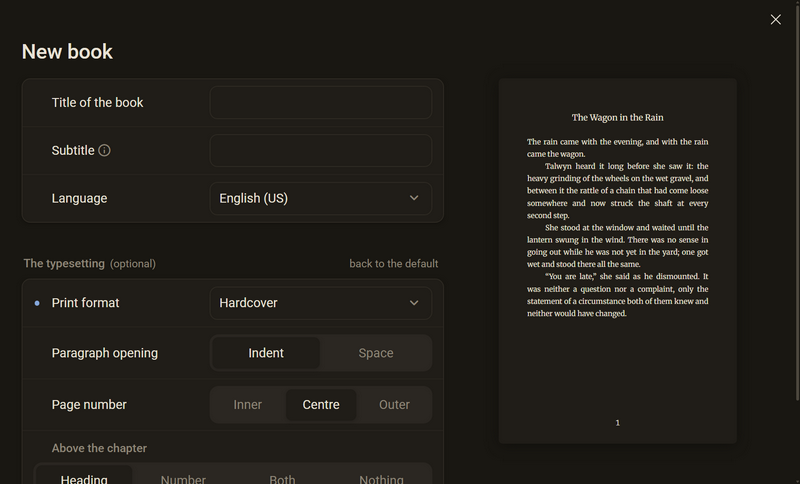
Title, subtitle, language
- Title of the book: appears on the tile and on the title page.
- Subtitle: appears on the title page below the title, on the tile and in every export. It does not appear in the manuscript.
- Language: German, English (US) or both. Spell check and grammar check go by it.
The typesetting
- Print format: the size of the page, see the table below.
- Paragraph opening: Indent or Space.
- Page number: Left, Centre or Right. In double-page typesetting it says Inner, Centre or Outer.
- Above the chapter: Heading, Number, Both or Nothing. With Number and Both the row The number is written is added: 2, Chapter 2 or II.
| Print format | Size |
|---|---|
| Paperback | 118 × 187 mm |
| Digest | 127 × 203.2 mm (5 × 8 inches) |
| Hardcover | 140 × 215 mm |
| Trade | 152.4 × 228.6 mm (6 × 9 inches) |
| Large format | 170 × 240 mm |
| Custom size | Width and height from 100 to 420 mm |
Advanced settings
Below the typesetting, Advanced settings leads to all further settings. On the left are the areas, above them a search field. Back leads to the first view.
| Area | Contains |
|---|---|
| The page | The margins, the page number, the page header |
| The chapter | The chapter opening, the chapter heading, the chapter number, the opening letter |
| The text | The face, the paragraph, the paragraph sorts, the table, the footnote, how sources are cited, the outline, the line, the scene rule |
| The outside | Cover and paper texture. Only when editing. |
| While typing | Quotation marks, em dash, bullet list, numbered list, scene rule. Below it Checking: spell check and grammar check on or off. |
Good to know
- The page on the right always shows the same sample text, not your manuscript. In the advanced settings it turns to the page that the row under the mouse is about. Above the page you choose Opening page, Following page or Spread.
- The table, The footnote, How sources are cited and The outline write an example on the page. While typing shows, instead of a page, what becomes of what is typed.
- Saving happens only with Create or Apply. Cancel discards everything. Only cover and paper texture under The outside are saved at once.
- Ctrl + Z and Ctrl + Y work in the whole dialog.
- If the typesetting differs from the default, back to the default appears next to its heading. A click resets it.
- If you open the dialog from the manuscript and change something that breaks the pages anew, the dialog says, for example, The line break will be recalculated, 214 pages today.
The binder
A binder is for texts that are not set as a book: research, characters, places, notes or a term paper. You write in it as in a book. Only what a set book needs is missing: subtitle, chapter opening and chapter numbers.
Library → New binder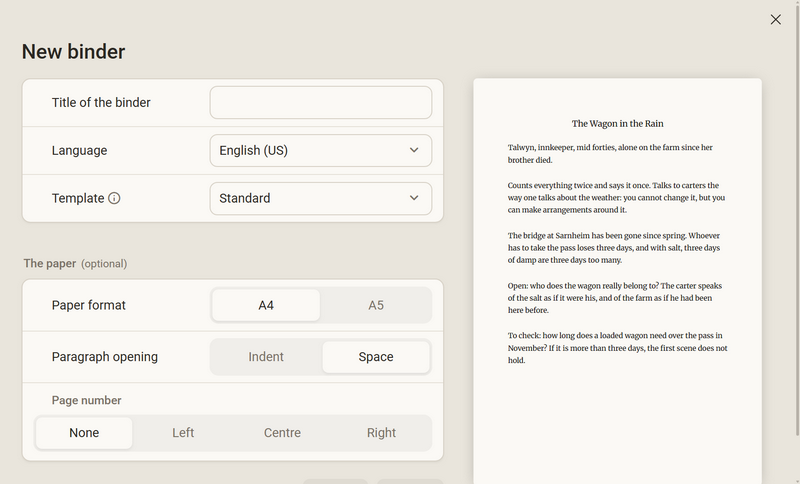
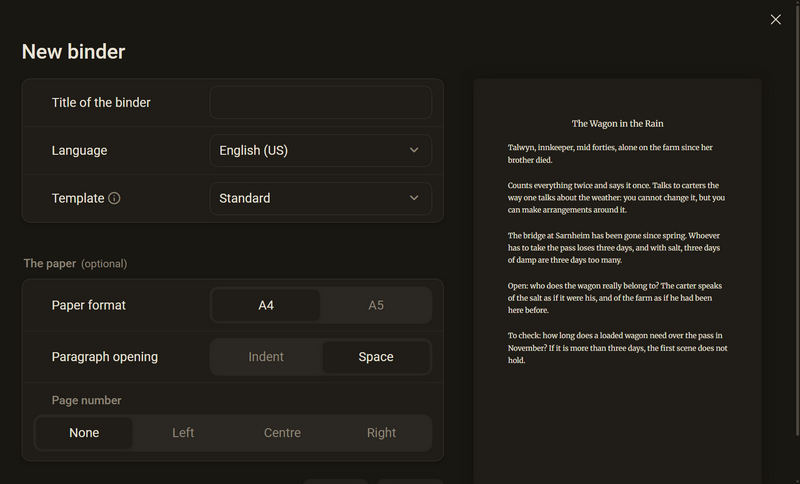
- In the library, click the tile New binder.
- Enter Title of the binder and Language.
- For Template, leave Standard or choose Academic paper.
- If you like, set The paper: Paper format A4 or A5, Paragraph opening and Page number (None, Left, Centre or Right).
- Click Create.
In a binder, things are named differently
| In a book | In a binder |
|---|---|
| Chapter | Document |
| Chapter tree | Documents |
| Print format | Paper format |
| The typesetting | The paper |
| Title of the book | Title of the binder |
The template “Academic paper”
With this template, the second card is called The form and shows Citation style (German, APA or Harvard), Leading and Correction margin. The binder is created in A4 with page numbers on the right and gets seven empty documents: Cover sheet, Contents, Introduction, Main part, Conclusion, Bibliography and Statutory declaration.
Good to know
- The template exists only at creation. Afterwards every setting can be changed one by one, and you rename, move and delete the documents like any others.
- A document can still carry a title above the text: right-click the document in Documents → Show the title.
- A binder can have a cover like a book.
Deleting a book
When you delete, the book's folder goes to your system's recycle bin with the whole manuscript. Ctrl + Z does not bring it back.
- Right-click the tile → Delete, or choose the tile and press Del.
- A confirmation always comes, for example “Half Past Eleven” goes to the recycle bin with its whole manuscript. Undo does not bring it back.
- Click Delete. Afterwards the bottom of the window says “Half Past Eleven” is in the recycle bin.
Good to know
- You can restore the book only from your system's recycle bin, not from Regletto Writing.
- You delete a binder the same way. The confirmation is then called Delete binder.
- If the folder cannot be put in the recycle bin, The book stayed put. appears. Your manuscript is then unchanged.
Removing a project
Remove takes a project out of the window Projects. The files stay where they are. Only if you explicitly choose it, the folder goes to the recycle bin too.
Projects → Right-click the tile → Remove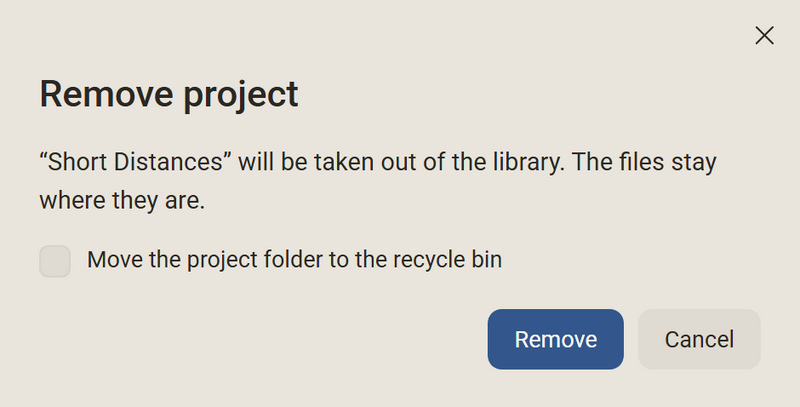
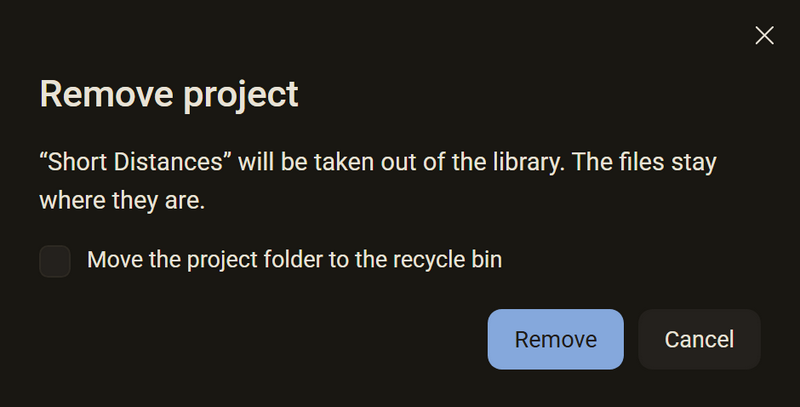
- In the window Projects, right-click the tile → Remove, or choose the tile and press Del.
- The dialog shows, for example, “Short Distances” will be taken out of the library. The files stay where they are.
- Only if the folder is to go as well: tick Move the project folder to the recycle bin. The sentence above then changes, and the folder's path is shown.
- Click Remove.
Good to know
- Without the check mark, nothing is lost. With Add project you bring the project back at any time.
- If the folder cannot be put in the recycle bin, The folder stayed put. appears. The project then stays in the list.
- On a dashed tile with Folder not found there is no check mark. Only the entry is removed.
Ask in the help channel on our Discord server (the server is German-speaking).