Installation
Regletto Writing is installed once. You need no account and no sign-in, and you do not need the internet to write.
regletto.com/writing → Download- Download
Regletto-Writing-Setup-<Version>.exe. - Double-click the file. The installation runs through without asking anything.
- Regletto Writing then starts by itself and shows the dialog Before you start.
Good to know
- After the installation, Regletto Writing needs the internet only for the language packages and to look for new versions. Your texts stay on your computer.
- No administrator rights are needed. Regletto Writing is installed for your user account only.
- The installation creates a shortcut on the desktop and an entry in the start menu.
- If Windows shows “Windows protected your PC”, click More info and then Run anyway.
- You can install a new version over the old one. You do not have to remove anything first.
Debian, Ubuntu, Mint
- Download the
.debfile. - Open a terminal in the folder of the file and enter:
sudo apt install ./Regletto-Writing-<Version>.deb - Regletto Writing is then in the application menu under Office.
Other systems (AppImage)
- Download the
.AppImagefile and put it in the folder where it should stay. - Make the file executable: in the file manager under Properties → Permissions, or in the terminal:
chmod +x Regletto-Writing-<Version>.AppImage - Double-click the file. An AppImage is not installed, it starts directly.
Good to know
- After the installation, Regletto Writing needs the internet only for the language packages and to look for new versions. Your texts stay on your computer.
- Write
./in front of the file name. Without./,aptlooks on the internet for a package with this name. - Use
aptrather thandpkg -i.aptinstalls the system libraries that Regletto Writing needs along with it. - If Regletto Writing does not start and the terminal reports
libasound.so.2, the sound library is missing:sudo apt install libasound2t64, on older systemslibasound2. - No shortcut is created on the desktop.
The first start
At the first start, Regletto Writing is set to your system language. Then three questions follow, see Before you start.
- Fill in the dialog Before you start.
- Click Let’s go.
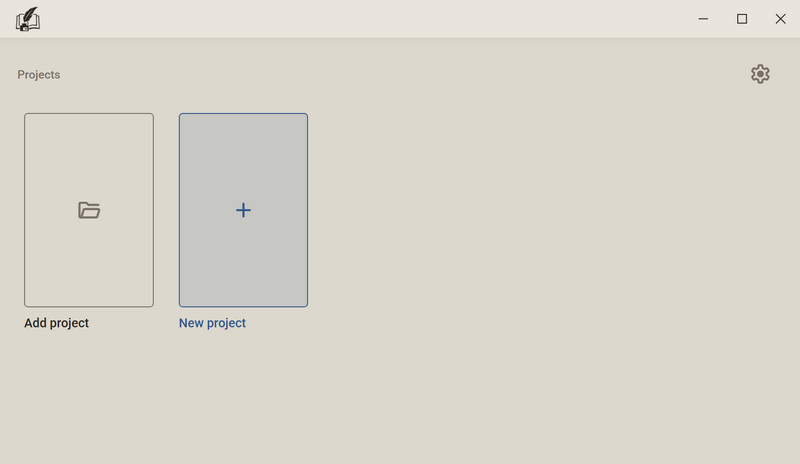
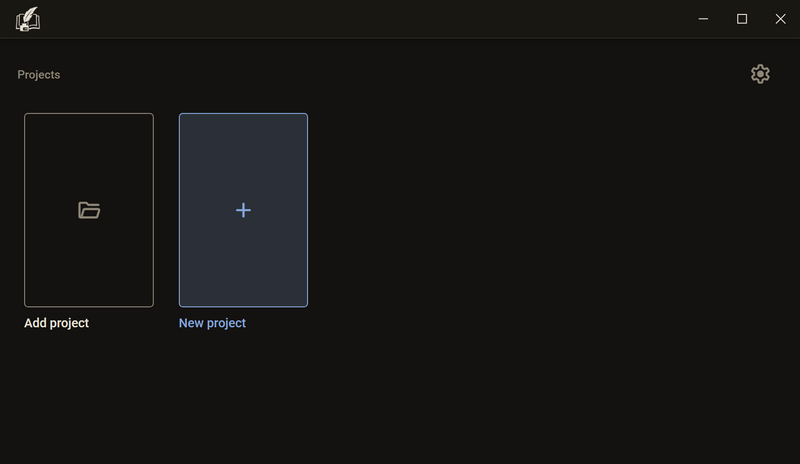
- The window Projects opens. With New project you create your first project.
Good to know
- If several languages are set on your system, Regletto Writing takes the first one it knows: German or English. If it knows none of them, the interface is in English.
- The system language is taken over only at the first start. If you change it later, Regletto Writing stays with its own language. You can switch it under Language of the interface.
- Regletto Writing is free. You need no account and no sign-in.
Before you start
The dialog Before you start appears at the first start. Everything you set here can be changed later in the settings.
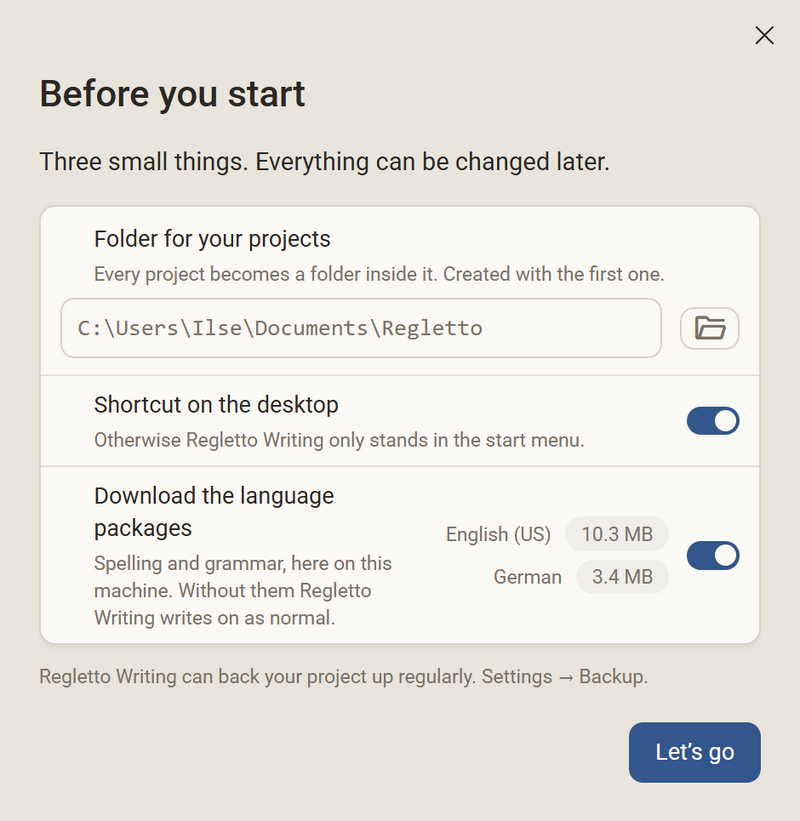
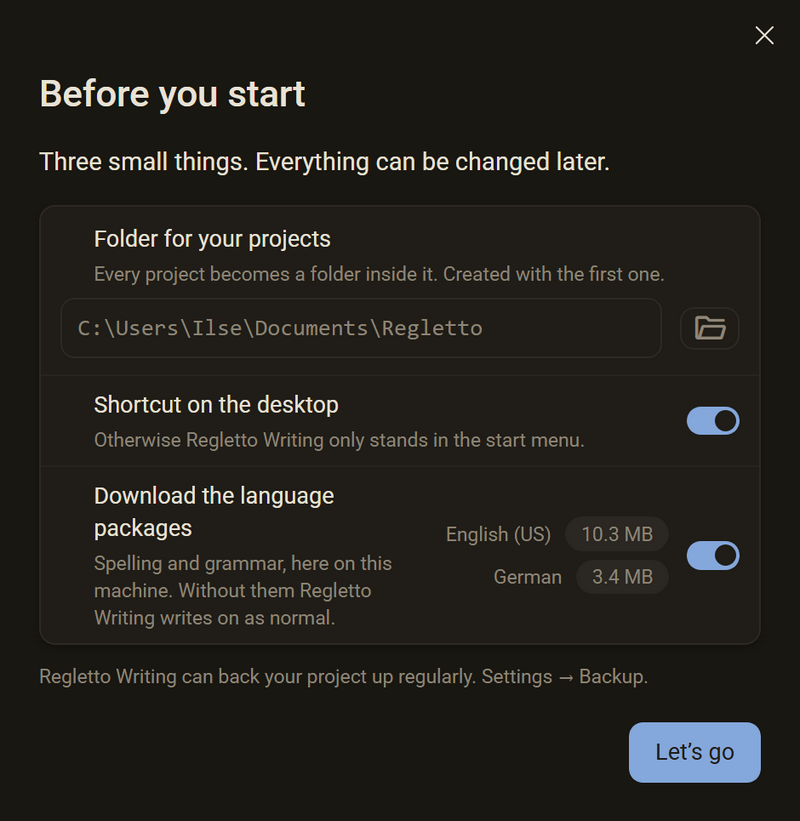
- Folder for your projects: The suggestion is the folder Regletto in your documents. With the folder button beside it you choose another one.
- Shortcut on the desktop: on or off. This row exists only on Windows.
- Download the language packages: on or off. Beside it is which languages are downloaded and how large they are.
- Click Let’s go.
Good to know
- The folder is created only when you create your first project.
- If Download the language packages is off, Regletto Writing checks neither spelling nor grammar. You can still write. You can download the packages later under Settings → Languages.
- If you close the dialog with the cross, nothing is saved. It appears again at the next start.
- You change the folder later under Settings → Locations.
- The backup is off at first. You can switch it on under Settings → Backup.
- The installation has already created the shortcut on the desktop. If you switch it off here, it goes to the recycle bin.
- The row Shortcut on the desktop is missing, because none is created on Linux.
Language of the interface
Sets the language in which menus, buttons and messages are shown. The change applies at once, without a restart. The language of your books does not change because of it.
Settings → Languages → Language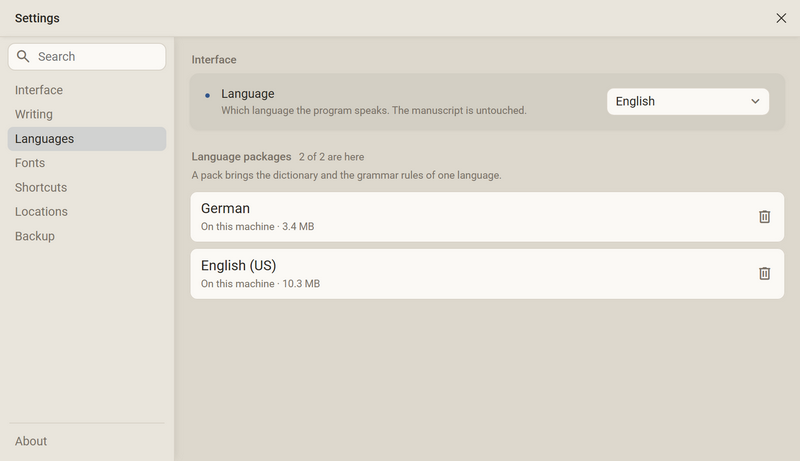
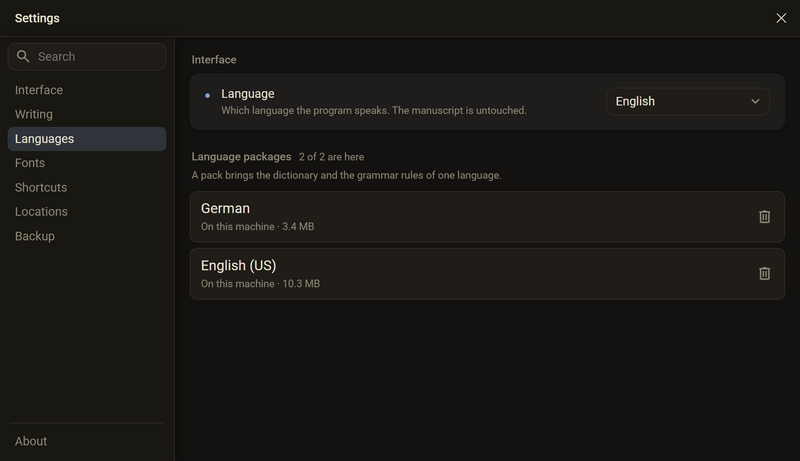
- Open the settings: Ctrl + , or the gear in the rail on the left.
- Choose the category Languages.
- Under Language, choose one of the two: German or English (US).
Good to know
- The choice is German and English (US).
- Your choice stays, even if you change the language of your system.
- Spell check and grammar check follow the language of the book, not that of the interface.
Language packages
A language package holds the dictionary for the spell check and the rules for the grammar check of one language. Checking happens only in languages whose package has been downloaded. In the list, each language shows On this machine or Not downloaded and in which of your books it is used.
Settings → Languages → Language packagesDownloading a package
- Click Download in the row of the language.
- The progress is shown at the bottom of the window. You can keep writing in the meantime.
Removing a package
- Click the recycle bin in the row of the language.
- If the language is used in a book, Regletto Writing asks first. The package goes to the recycle bin, and your texts do not change.
Good to know
- Size: German 3.4 MB, English (US) 10.3 MB.
- At the first start, your system language and English are downloaded, if you agree.
- If you had no internet at the first start, the packages are downloaded automatically at the next start with internet.
- Regletto Writing downloads new versions of the packages automatically at startup.
- The check runs on your computer. Your text is not sent anywhere.
- When you uninstall, the packages are kept, see Uninstalling.
Updating
Regletto Writing looks for a new version every 30 minutes. If there is one, a notice appears at the bottom right. It updates only when you agree.
Settings → About → Update → Look now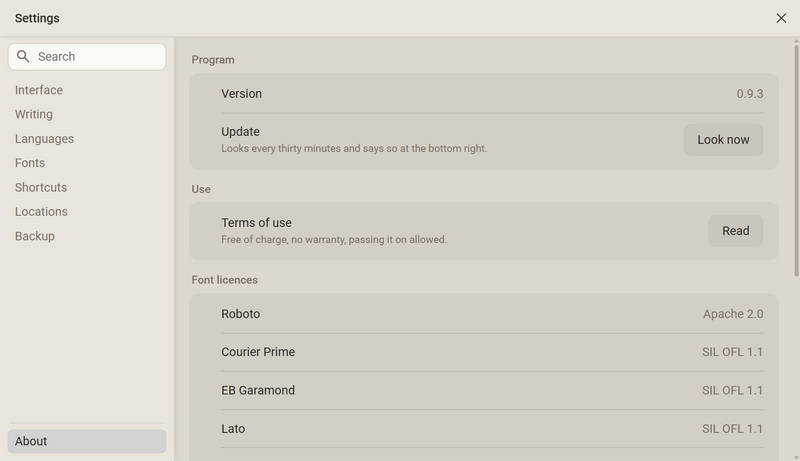
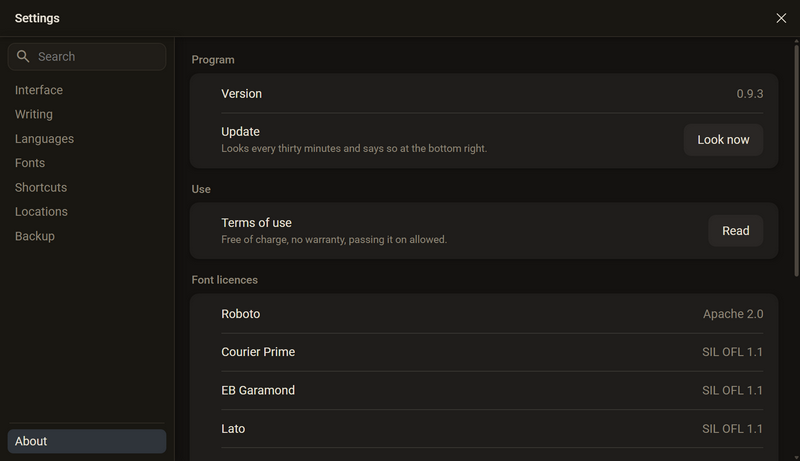
- At the bottom right, Version … is ready. Update now? appears.
- Choose Update and restart or Later.
- The update is downloaded. Then Regletto Writing restarts.
Good to know
- Your text is saved before the update. If that does not work, for example because the disk is full, Regletto Writing asks whether it should update anyway.
- If you click Later, Regletto Writing does not ask about this version again until the next start.
- Right after startup, the question appears as a window of its own instead of at the bottom right.
- Only the changed parts are downloaded.
- The update installs itself.
- The package installed through
aptand an AppImage started directly update themselves. - An unpacked folder, or an AppImage that runs through a launcher, cannot replace itself. Then Regletto Writing shows a button to the download page.
Uninstalling
Uninstalling removes only the program. Your projects, settings, your dictionary and the language packages are kept.
- Windows Settings → Apps → Regletto Writing → Uninstall. The program folder and both shortcuts are removed.
- Data folder:
%APPDATA%\Regletto Writing
- Package:
sudo apt remove regletto-writing - AppImage: delete the file.
- Data folder:
~/.config/Regletto Writing
Good to know
- Your projects are in the folder you chose in the dialog “Before you start”. Uninstalling does not delete them.
- Settings, project list and language packages are in the data folder. If you install Regletto Writing again, everything is as before.
- If you also want to delete the data folder, first open it under Settings → Locations → Settings and library → Open folder and delete it by hand after uninstalling. Your texts are not in it.
Ask in the help channel on our Discord server (the server is German-speaking).