Importing
The import turns a file into chapters in your book or binder. What comes in is Word (.docx), EPUB, text (.txt), Markdown (.md) and Rich Text (.rtf). Beforehand a dialog shows what is in the file and what does not come along.
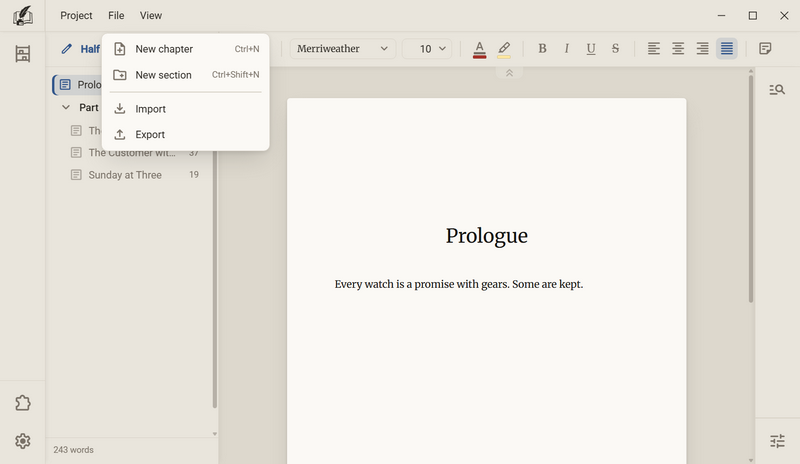
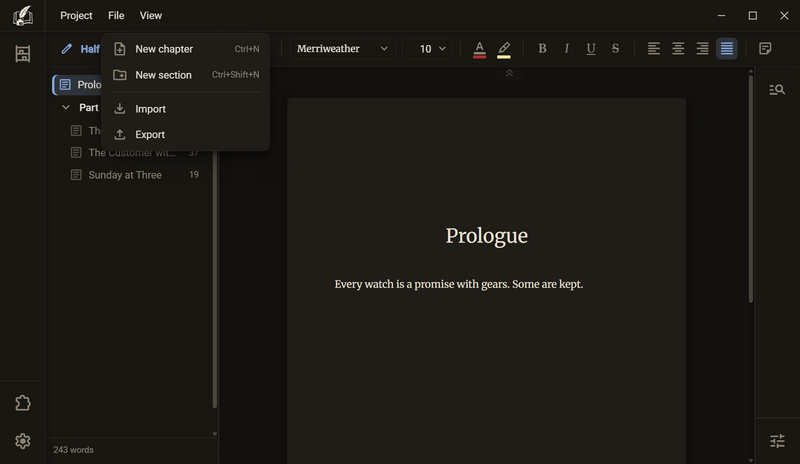
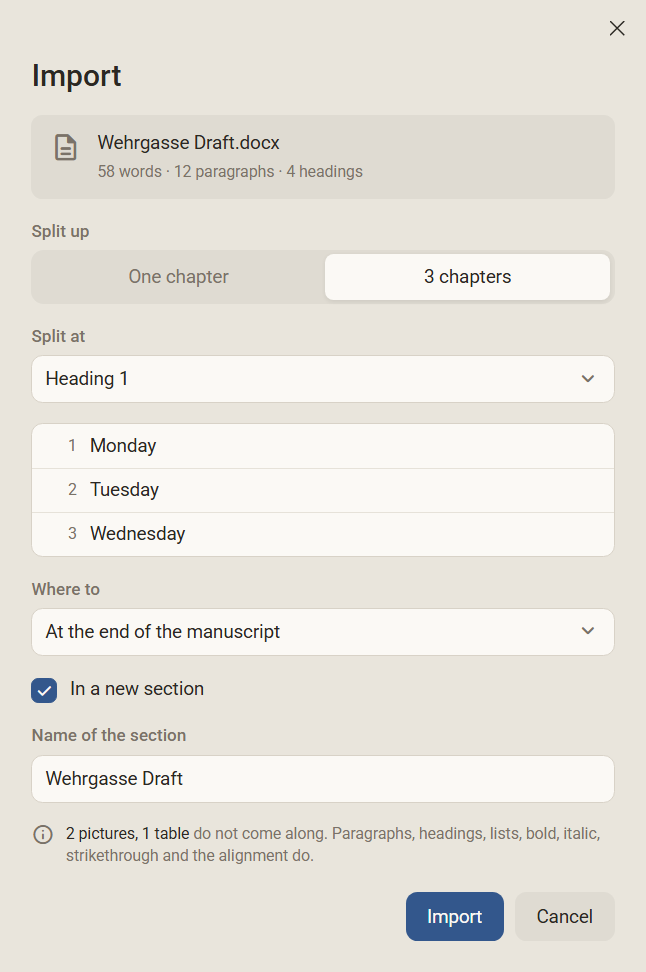
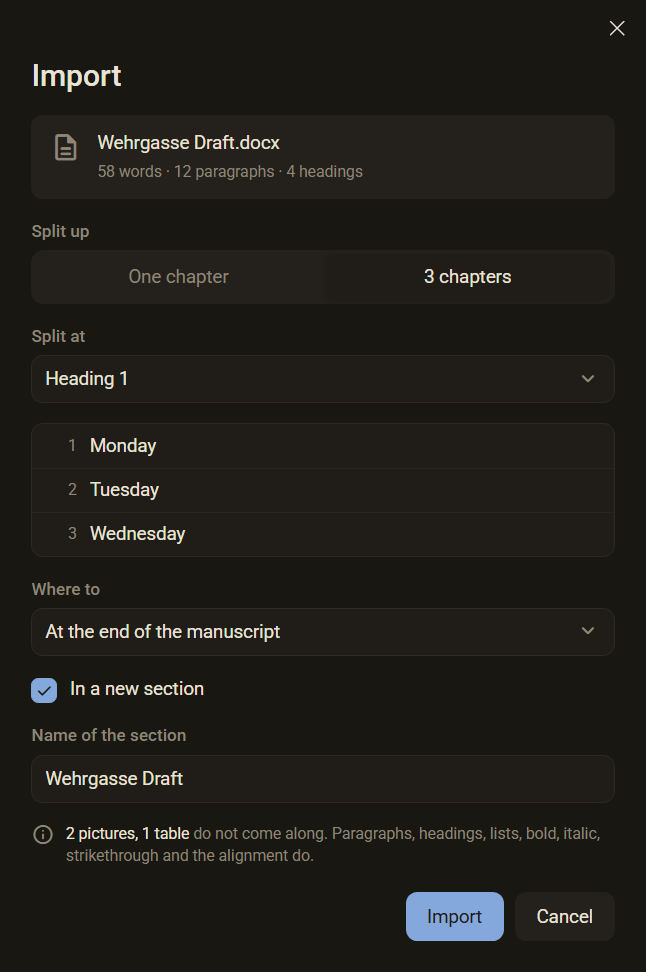
- Choose the file or drag it into the window. Several files work at once.
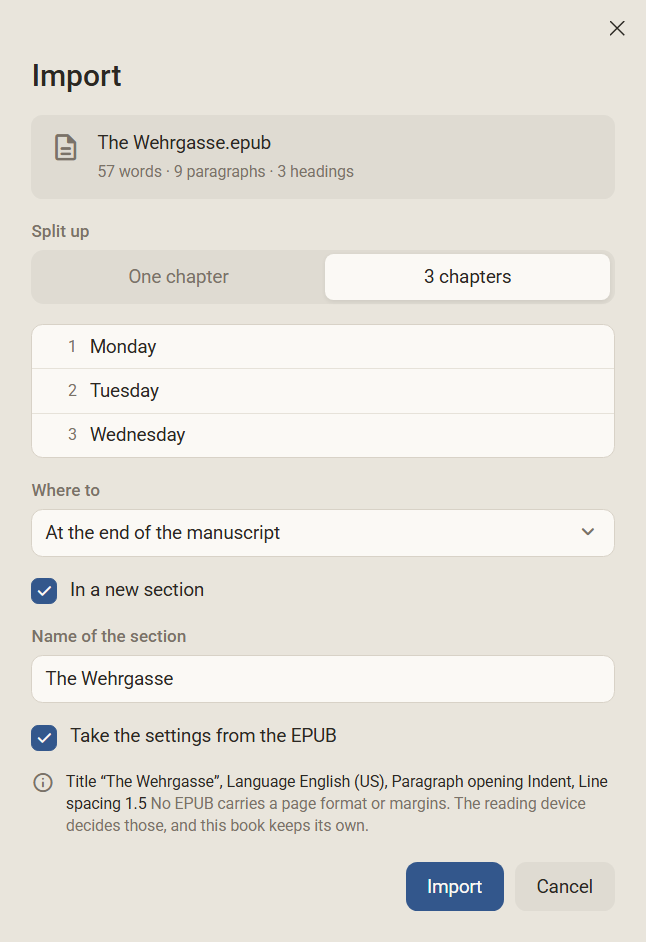
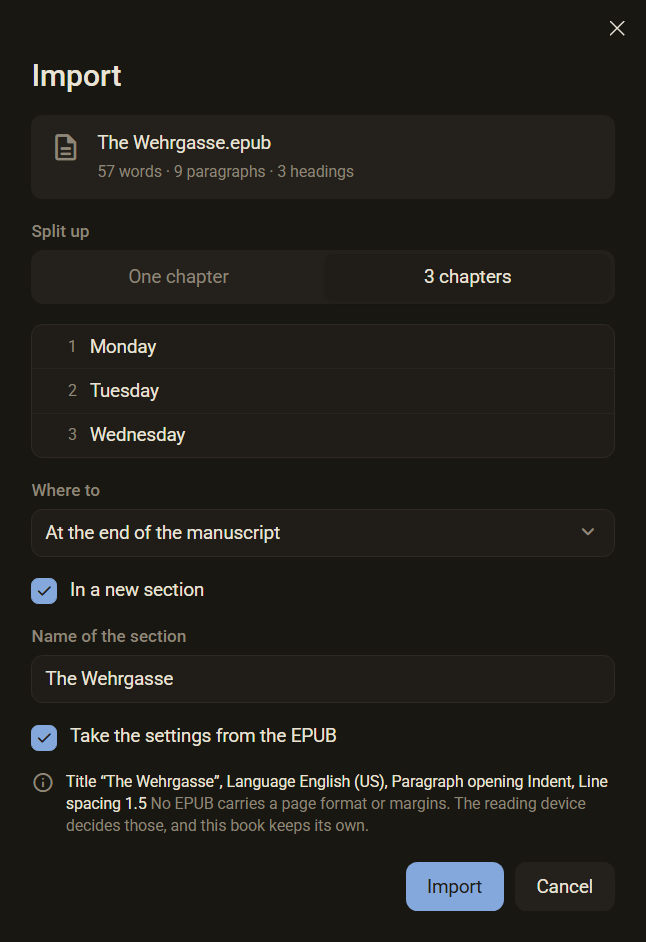
- The dialog states the words, paragraphs and headings of the file.
- Under Split up it says whether the file stays one chapter (One chapter) or is split at its headings (for example 3 chapters). If there are several heading levels, you choose the level under Split at. Below it is the list of chapters that will be created.
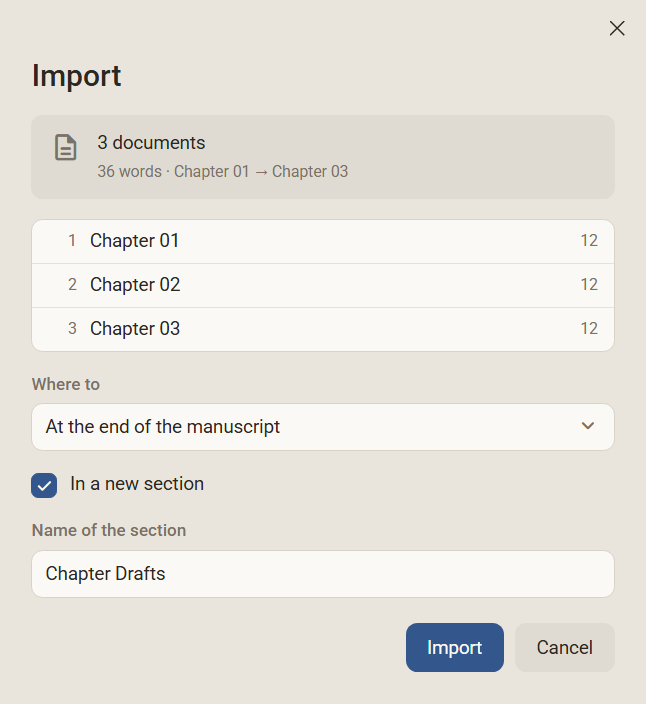
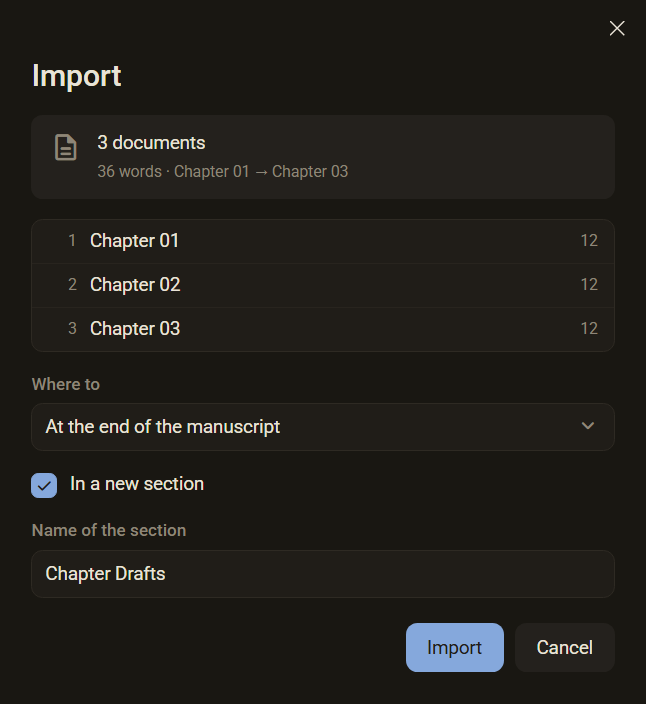
- Under Where to it says where the chapters are inserted: At the end of the manuscript, Into section with a section name or Behind a chapter. The last entry is only there if exactly one chapter is selected in the chapter tree. With In a new section the chapters go into a new section whose name you type in.
- Import creates the chapters. The chapter tree jumps to the first new chapter and opens it. The strip at the bottom says, for example, 3 chapters imported.
Good to know
- If the file has no heading, the dialog does not ask about splitting. The file becomes one chapter, and you only enter its title.
- When splitting, In a new section is ticked so that the chapters stay together in the tree.
- Several files become several chapters, one per file, with the file name as the title. The section is named after the folder of the files. An EPUB splits into its own chapters even then.
- A heading at which the file is split becomes the title of the chapter and does not appear in the text a second time. Text before the first heading becomes a chapter of its own, named after the file.
- If the file is not split, the heading stays in the text. With Word it becomes a bold paragraph, with Markdown and Rich Text it stays a heading.
- Ctrl + Z takes back the whole import.
- The file is read and then let go. There is no connection to it and no reloading. If you import the same file again, the program creates everything again.
- What does not come along, the dialog names beforehand, for example 2 pictures, 1 table do not come along. Afterwards it cannot be brought back.
- If the content of a file is broken or does not match its extension, the program does not open the file and creates nothing. The same applies to a file with a password and to an old .doc. The message names the file.
- The import does not take a file over 256 MB at once. The message advises splitting the file up.
- The program reads text files as UTF-8 or as Windows-1252, German umlauts and quotation marks are kept.
- By default the command has no shortcut. Under Settings → Shortcuts you give Import one, in the group Chapter.
As a new book or a new binder
In the library a file becomes a book or a binder of its own. The book is only created when you click Import in the dialog. With Cancel no empty book is left behind.
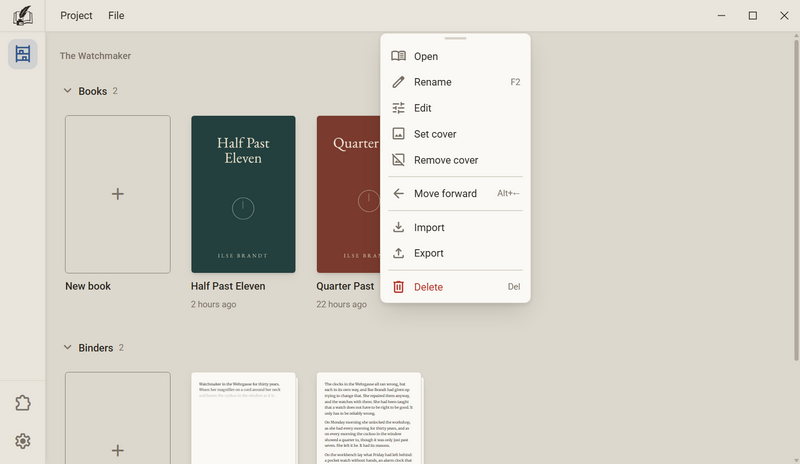
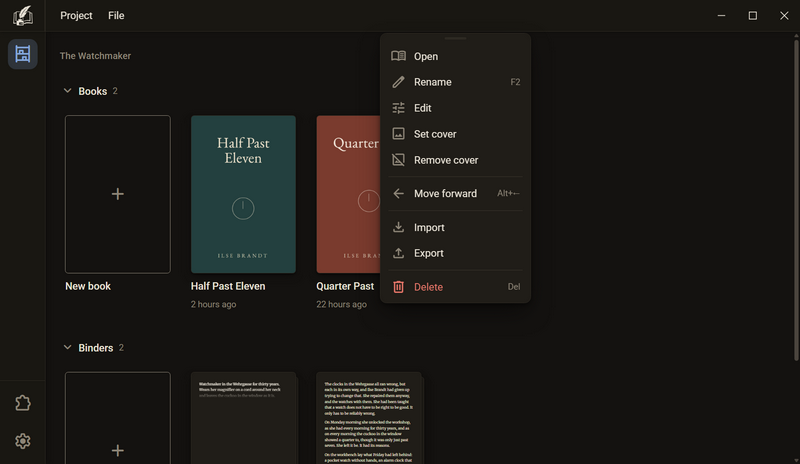
- For a binder you choose Import as a new binder. When dragging, a tile shows As a new book or As a new binder, depending on which area the file hovers over.
- If the file is dragged onto a book tile, the tile says Import, and the chapters go into this book.
- When dragging into the manuscript, the work area made up of the chapter tree and the desk applies. The title bar and the rail on the left stay as they are.
- If you drag something other than the five formats, the program says: What comes in is only .docx, .epub, .txt, .md and .rtf, that is Word, EPUB, text, Markdown and Rich Text.
What comes along with an import
What comes in is what the program knows itself. The typeface and type size of a file do not come along in any format. Otherwise every passage of the book would carry a fixed value, and a later change to the typeface or type size of the book would not reach those passages.
| Format | With and without |
|---|---|
| Word .docx | With: paragraphs, headings, bold, italic, strikethrough, line breaks, footnotes and endnotes (endnotes become footnotes), block quotations in the paragraph style Quote. The alignment only comes along where it is set on the paragraph itself, not as a default of Word. Without: typeface, type size, colours, line spacing, indents, pictures, comments, headers and footers. Tables become paragraphs, the borders are missing. |
| EPUB .epub | With: the chapters as the table of contents of the EPUB names them, plus headings, paragraphs, lists, task lists, scene rules, bold, italic, underline, strikethrough, text colour, highlighter, the language of a passage and the alignment. Footnotes come along if their text is in the same file of the EPUB as the passage. Without: pictures, tables, typeface, type size and the page format, which is in no EPUB. |
| Markdown .md | With: paragraphs, headings with #, bold, italic, strikethrough, lists with their levels, task lists and scene rules made of three hyphens. Without: pictures, tables and footnote marks. The extension .markdown works too. |
| Rich Text .rtf | With: paragraphs, headings, bold, italic, strikethrough, underline, text colour, highlighter and the alignment where it is set. Without: pictures, tables, footnotes, comments, typeface and type size. |
| Text .txt | With: paragraphs and line breaks. Three hyphens alone on a line become a scene rule. |
Settings from the EPUB
Besides the chapters, an EPUB gives four details about the book: title, language, paragraph opening and line spacing. The tick Take the settings from the EPUB is ticked by default. Below it says what it would change, for example Title “The Wehrgasse”, Language English, Paragraph opening Indent, Line spacing 1.5.
- The title from the EPUB replaces the title of the book you are importing into. Untick it if the book is to keep its title.
- The language becomes German or English. The program does not take over any other language, because it has only these two dictionaries.
- The author is not taken over. It belongs to the project, and all books in it share it.
- Page format and margins are in no EPUB, the reading device decides them. The book keeps its own.
- If several EPUBs come in at once, the first file that has something to say applies.
Exporting
The export outputs a book or a binder as a file, in one of seven formats: PDF, Word, Rich Text, EPUB, Markdown, HTML and Text. It creates a new file and changes nothing in the manuscript.
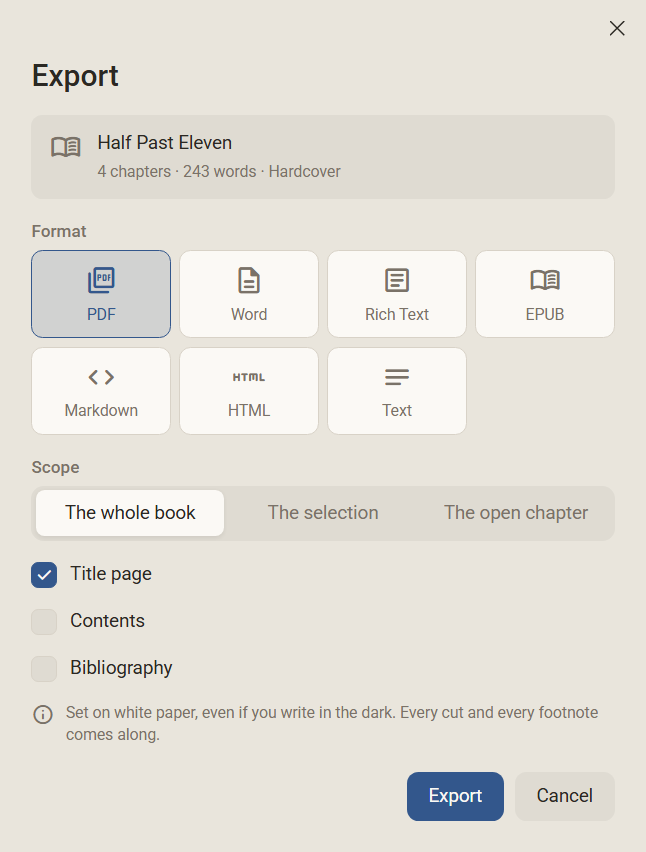
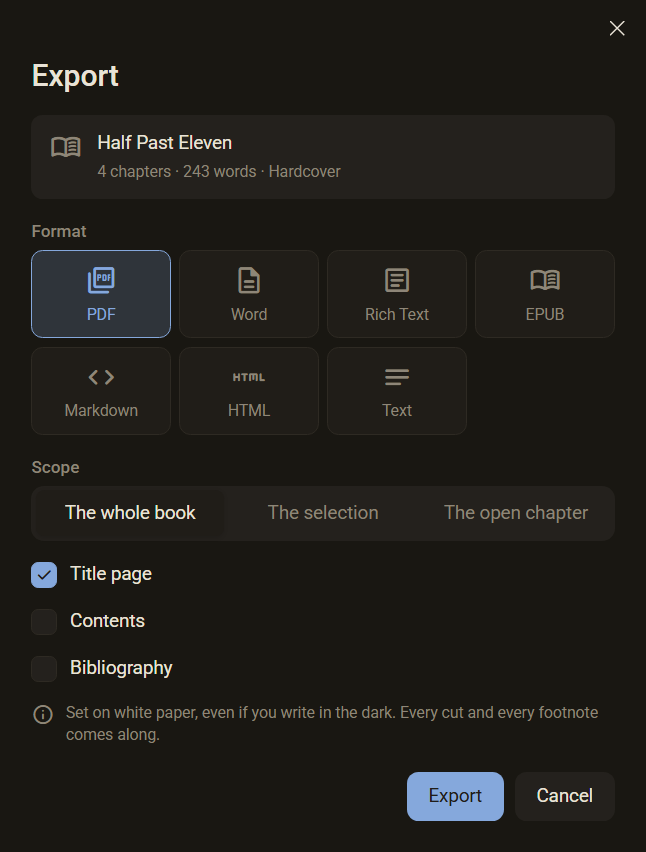
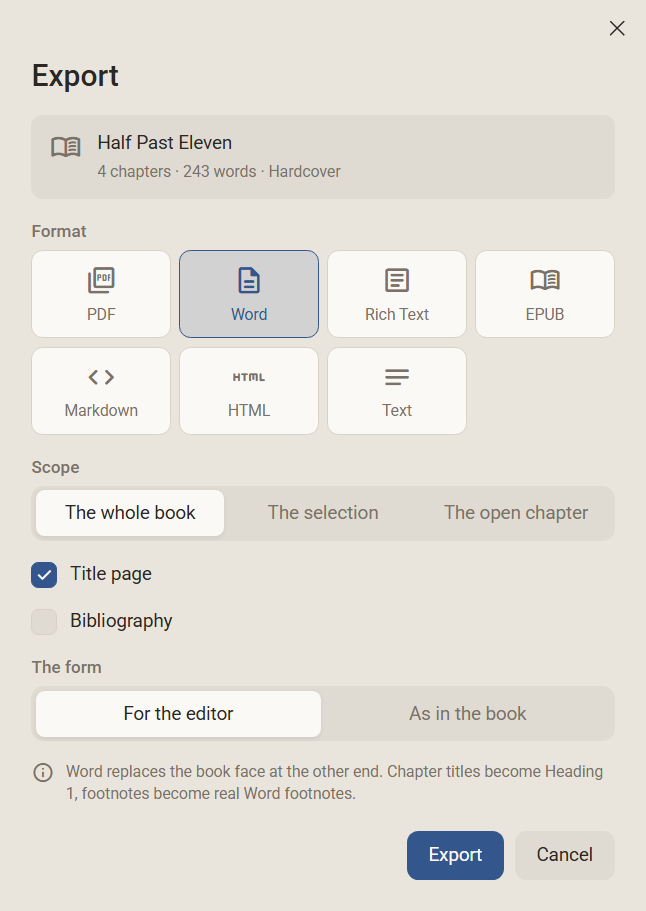
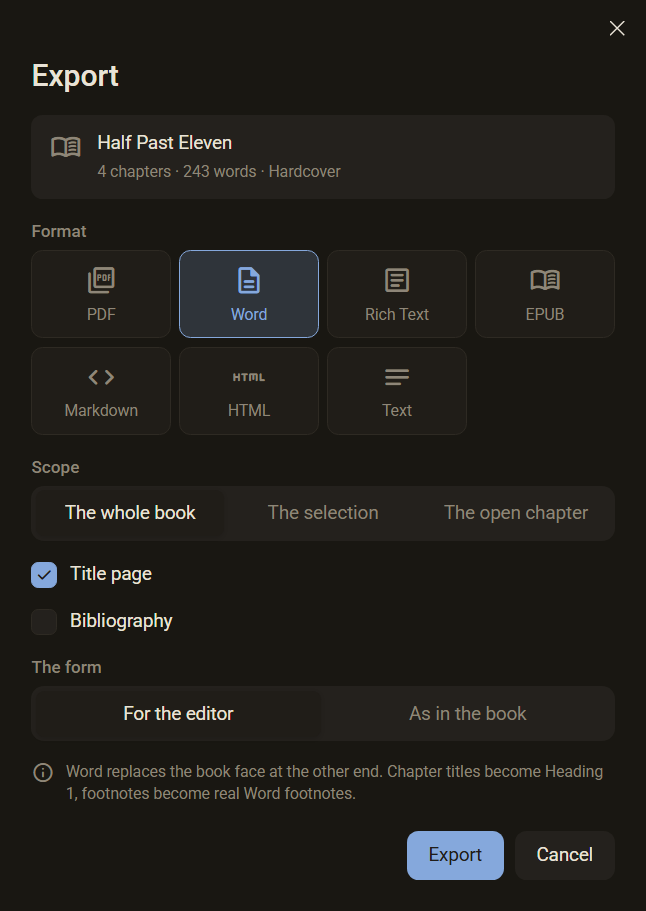
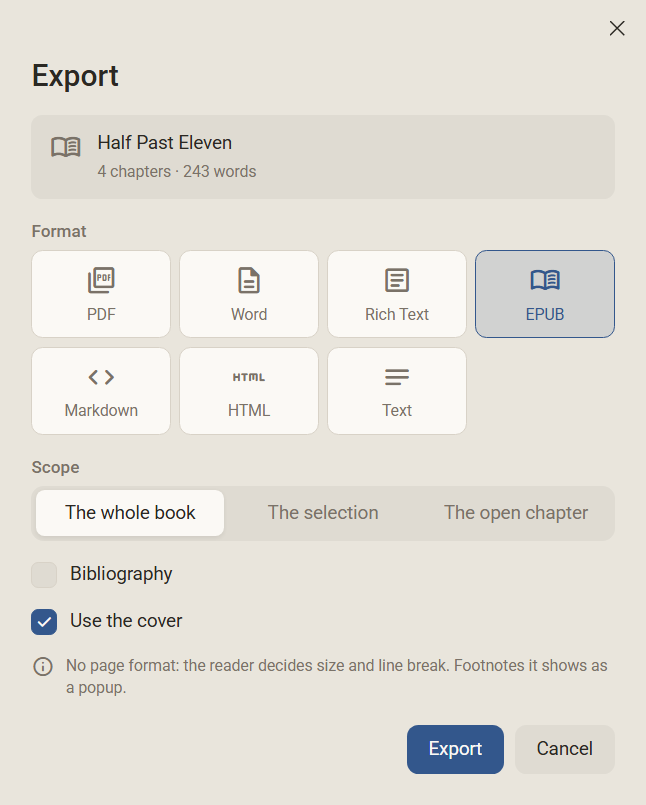
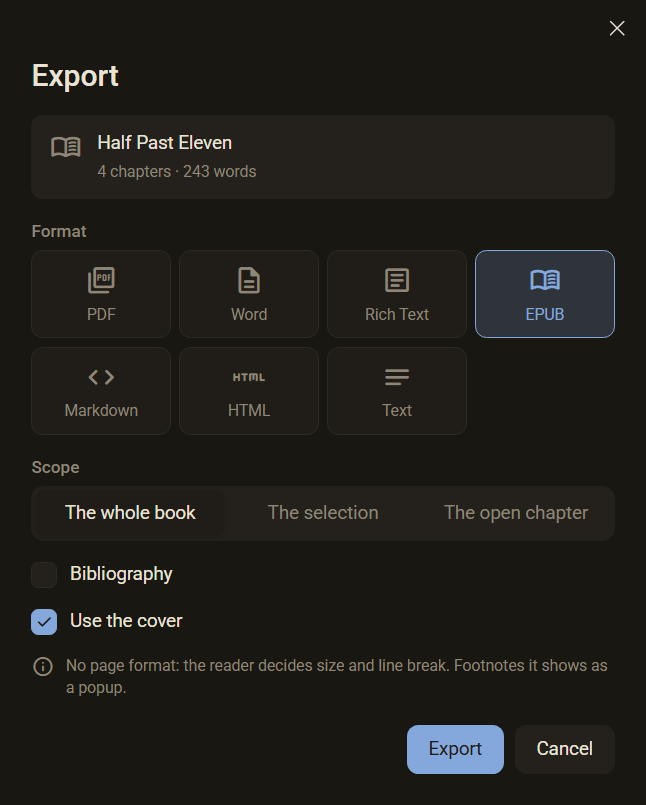
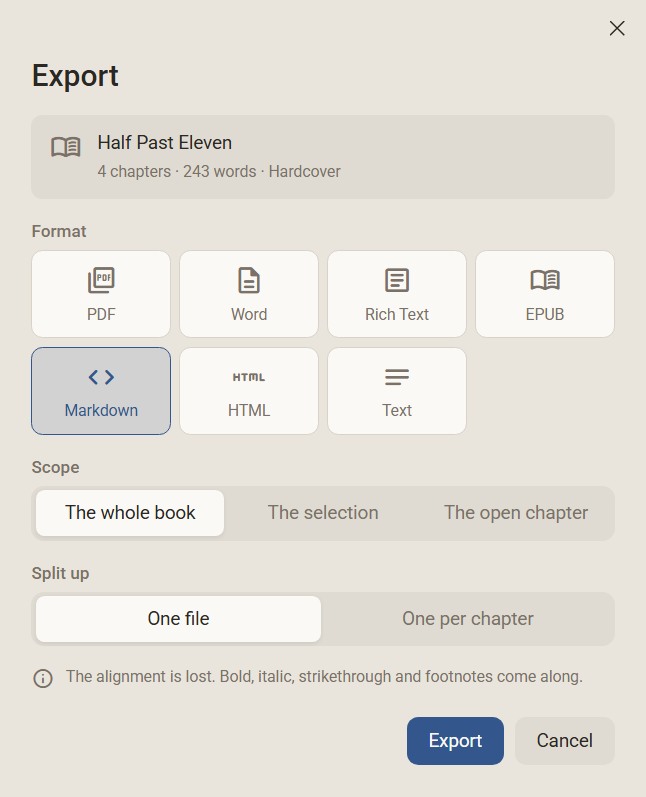
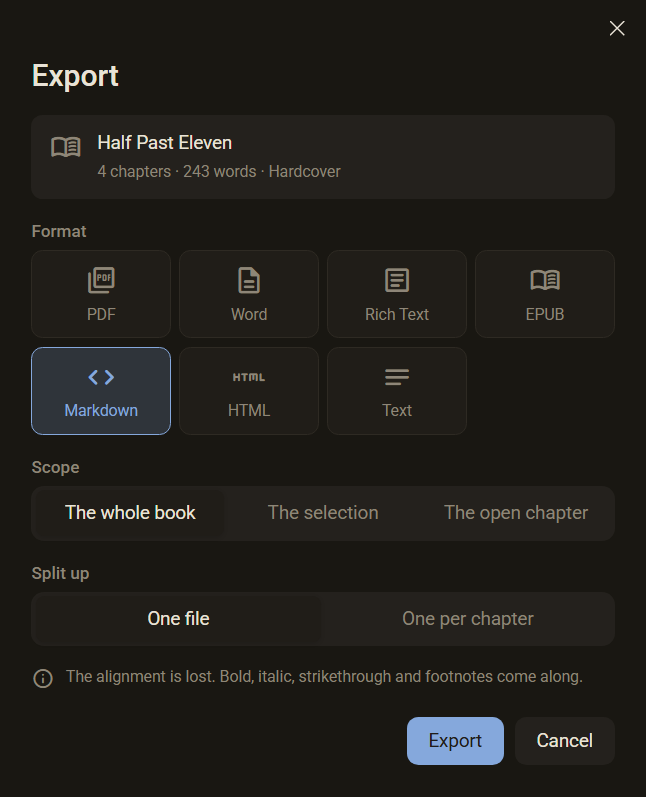
- Choose a Format. At the bottom of the dialog a sentence says what the format can do and what it loses.
- Choose the Scope: The whole book, The selection (the chapters marked in the chapter tree) or The open chapter. In the library there is only the whole book.
- Answer what the format asks. Which format asks what is in the table below.
- Export. The system asks for the location, with the title of the book as the name. With PDF the strip at the bottom shows the progress, for example Page 12 of 312.
- When the file is ready, the strip shows its name with the page count and next to it Show in folder.
| Field | When it is there |
|---|---|
| Title page | With PDF, Word and Rich Text, not with a binder. It shows title, subtitle and author, without a cover. It is ticked when the whole book goes out, not for a selection or a single chapter. |
| Contents | Only with PDF. The chapters are in it with their page numbers. |
| List of figures List of tables | Only with PDF and only if the book numbers its figures and tables. |
| Bibliography | With every format except Markdown and Text. It only appears where something is cited in the text. |
| The form | With Word and Rich Text. For the editor sets Times New Roman in 12 pt, with one and a half line spacing, left-aligned. As in the book sets Merriweather in 11 pt, justified. |
| Use the cover | Only with EPUB and only if the book has a cover. |
| Split up | With Markdown and Text: One file or One per chapter. With the second the system asks for a folder, and the files are then named 01 Title.md, 02 Title.md and so on, with the title of the chapter. |
Good to know
- If the book has no chapter, the strip says: This book has no chapter that could go out. With a binder it says document there.
- A binder has no EPUB and no title page. The dialog then shows one tile fewer and the fields that fit.
- Sections never go out. They arrange the chapter tree and are not part of the book.
- The title of a chapter is not in its text but in the chapter tree. The export puts it in front of the text.
- The export changes nothing in the manuscript. That is why there is no undo and no confirmation prompt. The system itself asks whether an existing file should be replaced, with One per chapter the program asks.
- If the file cannot be written, a window Nothing written opens. The manuscript is untouched.
- If a chapter cannot be read, the program stops the export and names the chapter. Nothing is to go out with a part missing.
- Word, Rich Text and EPUB take the pictures into the file. HTML and Markdown refer to the picture files in the folder of the book. Text leaves pictures out. If a picture could not be read, an empty paragraph stands in its place, and a window gives the number.
- There is no shortcut for the export.
Which chapters
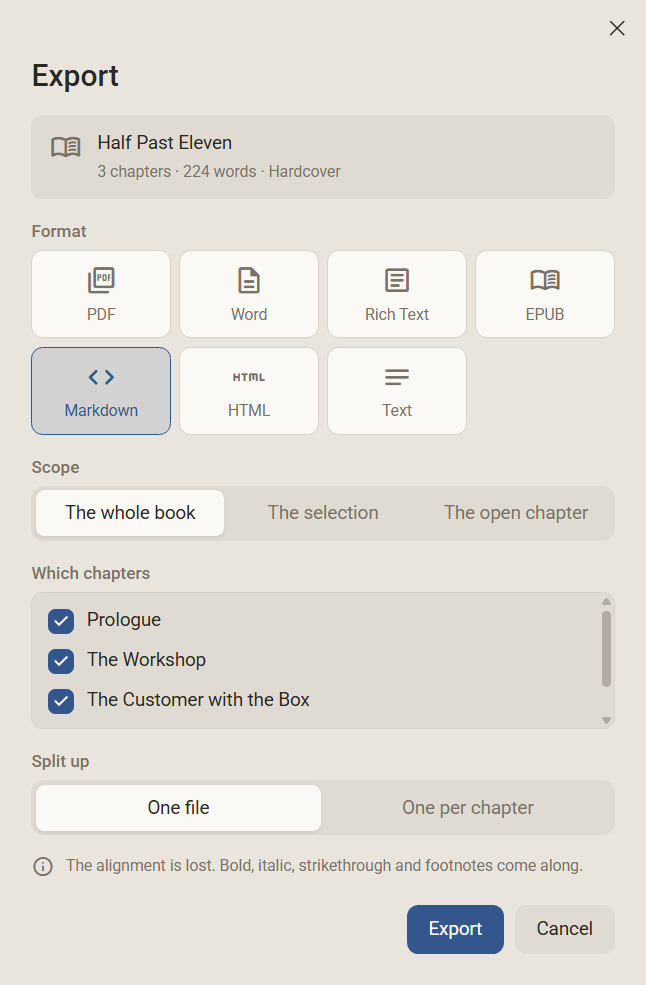
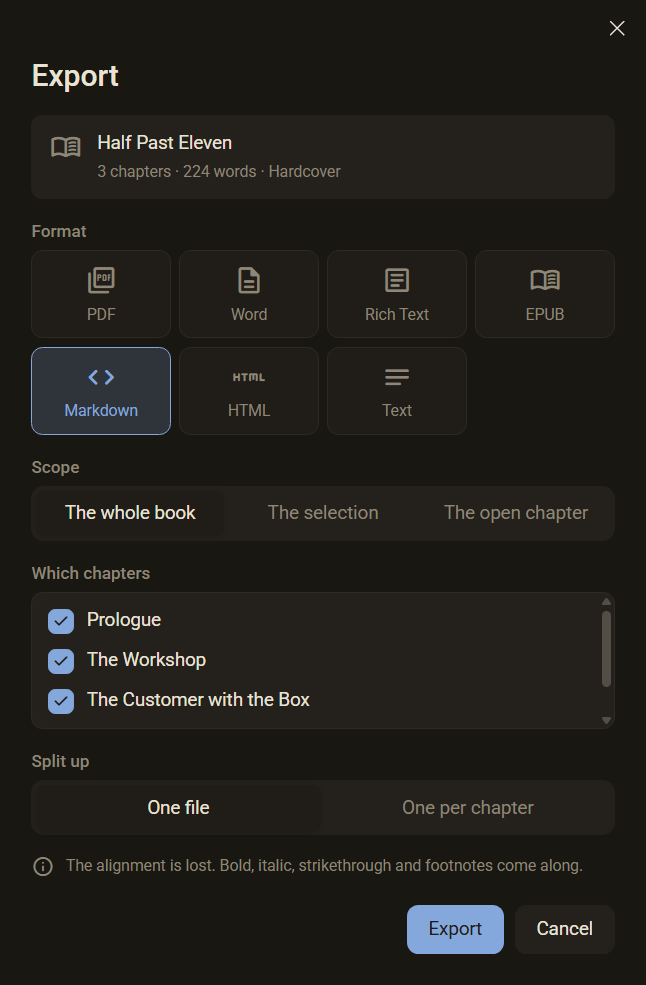
If a chapter in the chapter tree is set to Do not print this one (right-click the chapter), the dialog additionally shows a list Which chapters for The whole book. Every chapter has a tick. The chapter that is not printed is not ticked and carries a symbol. If you tick it, it goes out anyway. The card above counts what goes out.
What the formats contain
Every format has its limit. At the bottom of the dialog there is a sentence for each, here there is more on it.
| Format | What it can do and what it cannot |
|---|---|
| Exactly the line and page breaks of the sheet, page by page. All cuts of the typeface are embedded, footnotes come along. It is set on white paper, even if you write in dark mode. Every chapter is in the bookmarks bar of the PDF viewer, and the contents can be clicked. | |
| Word | Chapter titles become Heading 1, subheadings Heading 2 to 4, so that Word builds its contents and its navigation pane from them. Lists are real Word lists, footnotes real Word footnotes. Pictures, tables, colour, highlighter and the language come along. Word replaces the typeface of the book at the recipient's end, because it is not in the file. |
| Rich Text | Opens in every writing program. Asks the same question about the form as Word. Colour, highlighter, underline, footnotes, pictures and tables come along. |
| EPUB | An e-book without a paper format. The reading device decides type size and line breaks. The contents are built from the chapters, and the reading device shows footnotes as a popup. The formatting and the language come along. Regletto Writing reads its own EPUB back in without any formatting being lost. |
| HTML | A page for the internet, with no paper format. Colour, highlighter, alignment, footnotes and real lists come along. |
| Markdown | Bold, italic, strikethrough, headings, lists, task lists and footnotes. The alignment is lost. |
| Text | Only the paragraphs. Bold, italic, strikethrough, the alignment and the footnotes are lost. |
The book layout with paper format, opening letter and page header is only in the PDF. The other formats have no sheet.
Your own fonts
Nine fonts come with the program. Fonts of your own in the formats .ttf and .otf you bring yourself. They then belong to the program and not to a book: every book can choose them, and they are in the font list of the toolbar next to the others.
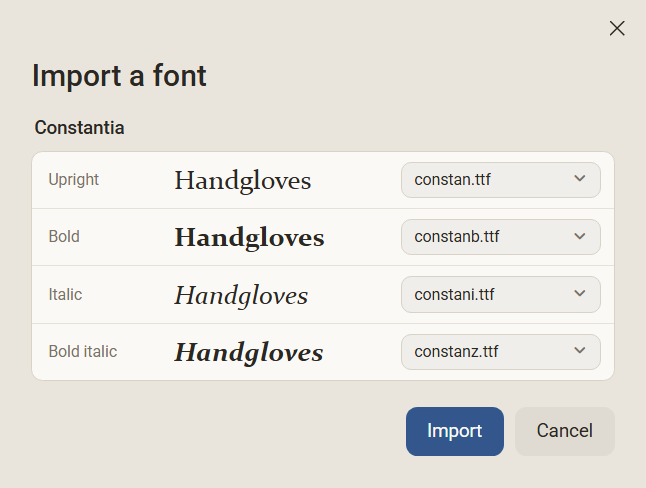
- Choose one or more files or drag them into the window. The four cuts of a family are usually in four files, so choose them together.
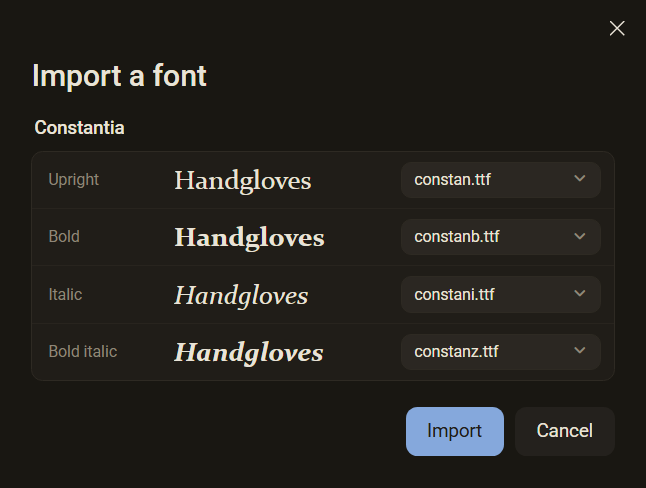
- For each family the dialog shows four places: Upright, Bold, Italic and Bold italic. Each file goes on the place it names itself, not by its file name. Next to the place is a sample set in this file.
- If a place does not fit, choose another file at the button of the place, or No place. A file is only ever on one place.
- Import creates the font. The strip at the bottom says, for example, Constantia is in the font list. Cancel leaves nothing behind.
Good to know
- It does not work without an upright cut. The dialog then says Without an upright cut this family cannot come in., and Import is greyed out. Put a file on the first place.
- A place without a file shows missing. If a cut is missing, the program says later, when you click the button, for example This font has no italic. and does not make one up.
- If the font lacks characters that a German text needs (umlauts, ß, quotation marks, dashes, ellipses), the dialog names them in a warning. The program draws another font in their place, and you hardly see it.
- A variable font carries the label Variable. With it the bold button stays on.
- Not accepted are .woff2 (what a compressed file is cannot be read from it) and collections with several fonts in one file. One font per file comes in. The dialog names every rejected file with the reason.
- If the family already exists, the dialog warns: This family is already here. The files it has go to the recycle bin.
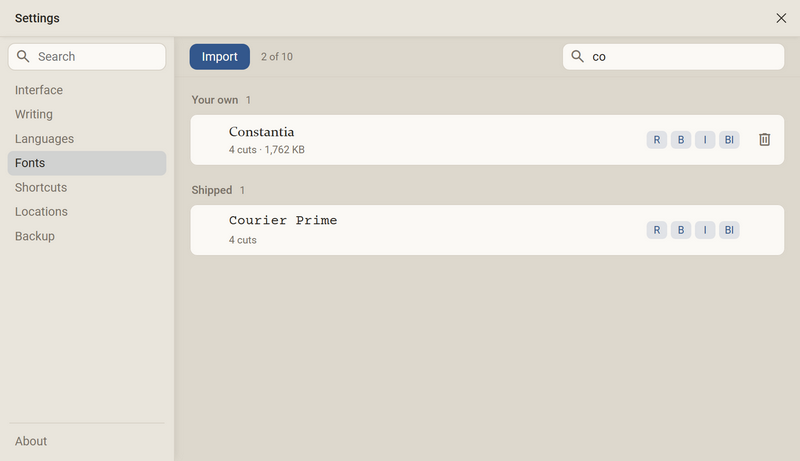
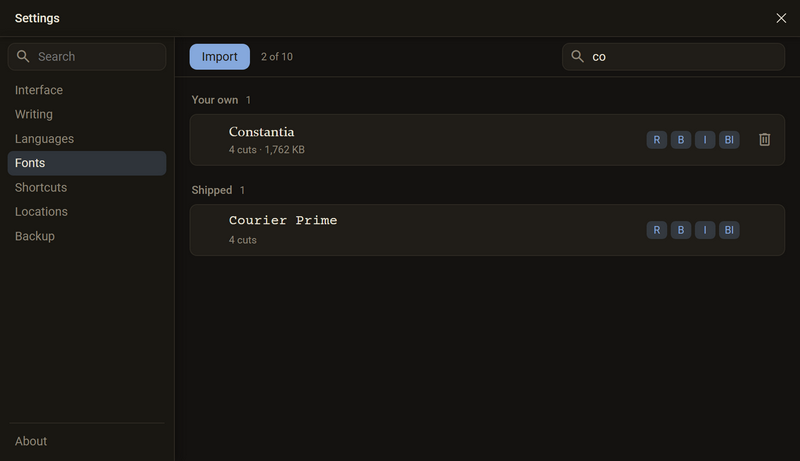
- In the settings the fonts are in two groups, Your own and Shipped. Every row shows the number of cuts, the size of the files and which German characters the font lacks. The marks R, B, I and BI stand for Upright, Bold, Italic and Bold italic, a missing cut is pale. A click on the name makes the font the base face.
- The recycle bin symbol is only on fonts of your own. The files go to the recycle bin of your system. If the font is currently the base face, the program asks first, and the manuscript is then set in Merriweather.
- Fonts of your own are in the data folder of the program and not in the project. If you take a project to another computer, you import the font there again.
- In the PDF the font is embedded, in a .docx it is not. Word replaces it at the recipient's end.
- The licences of the shipped fonts are under Settings → About.
Ask in the help channel on our Discord server (the server is German-speaking).