The toolbar
The toolbar sits above the sheet. You decide which tools it holds. By default it holds: Undo, Redo, Typeface, Type size, Text colour, Highlighter, Bold, Italic, Underlined, Struck through, the four alignments and Notes.
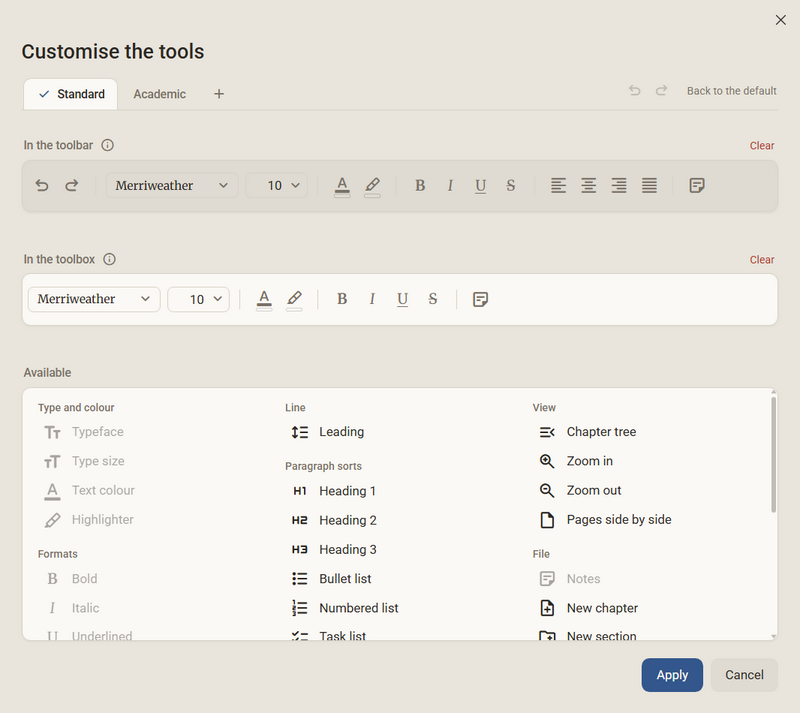
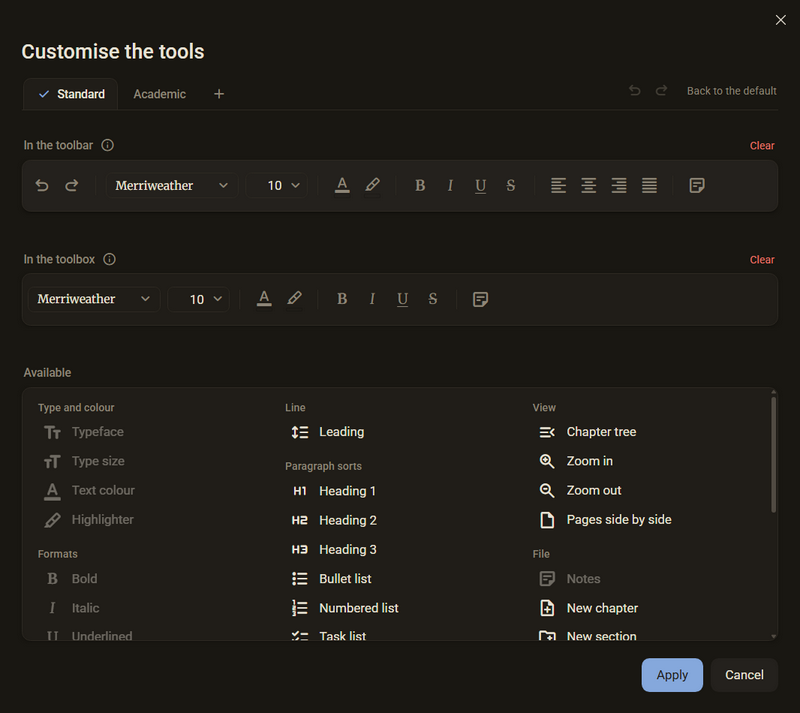
- Right-click the toolbar, then Customise the tools.
- Drag a tool from Available into the toolbar. That list holds all the tools, sorted into groups: Type and colour, Formats, Alignment, Line, Paragraph sorts, View, File, Undo and Order.
- To take a tool out, drag it out of the toolbar. Clear empties a whole row.
- Apply saves. Cancel saves nothing.
Good to know
- F8 folds the toolbar away and back. The tab under the middle of the toolbar does the same.
- If not everything fits, roll the toolbar left and right with the mouse wheel.
- The Separator is a tool like the others. It is the only one you can take more than once.
- A button is lit up while its state applies at the writing position. A second click removes the state again. If the selection is mixed, nothing lights up, and the first click sets the state.
- Hover the mouse pointer over a tool to see its name.
- Back to the default restores the set as the program ships it.
- Not in the toolbar by default: Leading, the paragraph sorts, Chapter tree, Zoom in, Zoom out, Pages side by side, New chapter, New section, Import and Export. They are in the list of available tools.
- Footnote and Source work only on marked text. Without a marking the program says: Select some text first, then set it.
Sets
The tools live in sets. There are two by default: Standard and Academic. The second additionally has Footnote, Block quotation and Source. Every book and every binder uses exactly one set. Two books side by side may use different ones.
- A click on the name of a set in the menu switches the set for the open book or binder.
- In the Customise the tools dialog there is a row of tabs at the top, one tab per set. The plus at the end creates a new set.
- You rename your own set with F2 and delete it with Del, each on its tab. A book that used a deleted set takes Standard again afterwards.
- The sets apply to all projects on this computer. Which set a book uses is stored with the book and goes with its folder to another computer.
The toolbox
If you mark text, a second band of tools appears above the spot, the toolbox. It holds the same kind of tools as the toolbar, so that you do not have to reach for the top edge for a selection.
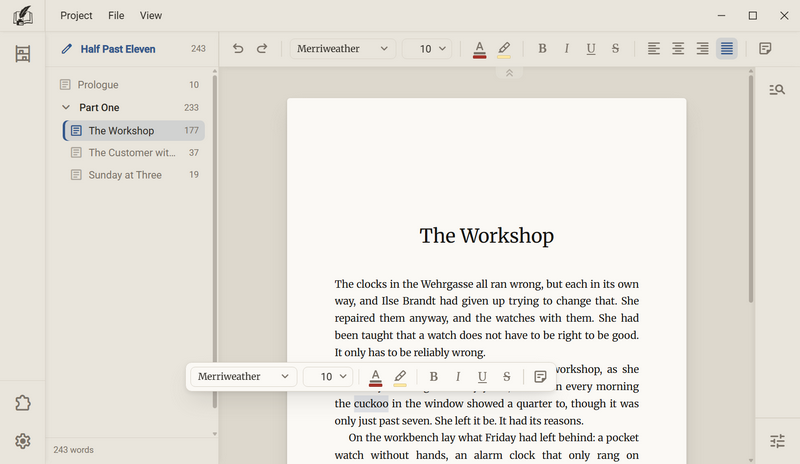
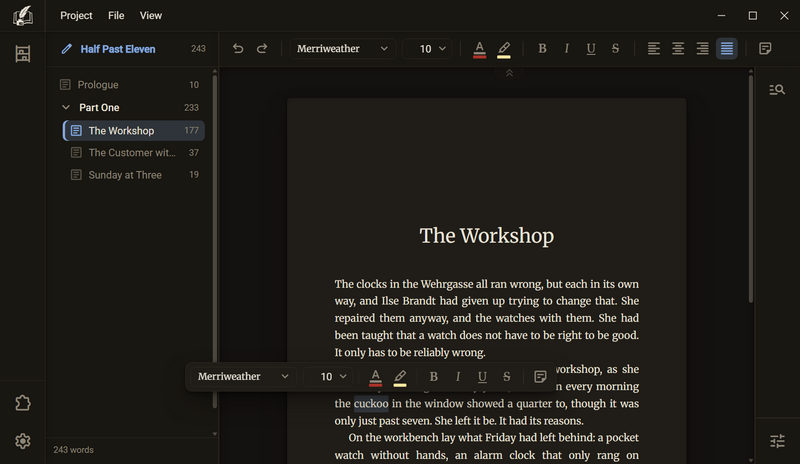
- By default the toolbox holds: Typeface, Type size, Text colour, Highlighter, Bold, Italic, Underlined, Struck through and Notes.
- It is filled in the same dialog as the toolbar. There it is the second card, In the toolbox. A set holds both rows.
- The toolbox has no arrows for rolling. If not everything fits in one row, it wraps into a second.
Paragraph sorts
A paragraph has a sort: running text, heading, bullet list and so on. You set the sort with the slash. It opens a list at the spot where you write.
- Type /. The list opens.
- Typing on narrows it down. Every sort answers to several names. For example /todo and /checklist find the task list, /quote the block quotation and /hr the scene rule.
- ↑ and ↓ choose. Enter or Tab sets the sort. Esc closes the list and leaves the slash standing.
| Entry | What it does |
|---|---|
| Heading 1 Heading 2 Heading 3 | The paragraph becomes a heading of that level. |
| Bullet list Numbered list Task list | The paragraph becomes a list item. |
| Table Scene rule Picture | Inserts the element. |
| Block quotation | The paragraph becomes an indented block quotation. |
| Chapter link Footnote Source | Inserts a jump to another chapter, a footnote or a reference. |
| Running text | Removes the sort. The paragraph is normal text again. |
Good to know
- The slash must be at the start of a word. In and/or or in a web address no list opens.
- If the input finds no entry, the list closes and the slash stays.
- In a list the slash does not open a list. Tab moves an item one level deeper there, Shift + Tab back out. In a table the list does open.
- Numbers are calculated, not typed. A paragraph of another sort interrupts the count, a page break does not.
- A ticked task slips behind the open tasks of the same level and stands struck through and faint.
- A heading in the text is not a chapter. It does not appear in the chapter tree. How it is set, you adjust in the book dialog.
- Every sort also exists as a button for the toolbar. The buttons are in the list of available tools in the group Paragraph sorts.
Typeface and type size
A single spot may have another typeface and another size than the book. There are two fields in the toolbar for that. What you do not change follows the book.
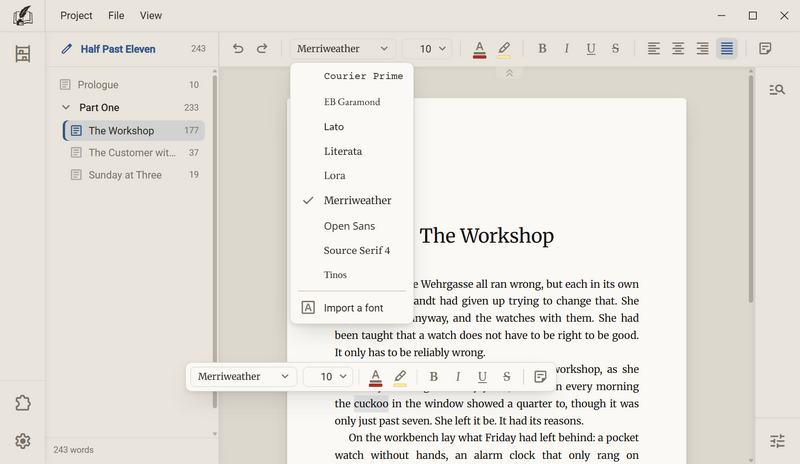
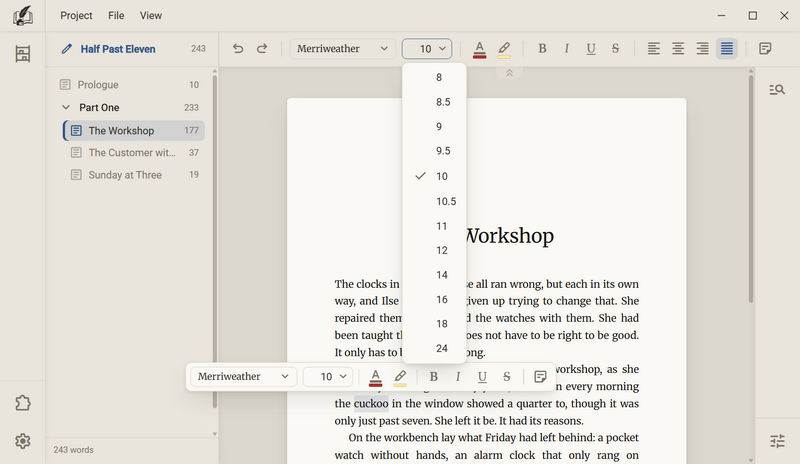
- Mark text. Without a selection the choice applies from the next character.
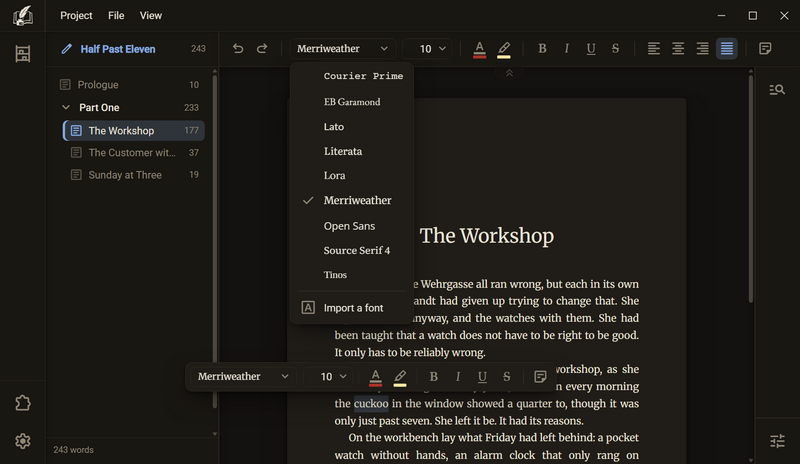
- Choose a typeface in the typeface field.
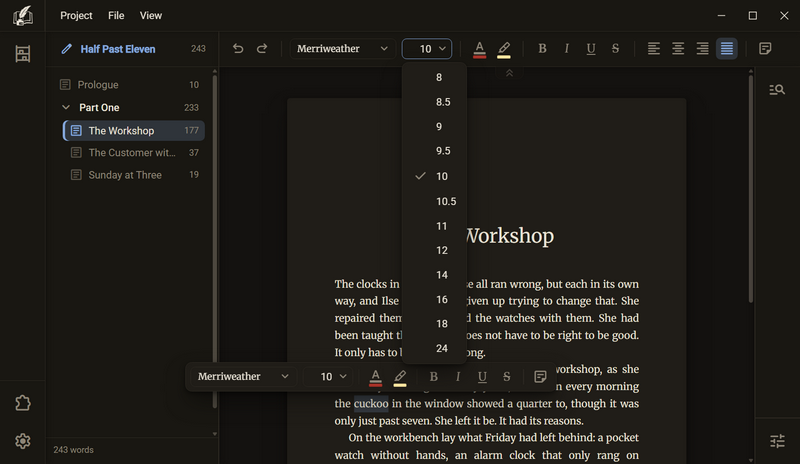
- In the size field choose a size from the list or type a number.
- Back to the default: choose the book's typeface or size.
Good to know
- The list holds nine typefaces of the program and below them the entry Import a font. Your own typefaces stand in the same list after the import.
- The sizes in the list are 8, 8.5, 9, 9.5, 10, 10.5, 11, 12, 14, 16, 18 and 24 points.
- You can type a number from 5 to 72, with a comma or a period and at most one decimal place. Anything else changes nothing, and the field shows the old value again.
- The size is in points and is the same in every print format.
- If you choose the book's typeface or size, the program removes the deviation. If the typeface in the book dialog changes later, the spot follows.
- The choice applies only to the selection. Nothing outside it changes.
- If the selection is mixed, the size field stays empty and the typeface field shows no name. A click then sets everything to the same value.
- If a typeface has no bold or italic cut, the program says so, for example This font has no italic., and does not invent one.
- You set the typeface of the whole book in the book dialog. You manage the program's typefaces under Settings → Fonts.
Formats and alignment
Bold, Italic, Underlined and Struck through emphasise single words. Alignment belongs to the whole paragraph. Both are in the toolbar and on keys.
| What | Key |
|---|---|
| Bold | Ctrl + B |
| Italic | Ctrl + I |
| Underlined | Ctrl + U |
| Struck through | Ctrl + Shift + D |
| Left aligned Centred | Ctrl + L Ctrl + E |
| Right aligned Justified | Ctrl + R Ctrl + J |
| Line break without a new paragraph | Shift + Enter |
Good to know
- With a selection the format applies to the marked text, a second press takes it back. Without a selection it applies from the next character.
- If you keep writing in bold text, you keep writing in bold. At the right edge of a format, → ends it, and the cursor stays where it is. After that you write without the format.
- Alignment belongs to the paragraph, in a table to the cell.
- Justified does not work on a picture. The picture falls back to left aligned.
- The keys in the table cannot be remapped.
- Formats are kept when you replace. An italic name that Replace all renames stays italic.
- How the whole book is aligned, you set in the book dialog. Here you set the deviation of a single paragraph.
Text colour and highlighter
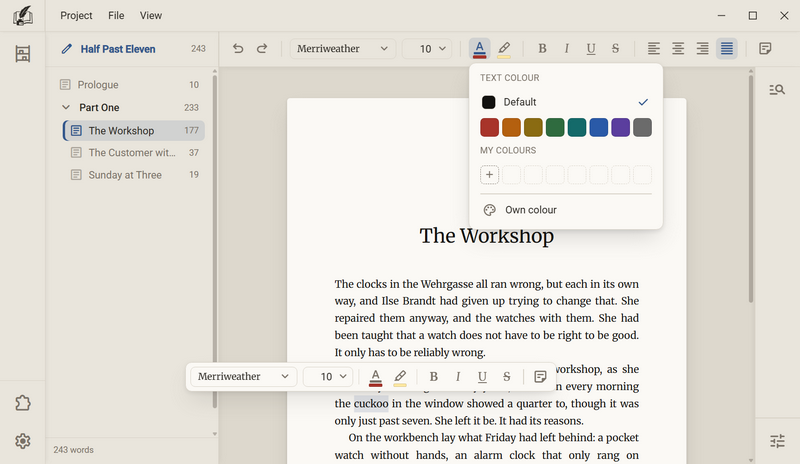
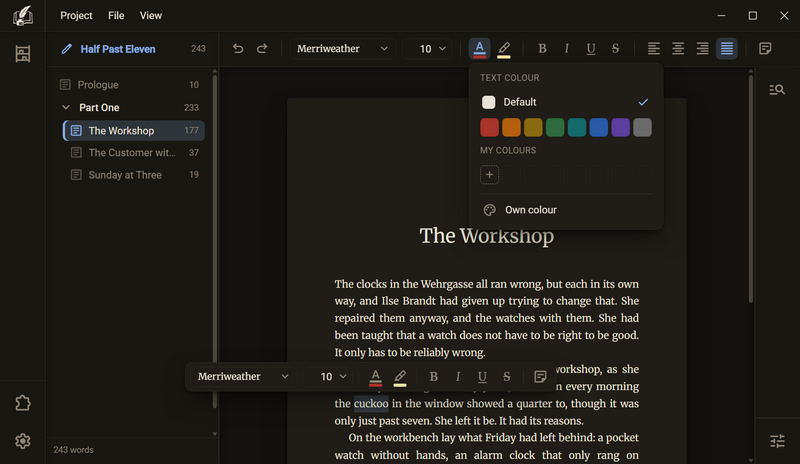
The text colour colours letters, the highlighter puts an area behind them. Both belong to the text and are printed with it. Both use the same colour picker.
- Mark text.
- Click Text colour or Highlighter. The picker opens under the button.
- Choose one of the eight fixed colours. Own colour opens a picker with hue, saturation and hex value. Take applies the mixed colour.
- To go back: for the text colour Default, for the highlighter No highlighter.
Good to know
- The picker shows how well the colour reads on the paper of your palette, for example 4.5 : 1 on this palette's paper. With a poor value it adds That is hard to read.
- Mixed colours land in the row My colours, up to seven. Through the menu of a colour you edit it or remove it.
- The stripe under the symbol in the button shows the colour you chose last.
- Text colour and highlighter each have their own fixed colours. The same picker is also on the note.
- In the dark colour scheme the chosen colour stays the chosen colour. It is printed as you chose it.
- The highlighter has nothing to do with the colour marking of a note. The marking of a note is never printed.
- PDF, Word, Rich Text, EPUB and HTML keep colour and highlighter. Markdown and plain text do not.
Leading
A single paragraph may be set tighter or wider than the book, for example a quotation or an address.
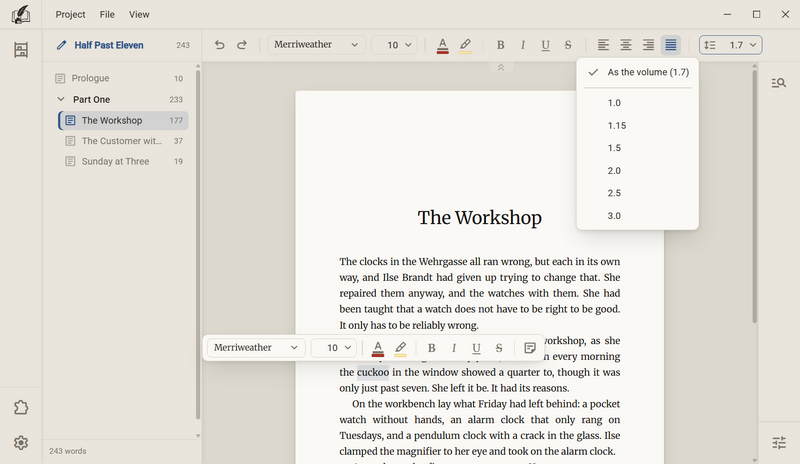
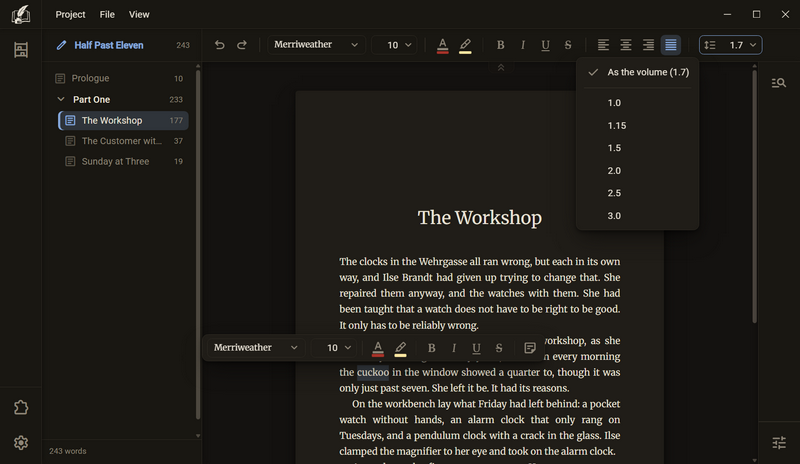
- Fetch the tool: right-click the toolbar → Customise the tools, then drag Leading from the group Line into the toolbar.
- Put the cursor in the paragraph or mark several paragraphs.
- Choose a value from the list or type a number from 1 to 3, with a comma or a period.
- To go back, choose As the volume.
Good to know
- The value is a factor, not a number of millimetres. It changes along with the type size.
- The list holds 1.0, 1.15, 1.5, 2.0, 2.5 and 3.0. The first row shows the book's value.
- If you type the book's value, the program removes the deviation.
- An input outside 1 to 3 and anything that is not a number changes nothing. The field shows the value that applies again.
- The leading applies to the whole paragraph, not to single characters. What should differ in the middle of a paragraph is a paragraph of its own.
- The space between paragraphs, above headings and between bullet items follows the book's leading, not the paragraph's.
- In a table the leading applies to the whole table, not to a single cell.
- The PDF keeps the leading. Word, Rich Text, HTML and EPUB do not.
- There is no shortcut for it.
Undo
Almost everything in Regletto Writing can be taken back, not only text: a moved chapter, a changed setting, a replaced word.
| What | Key |
|---|---|
| Undo | Ctrl + Z |
| Redo | Ctrl + Y Ctrl + Shift + Z |
After every step the strip at the bottom says what was taken back, for example Undone: moved.
Good to know
- The key applies where the cursor is. On the sheet it takes back text, in the chapter tree the order of the chapters, in the settings window the setting. The stacks do not mix.
- If there is nothing to take back in the chapter tree, the key passes on to the sheet. The other way round it does not.
- Every chapter has its own stack. It stays when you switch chapters and come back.
- The stacks apply for the session. After a restart they are empty. The text on the disk is not affected.
- Every stack reaches 200 steps.
- A step is a word. It ends at a space or punctuation mark, at a cursor movement and when you switch between typing and deleting. After a pause of one and a half seconds it also ends if you are at the end of a word.
- A held-down Backspace counts as one step.
- If another program changed a chapter's file while you were elsewhere, that chapter's stack starts over.
- Not undoable are a deleted book, which lies in your system's recycle bin, and Apply in the book dialog.
Ask in the help channel on our Discord server (the server is German-speaking).