Automatic saving
Regletto Writing has no Save button. The program writes the open chapter to the disk by itself. There is nothing to set, saving always runs.
| When | What happens |
|---|---|
| You pause while typing | Two seconds after the last keystroke, the chapter is written. |
| You keep typing without a pause | It is written at least every 30 seconds. |
| You switch chapters | The old chapter is written before the new one is loaded. |
| You switch the view or click into another program | It is written at once. |
| A backup is made or an update restarts the program | It is written first. |
| You close the window | The window closes only once everything is written. |
Good to know
- A power cut leaves no half-written chapter. The program never writes into the chapter's file directly. It puts the new version next to it and renames it only once it is complete on the disk. Afterwards either the old or the new version is there.
- A chapter you have not changed is not written. Reading alone changes neither the file nor its date, and the library does not re-sort itself.
- A backup does not replace saving. Saving protects against a crash or a power cut, not against a deleted file or a change you regret. That is what the backup is for.
When another program changes the file
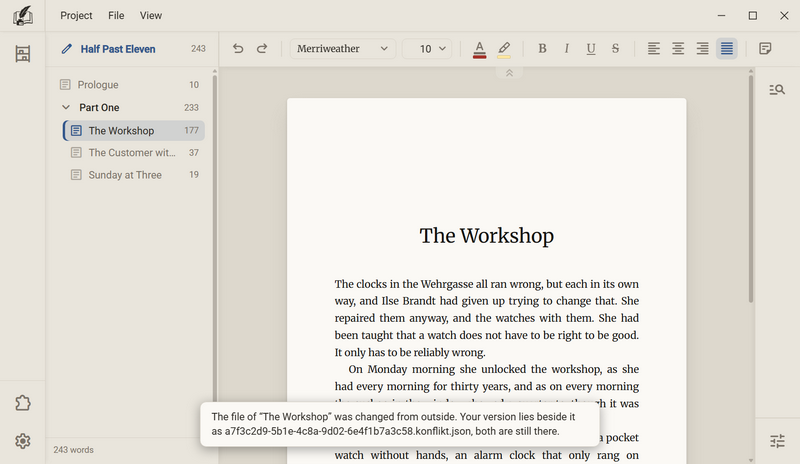
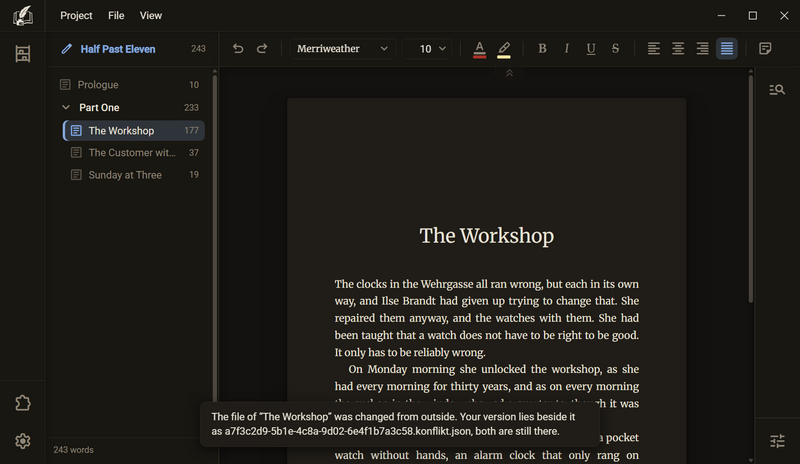
If another program has changed a chapter's file while it is open in Regletto Writing, the program does not overwrite it. Your version is saved next to it. Afterwards both versions are there.
- The strip at the bottom of the window gives the name of the second file, for example The file of “The Workshop” was changed from outside. Your version lies beside it as …. It says so once per chapter.
- The file name ends in
.konflikt.json. Before that comes the chapter's ID, not its title. The file is in the book'smanuscriptfolder, see Where the files are. - You can delete the file ending in
.konflikt.jsonas soon as you have looked inside.
When writing fails
If the project is in a folder that OneDrive, Dropbox or iCloud syncs, a write can fail because the service is holding the file at that moment.
- The program tries again after half a second. If that fails too, the bottom of the window says “The Workshop” could not be saved. with the chapter's title, and the program keeps trying as long as the chapter is open.
- When you close, the program asks if a chapter could not be written: Keep open or Close anyway. For an update it asks the same way, with Update anyway.
Backup
A backup is a complete copy of the open project in a folder you choose. Regletto Writing makes it at the interval you pick. Out of the box, backup is off, so that no folder appears without your wanting it. Switch it on before you need it. The dialog “Before you start” on the first start points this out.
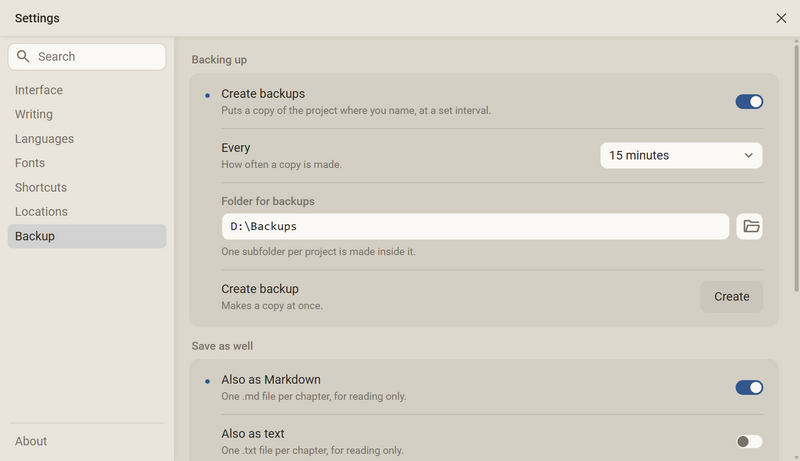
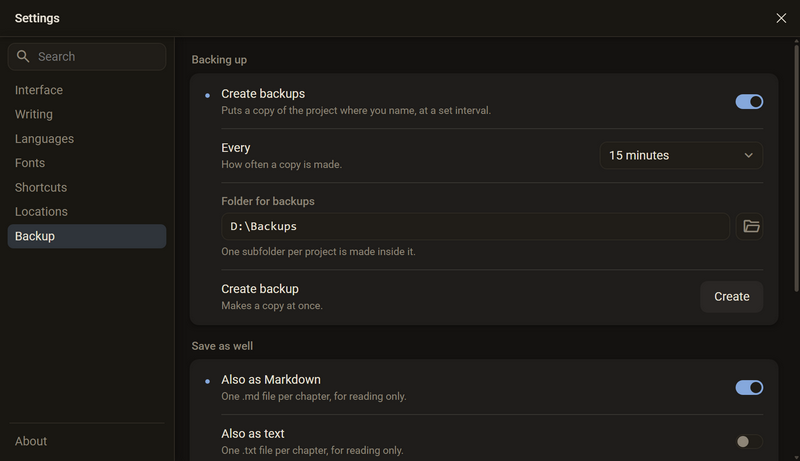
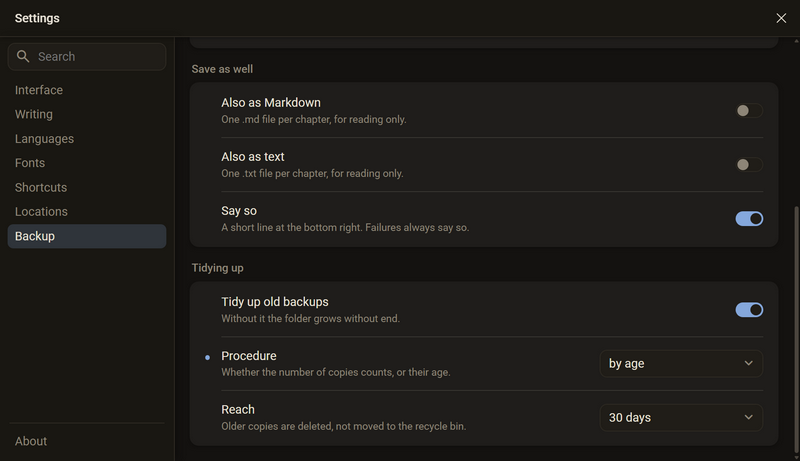
- Open the settings (gear in the rail on the left or Ctrl + ,) and choose the category Backup.
- Switch on Create backups.
- Next to Folder for backups, choose a folder with the folder icon on the right. Best is a folder on another drive, a USB stick or a network drive, not in the project's folder.
- Next to Every, choose the interval.
- Click Create and check the folder to see whether a backup has arrived.
Good to know
- The project that is open at the moment is the one that gets backed up.
- Without a chosen folder, the interval does not run.
- In the folder for backups, one subfolder per project is made, and inside it one folder per backup. Its name is the time, in your local time and without a colon, for example
2026-09-30 14-15. If two backups fall in the same minute, the program appends the seconds. - The open chapter is written before every copy. So the backup contains what you typed a moment ago.
- A backup is made completely or not at all. If it breaks off, for example because the stick is pulled out, no half-finished folder stays behind under a backup name.
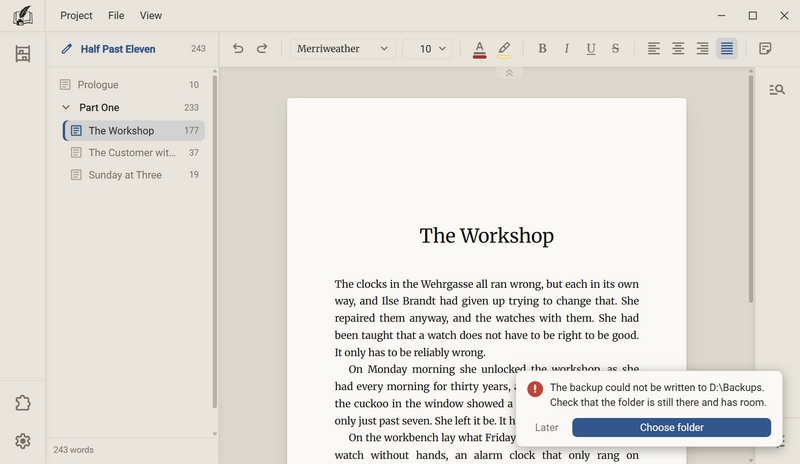
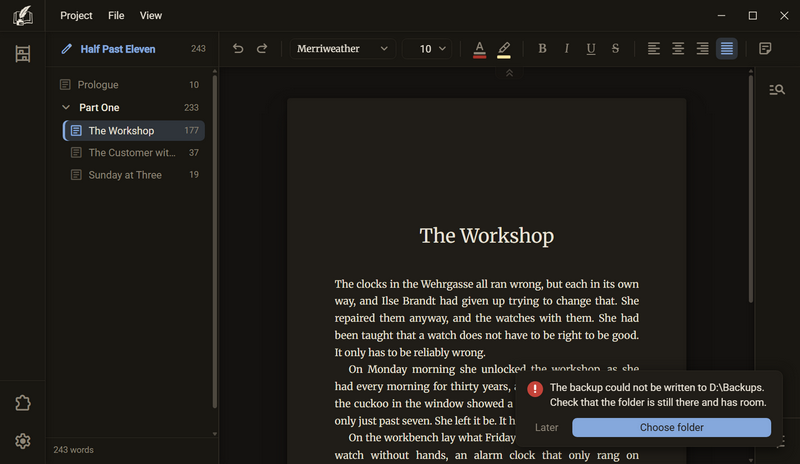
- A folder managed by a sync service such as OneDrive can cause trouble as a target, because the service briefly holds new files. If a backup fails, the strip says so. Then an ordinary folder on another drive is the better place.
The interval
The row Every sets how often a copy is made. The choices are 5, 15, 30 and 60 minutes and only on closing. Out of the box it is 15 minutes.
- At every interval a copy is made, even if you changed nothing. At 15 minutes that is around a hundred copies a day. That is why there is tidying up.
- Only on closing is the most economical interval and the weakest protection: if you write for eight hours straight, there is no copy in that time. Closing gives no message, not even on an error.
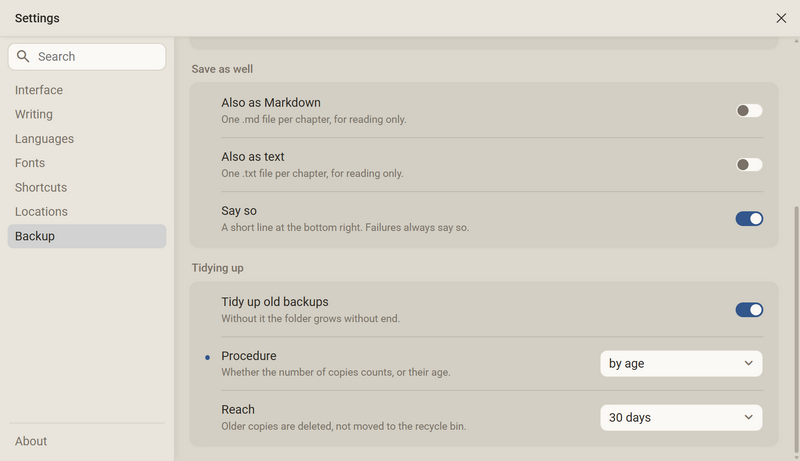
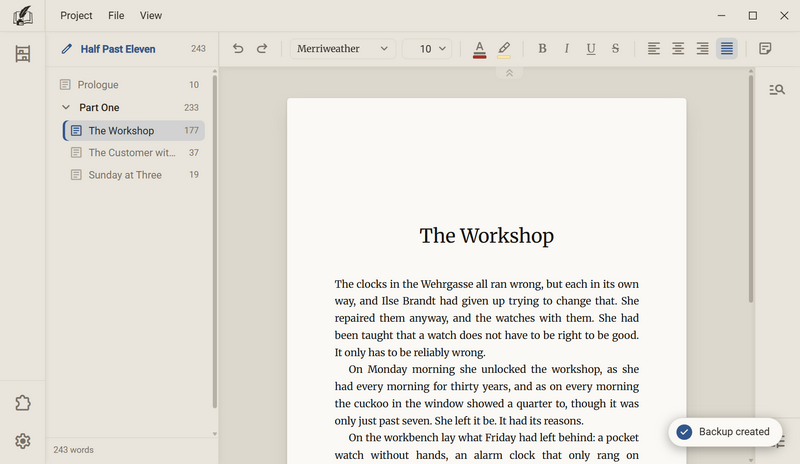
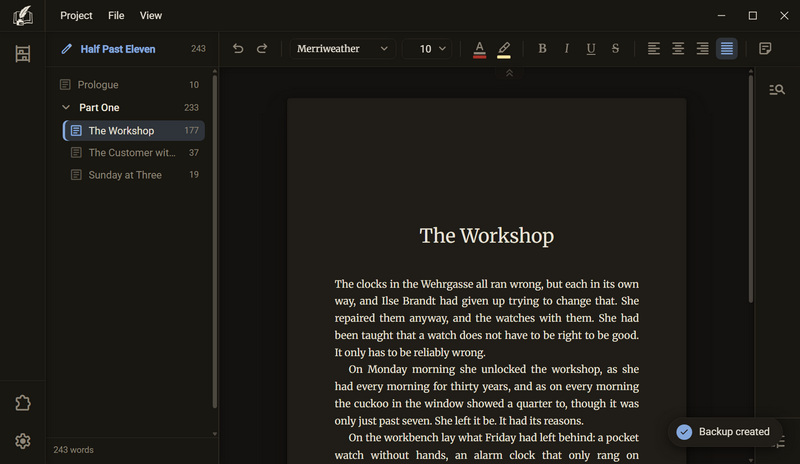
- Say so controls the line Backup created. It appears at the bottom right for three seconds and then fades out over two. A click removes it at once. A backup that fails always says so, even if Say so is off.
- If it fails three times in a row, the interval stops trying. The switch stays on. As soon as you choose another folder, the interval runs again.
A backup by hand
A backup by hand is made at once, independent of the interval and of the switch Create backups. It needs only a folder for backups.
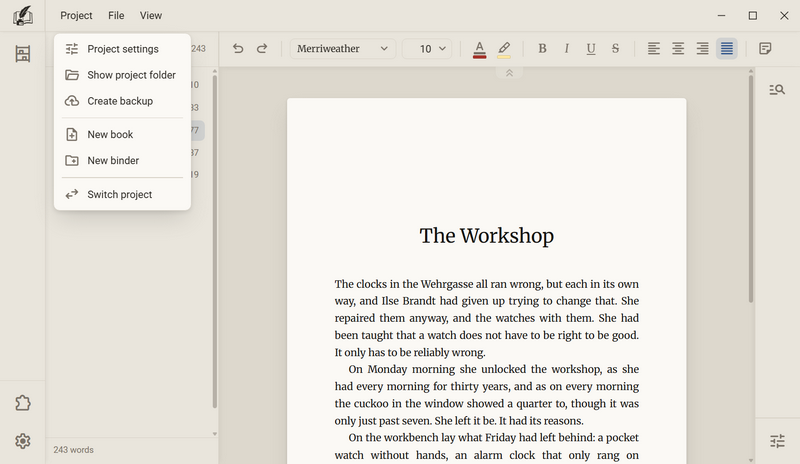
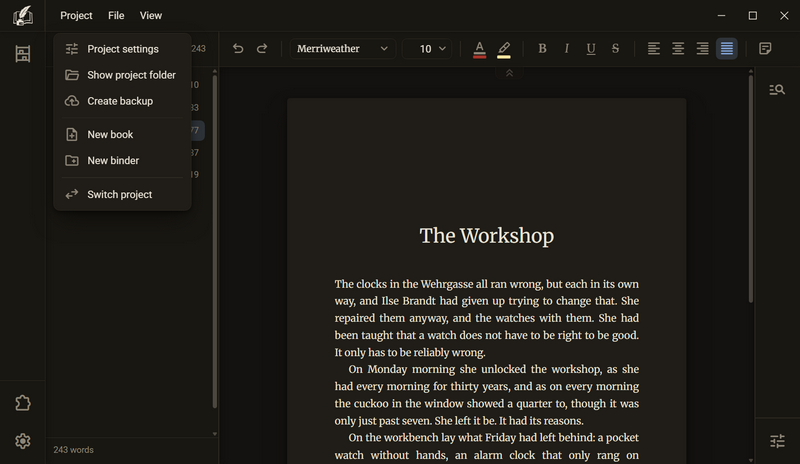
- A backup by hand always reports Backup created, even if Say so is off.
- If no folder is chosen yet, No folder has been chosen for backups yet. appears with the buttons Later and Choose folder. If you choose a folder there, the backup is made right away.
Additionally as Markdown or text
With Also as Markdown and Also as text, every backup also makes one file per chapter, for reading on a device without Regletto Writing. They are in the backup in the folders markdown and text, with one folder per book inside.
- The reading copies come in addition, they do not replace the project. The project format is always in the backup.
- They are for reading only. They contain the words, but not the outline, the notes, the pictures and the typesetting. Only the project format can be restored.
Tidying up old backups
Without tidying up, the folder for backups grows without end. Out of the box, Tidy up old backups is on. Under Procedure you choose what the tidying goes by.
| Procedure | Setting | What stays |
|---|---|---|
| by number | Keep: the last 10, 20, 50 or 100, or a number of your own from 1 to 999 | The newest backups, up to that number. All before them go. |
| by age | Reach: 7 days, 30 days, 90 days or 1 year | From the last hour, all backups. From the first day, one per hour, after that one per day, up to the reach. Older ones go. |
- Out of the box, by number applies, with the last 20. For by age, 30 days is preset.
- by age keeps the last minutes dense and the last weeks coarse. 960 backups over 30 days become around 40.
- Backups that are tidied away are deleted, not put in the recycle bin. This is the only place where Regletto Writing removes something for good. Set the number with care.
- Tidying happens after every backup, only once it is written. A backup that fails therefore deletes nothing.
- Only folders with the names the program assigns itself are touched, and only in the project's subfolder. Anything else you put in the folder for backups stays.
- The folder is yours. You can look inside and delete by hand at any time.
Restoring a backup
Regletto Writing has no button for this. A backup is a copy of the project folder, and you restore it by copying the folder and adding it as a project.
- Close Regletto Writing. Never copy over a project that is open.
- In the folder for backups, open the project's folder. Inside is one folder per backup, named after date and time.
- Copy the backup folder you want to a new place, do not move it. Give the folder in the new place a clear name.
- Start Regletto Writing, open the window Projects and click Add project. Choose the copied folder.
- The copy then stands as a project of its own next to the old one.
Good to know
- Restore the backup next to the project, not over it. That way you can compare calmly which version you want, and you lose nothing if you made a mistake.
- A backup contains everything that belongs to the project: text, pictures, cover and typesetting.
- The folders
markdownandtextin the backup are for reading. What comes back is always the project format. - If you want only a single chapter back, open the copy as a project, copy the chapter's text and paste it into the original project.
- Without a backup there is nothing to restore. Out of the box, backups are off, see Backup.
Where the files are
There are two places. Your project folders contain your work. The Regletto Writing folder contains only settings and extras. Your manuscripts are never in the program's folder.
A project's folder
A project is a folder. This is how it is built:
The Salt Road/
├─ project.json          name, author
├─ dictionary.json       the project's own words
├─ sources.json          the project's sources
└─ books/
   └─ The Wagon in the Rain/
      ├─ book.json       title, language, typesetting
      ├─ cover.png
      ├─ images/         pictures in the text
      └─ manuscript/
         ├─ index.json   the chapter tree
         ├─ a7f3….json   a chapter
└─ b2c9….json another one- Every file is a JSON file, that is, readable text. You can reach your manuscript with a text editor, even without Regletto Writing.
dictionary.jsonandsources.jsonappear as soon as the project has words or sources of its own.- A chapter is a file. Its name is an ID and not the chapter's title, so that renaming does not have to move a file. Which file is which chapter is recorded in
index.json. - Books and binders both live under
books. - What you back up is the project folder. It is complete. If you copy it to a stick, everything comes along: text, pictures, cover and typesetting.
- What you delete in Regletto Writing goes to your system's recycle bin. The exception is old backups during tidying up.
The Regletto Writing folder
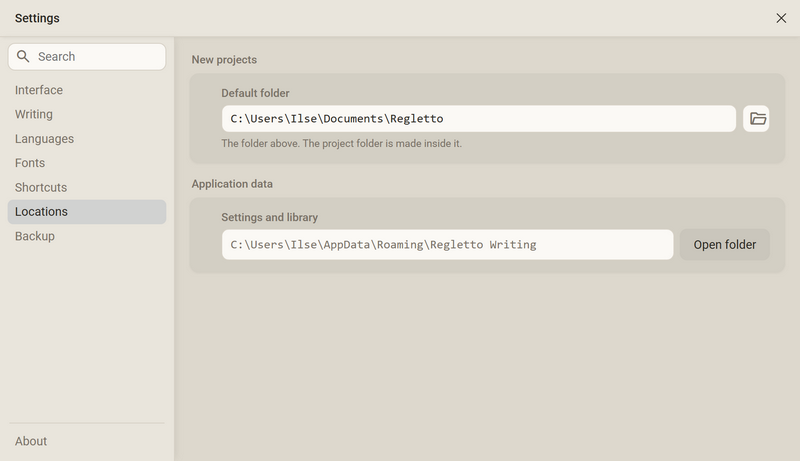
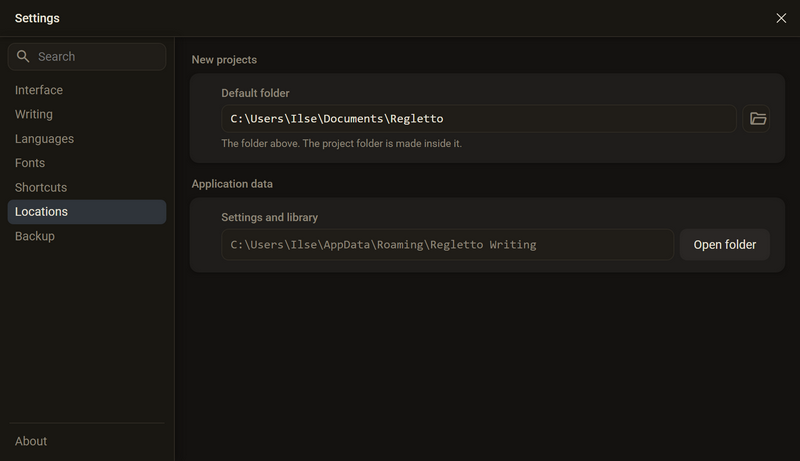
It holds your settings, the list of your projects, the downloaded language packs, add-ons and your own fonts. To open it: Settings → Locations → Settings and library → Open folder. That works the same on every system.
- The folder is at
%APPDATA%\Regletto Writing.
- The folder is at
~/.config/Regletto Writing.
- This folder does not need to be backed up along with the rest. If you lose it, you lose settings, add-ons and your own fonts, but not a word of your books.
The default folder for new projects
The default folder is the parent folder in which new projects are created. It is a suggestion: when you create a project, you can choose a different place each time.
- Open the settings and choose the category Locations.
- Next to Default folder, click the folder icon to the right of the field.
- Choose a folder. It applies from the next new project.
- The dialog “Before you start” suggests the folder Regletto inside your Documents folder. You can choose another one there.
- The folder is remembered, not created. It comes into being with the first project inside it.
- Changing the default folder moves nothing. Projects that already exist stay where they are.
- If no default folder is set, the dialog New project suggests the Documents folder.
The strip
The strip is the line that appears at the bottom of the window and disappears again. It reports that something happened, or that something did not work. It never stops you: you keep working while it is up.
It reports:
| What | Example |
|---|---|
| What happened | “Prologue” is in the recycle bin. Ctrl+Z brings it back. |
| What did not work | “The Workshop” could not be saved. The last changes are not in the file yet. Check whether another program is holding it. |
| What was undone | Undone: chapter moved |
Good to know
- The strip stands in two places. What it only reports stands as a line at the bottom centre. What it wants from you stands as a box at the bottom right: the question about an update and a failed backup.
- A line at the bottom centre is removed by the next click. A box at the bottom right stays until you have pressed its button. The line Backup created goes away by itself after five seconds.
- With every Undo it says what was undone. You do not have to guess whether the key did anything.
- What goes well does not stop you. 18 chapters imported is a line and not a window.
- A window with a button that stops you exists only where something on the disk is not as expected, for example when a book's folder could not be written.
Ask in the help channel on our Discord server (the server is German-speaking).