The Add-ons view
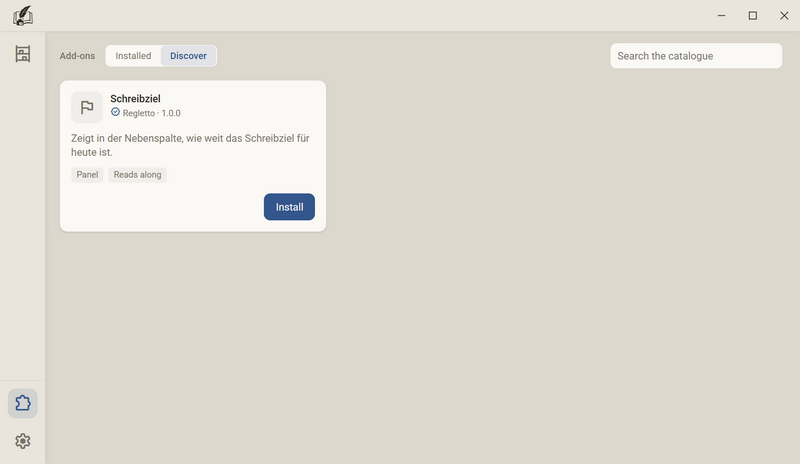
Add-ons extend Regletto Writing with things that are not part of the program, for example a panel in the side column. They are managed in one place: the Add-ons view. It has two areas. Installed shows what is on your computer, Discover shows what the Regletto catalogue offers.
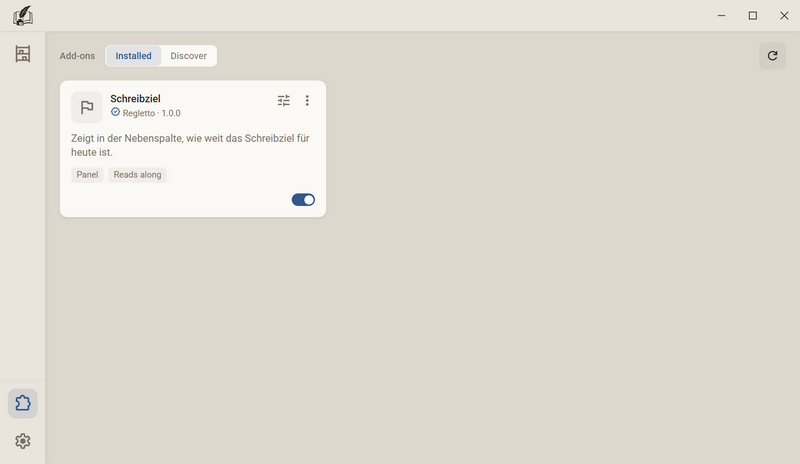
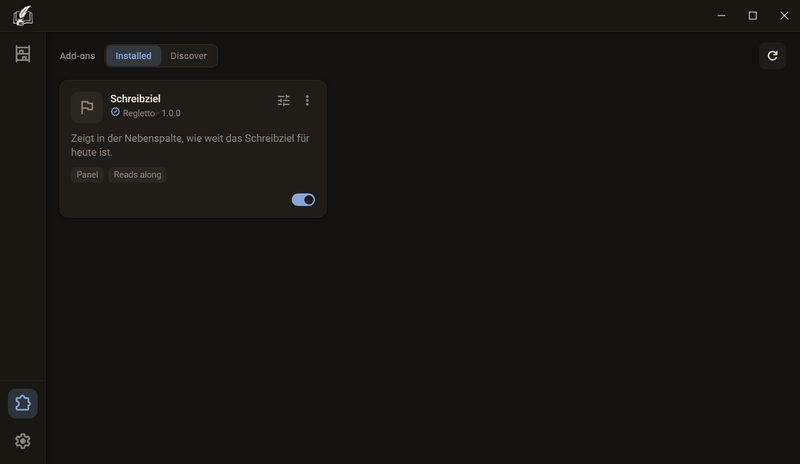
The puzzle icon sits at the very bottom of the rail on the left edge, above the gear. It is there even when no project is open, because add-ons belong to the program and not to a project.
The card
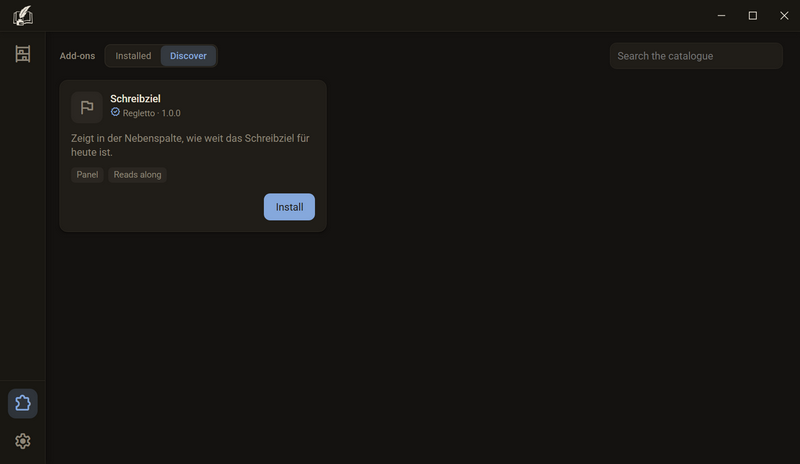
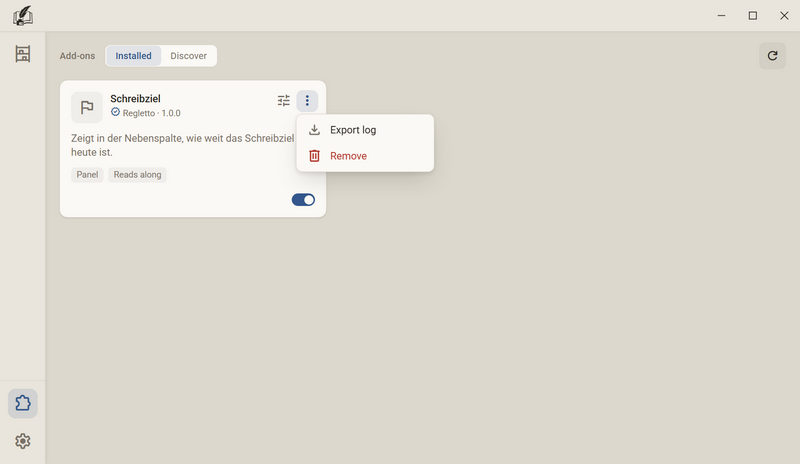
Every add-on has a card. On both areas it looks the same at the top. At the bottom, Installed has a switch and Discover has the Install button.
| On the card | What it means |
|---|---|
| Icon and title | The name of the add-on. Its author chooses the icon. |
| Author and version | A check mark in front means the add-on comes from the Regletto catalogue and its author is verified. Hover over it to see Verified author. |
| The sentence below | What the add-on does, in one sentence. |
| The badges | What the add-on gets. See What an add-on may do. |
| The switch at the bottom right | Switches the add-on on and off. |
| The sliders icon at the top right | Opens the settings of the add-on. It is there only on an add-on that has settings. |
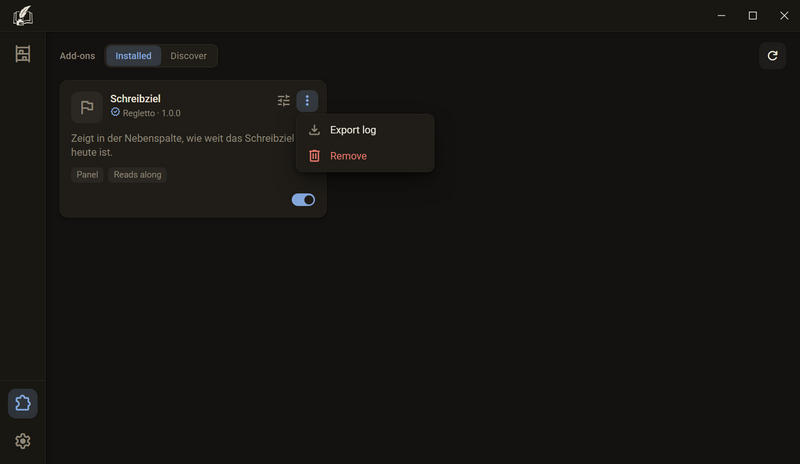
| The three dots | Export log and Remove. The log records what the add-on has reported. It can be saved as a file, for example to send it to the add-on's author. It never leaves your computer by itself. |
Good to know
- The switch takes effect at once, the program does not need to restart. A switched-off add-on does not run, its workspace and its panel disappear, but it stays installed. When you switch one on, the strip at the bottom says “…” is switched on. When you switch one off, it says nothing.
- The program does not remember whether Installed or Discover was open. The view always opens on Installed.
- The Search the catalogue field is only above Discover. It searches the title, the author and the one sentence of each card. Upper and lower case and accents do not matter: cafe finds café. The cards are sorted by title.
- Discover shows only what is not installed yet. Add-ons that this version of Regletto Writing does not support are not in the list.
- Two kinds of cards stand there switched off and cannot be switched on. With one, the program has refused the addon.json file of the add-on. Then the reason stands in place of the sentence, for example A required field is missing., and the field below it. The other needs a newer version of Regletto Writing and says so, for example Requires Regletto Writing 0.9.0 or newer. Both stay in the list so that you can remove them.
- If an area is empty, one sentence says why: No add-ons yet, The catalogue is still empty, The catalogue cannot be loaded right now or Nothing found for “…”. The catalogue comes from the internet.
- New versions are offered and never fetched by themselves, see Update an add-on.
Install an add-on
There are two ways: from the Regletto catalogue or from an archive that someone gives you. Both go through the same warning, which says what the add-on gets before it is installed. Until then, nothing of it is on your computer.
From the catalogue
- Open Add-ons → Discover.
- If you like, search in the Search the catalogue field for a title, an author or a word from the sentence.
- Click Install on the card.
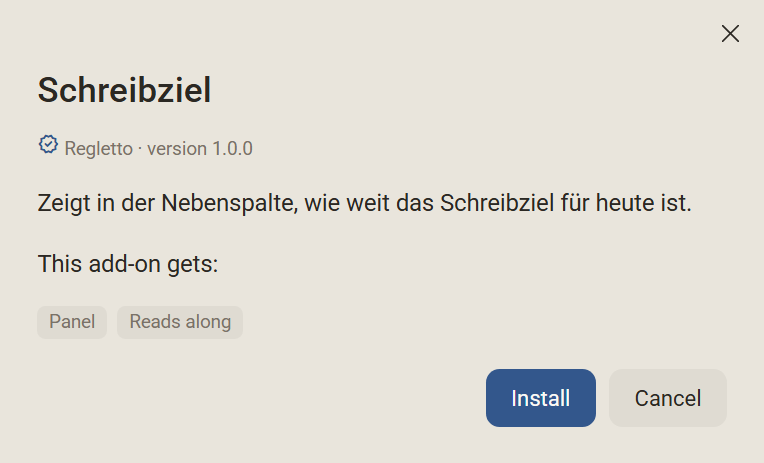
- Read the warning and confirm with Install. Cancel leaves everything as it was.
From an archive
- Drag the ZIP file into the Regletto Writing window. You can also put it in the add-on folder and click Reload under Add-ons → Installed.
- Read the warning and confirm with Install.
Afterwards
If the add-on has something to ask or brings a panel, its setup opens, see Settings of an add-on. Otherwise the strip says “…” is here.
Good to know
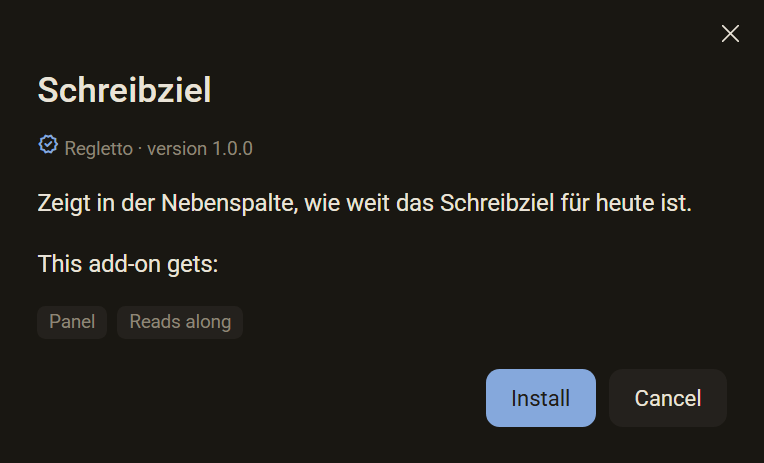
- The warning names the title, the author and the version, the sentence of the add-on and the badges under This add-on gets:. They are the same badges in the same order as later on the card.
- For an add-on that does not come from the catalogue, it also says: This add-on does not come from Regletto, and its author is not verified. You use it at your own risk. For an add-on from the catalogue, the check mark stands in front of the author instead.
- In the warning, the focus is on Cancel and not on Install. An Enter out of habit therefore confirms nothing.
- A new add-on always asks. On an update, the program asks only if the permissions have grown.
- Exactly the archive that the warning describes is installed. It is not fetched a second time. If you ask for a particular add-on in the catalogue and the archive holds a different one, nothing is installed.
- The catalogue needs the internet. An installed add-on runs without it.
Settings of an add-on
An add-on can bring settings, for example when its day ends. Which questions come right after the installation is decided by the author of the add-on. All settings are on the card later.
Right after the installation
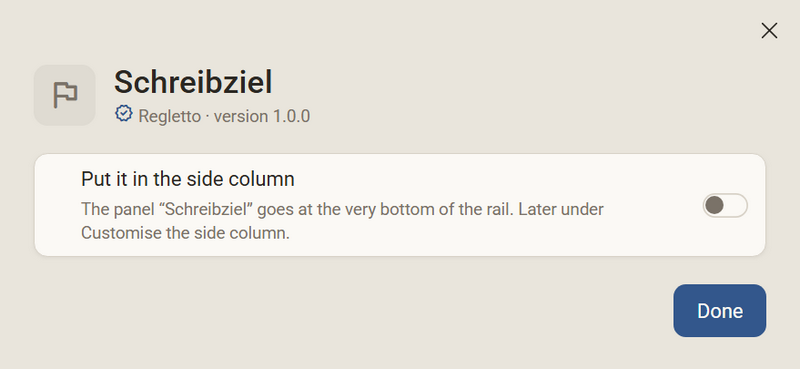
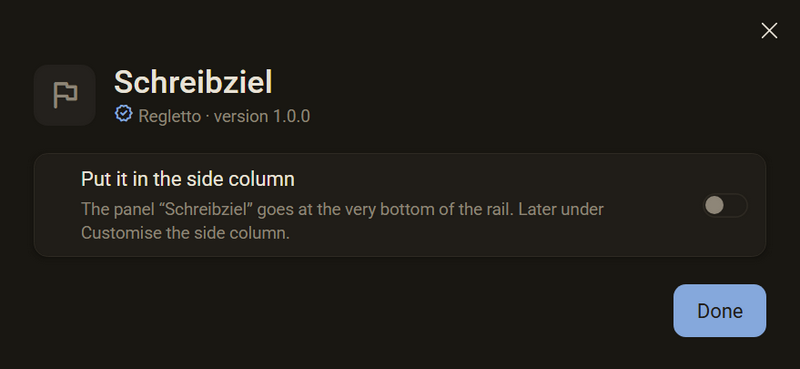
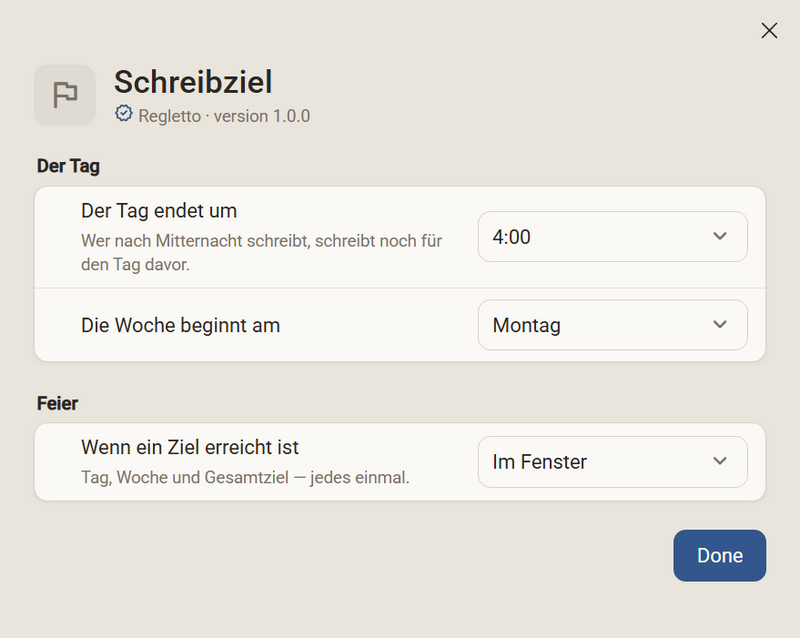
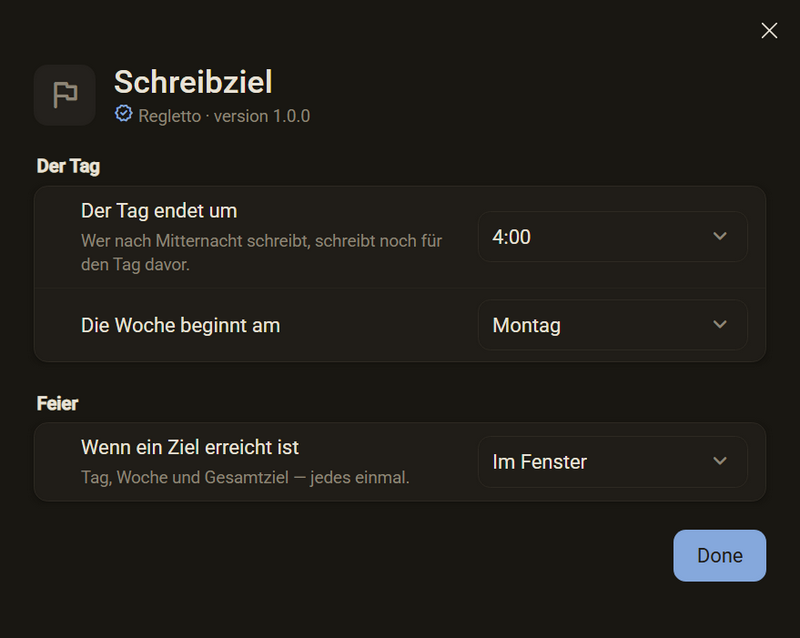
- Install an add-on. If it has something to ask, a window opens with its icon, its name and Author · Version.
- In it are the rows that its author chose for the start, in groups on cards. Every change takes effect at once.
- Done closes the window. The cross does the same, because the add-on is already installed.
Changing them later
- Open Add-ons → Installed.
- On the card, click the sliders icon to the left of the three dots.
- The same window opens, now with all the settings of the add-on.
- Change what you want and click Done.
Good to know
- If you touch nothing, you have the defaults of the add-on. Nothing has to be set for it to run.
- If the add-on brings a panel for the side column, the setup asks on the General tab, with the switch Put it in the side column, whether it should go in the rail. It is off. The panel goes at the very bottom of the rail. If the add-on also has settings for the start, there are two tabs: General and Add-on. How a panel is added or taken out later is described under Arranging the panels.
- Not every add-on asks during the installation. Then only the strip “…” is here appears, and the settings are behind the sliders icon.
- If an add-on has only a panel and no settings, its card has no sliders icon. You then put the panel in and take it out through View → Customise the side column.
- The add-on notices a change at once, it does not need to restart.
- The settings apply to the whole program, not to each project. What belongs to a book, an add-on saves with the book.
- An update leaves your settings alone and does not ask again. If an old value no longer fits the new version, the default of the add-on applies.
- For a number you can type, or pick a suggestion of the add-on with the arrow next to it. What lies outside the limits is set to the nearest limit.
- An add-on reads its settings and never changes them itself. The settings window of Regletto Writing has no section for add-ons.
What an add-on may do
What an add-on gets is shown as a badge on its card. The same badges are shown beforehand in the warning, in the same order. Hover over a badge and a sentence appears.
| Badge | What it means |
|---|---|
| Workspace | The add-on brings a workspace of its own to the rail on the left. |
| Panel | The add-on can be added to the side column. This is not a permission, the badge only says that it brings a panel. |
| Reads along | The add-on reads your manuscript but changes nothing in it. |
| Suggests | The add-on suggests changes to the text. Only what you click is taken. |
| Touches nothing | The add-on neither reads your manuscript nor changes it. |
Good to know
- An add-on cannot write anything into your manuscript. The only way into the text is a suggestion, and it takes effect only when you click it. What you have accepted is your text and stays, even if you remove the add-on.
- A suggestion from an add-on stands beside those of spelling and grammar and says where it comes from.
- An add-on runs sandboxed. It reaches only what Regletto Writing hands it, and opens no files and no connections of its own accord.
- An add-on does not see your notes. The program does not even search them for add-ons.
- An add-on that reads along knows the title of the open book as it stands on the shelf. It does not learn where the book lies on your hard drive.
- An add-on may draw over the whole window briefly, for example a celebration when a goal is reached. You keep writing meanwhile: the layer accepts no click and no key. A click removes it, and that click is lost. After 6 seconds at most it is gone by itself. Only one is there at a time. An add-on needs no permission for this and carries no badge.
- An add-on may open a dialog, for what has no room in the panel. It opens only when you click something in the add-on. Title, cross, buttons and the dimming over the window come from Regletto Writing, between them stands what the add-on draws. Esc, the cross or a click beside the dialog close it without the add-on taking anything. This needs no permission either. If you switch the add-on off, its dialog goes with it.
- An add-on can remember something for each book, for example a writing goal. It lies in the folder of the book and goes with it into the backup and into the recycle bin. If you open another book, the add-on shows what belongs to that book. This needs no badge either.
Update an add-on
If there is a newer version of an installed add-on from the catalogue, a button with the number appears on its card. The program never fetches it by itself, only when you click.
- Open Add-ons → Installed.
- On the card, click the button that names the new version, for example To 0.2.0.
- If the permissions have grown, the warning appears with the badges of the new version. Otherwise the update goes through without asking.
Good to know
- The old version then lies in the recycle bin of your system.
- Your settings stay, see Settings of an add-on.
Remove an add-on
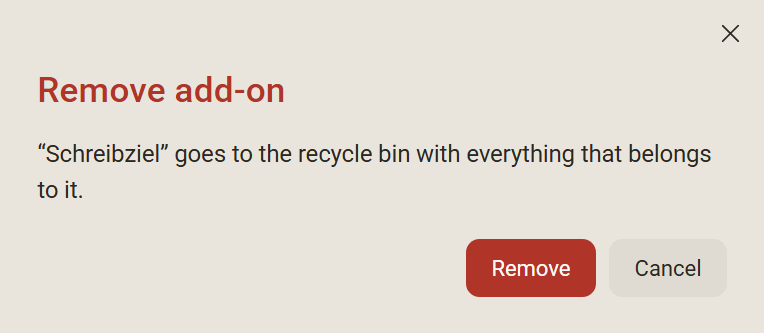
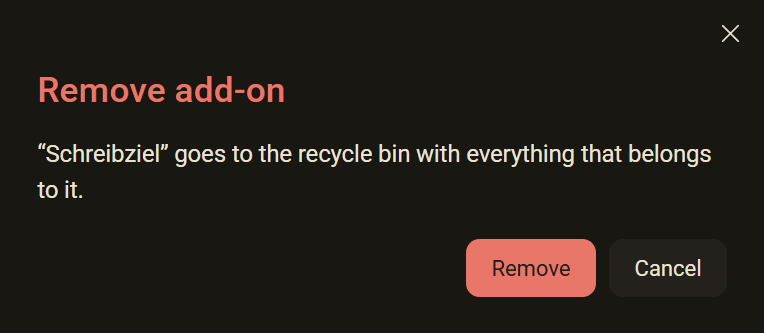
An add-on goes into the recycle bin of your system with everything that belongs to it. Remove is on every card, including those that cannot be switched on.
- Open Add-ons → Installed.
- On the card, click the three dots and choose Remove.
- Confirm. The strip then says “…” is in the recycle bin.
Good to know
- Switching off is often enough. The switch on the card stops an add-on without removing it, and you can switch it on again at any time without installing it anew.
- The add-on lands in the recycle bin and is not deleted for good. You can get it out of there again.
- What an add-on changed in your manuscript stays. An accepted suggestion is your text.
- If the add-on had a panel in the side column, its place is gone too. A new installation asks afresh whether the panel should go in the rail.
- If the folder cannot be put in the recycle bin, the add-on stays, and the program names the reason.
Writing Goal: book goal and daily goal
Writing Goal is an add-on by Regletto. It knows two numbers: how long the work should become and how much of it should be written in a day. In the side column it shows how far the day has got. It carries the badges Panel and Reads along and is in the catalogue. For installing, see Install an add-on.
The panel
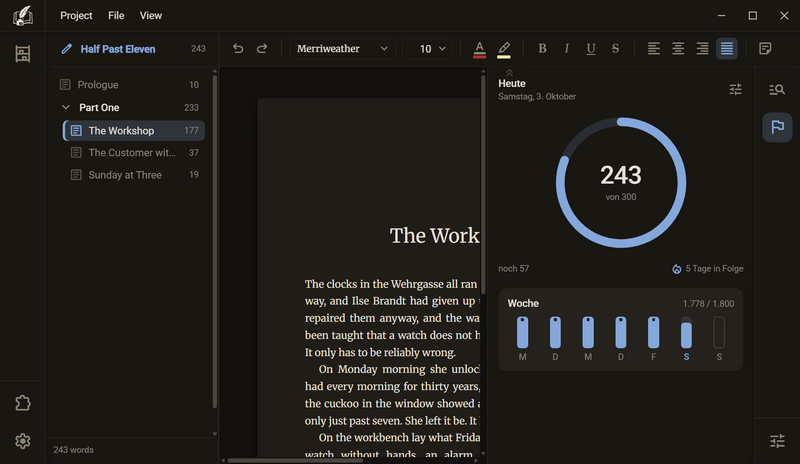
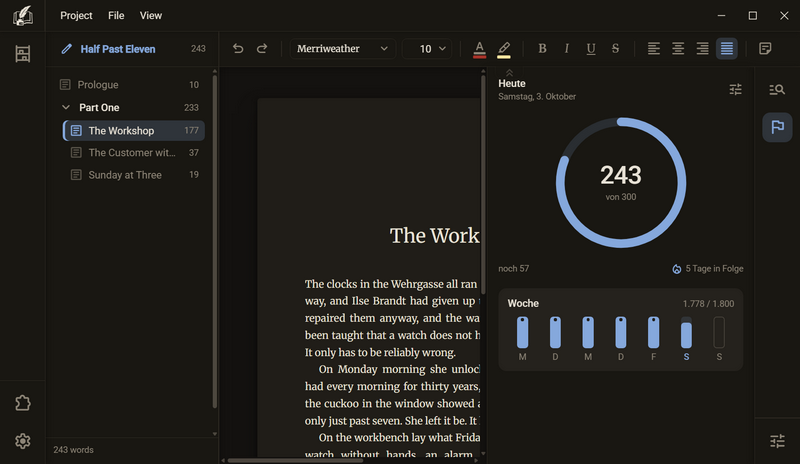
- Install Writing Goal and switch on Put it in the side column in the setup.
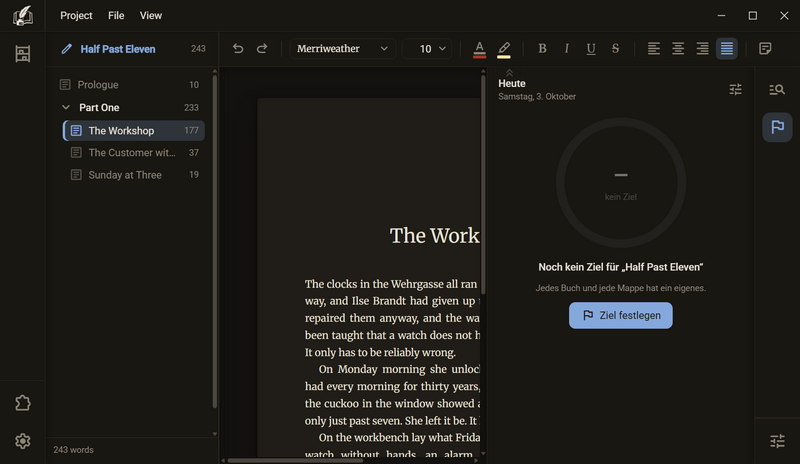
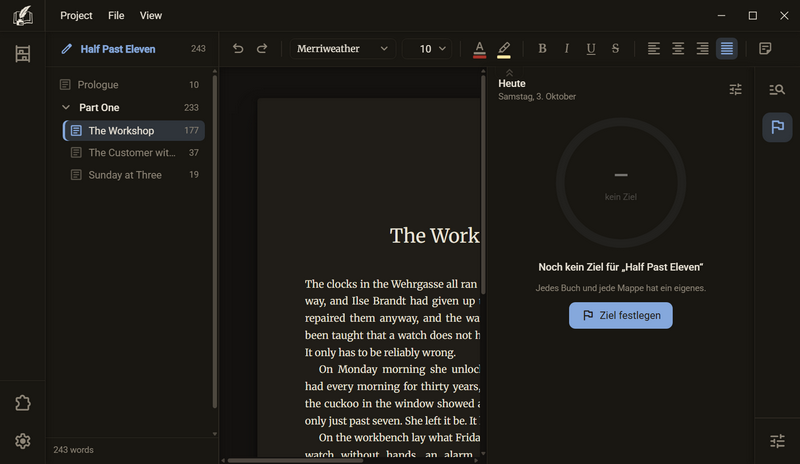
- In the manuscript, click the flag in the rail of the side column. A second click closes the column again.
- At the top stands Today with the date. If the book has no goal, the display is pale, below it No goal yet for “…” with the title of the book and the button Set a goal.
- With a goal, the ring shows how much has been written today: the number large, below it of …, and at the left under the ring how much is still missing.
- Write. After every save the panel counts along. The sheet saves after two seconds of rest.
Adjusting the goal
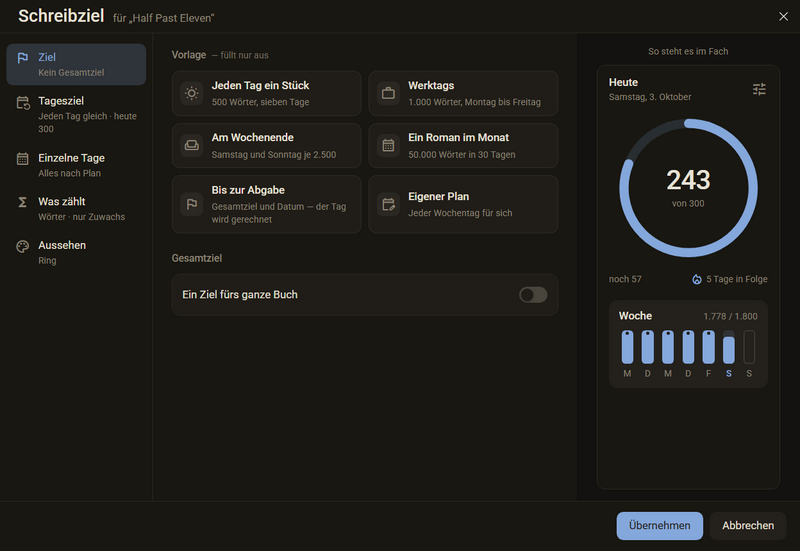
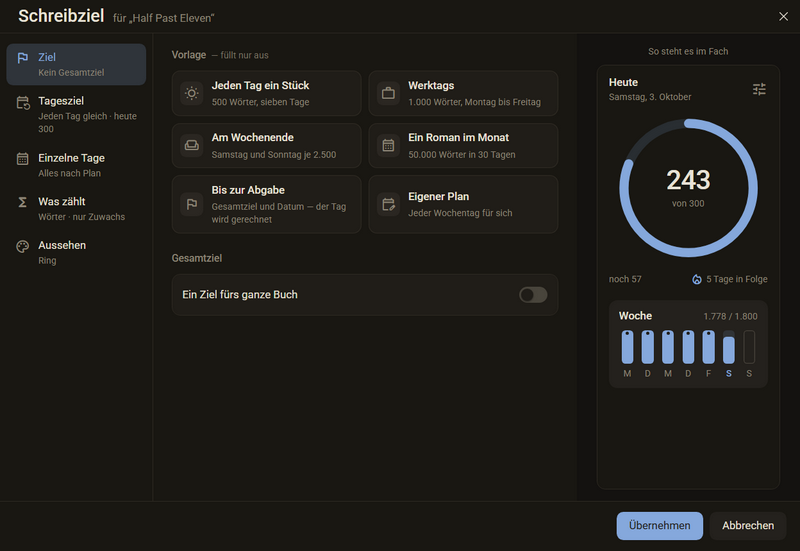
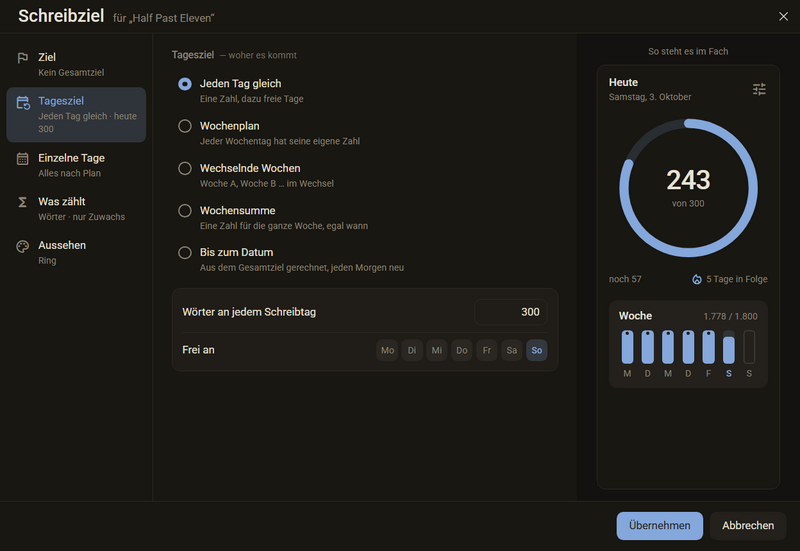
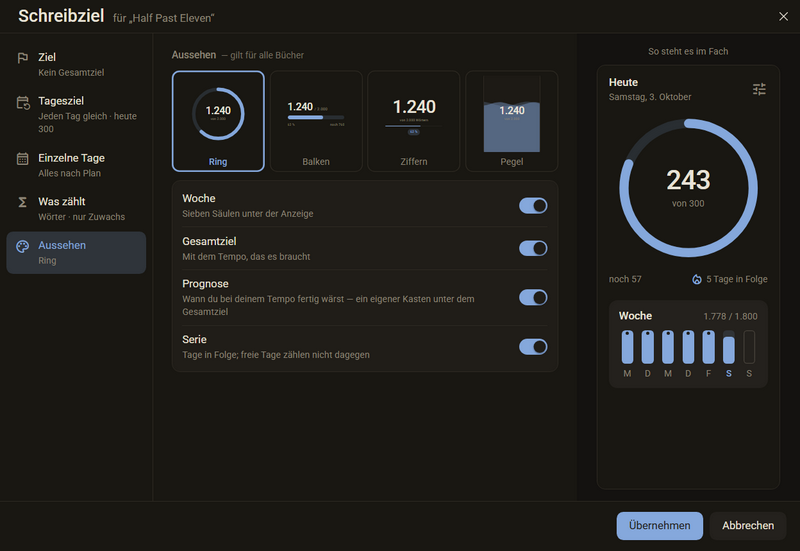
The dialog sets the goal of the open book or binder. On the left are five tabs, on the right the panel as it would look with the settings.
| Tab | What you set there |
|---|---|
| Goal | One of six templates: A bit every day, Weekdays, At the weekend, A novel in a month, Until the deadline and Own plan. A template only fills in the fields, after that every one is free. Below it the book goal: the switch A goal for the whole book, Counted from the start of the book or today, the number and, if you like, Until a date. |
| Daily goal | The rhythm and its numbers. Same every day takes one number and leaves days off. Weekly plan gives every weekday a field and a button off. Alternating weeks alternates between week A, B and more. Weekly total takes one number for the whole week. Until a date works out the daily goal from the book goal, anew every morning. |
| Single days | A calendar. Click a day, type a number and press Enter, or choose Off or As planned. A day with a number of its own carries a dot in the corner. |
| What counts | Count words or characters. The switch Cutting subtracts decides whether cutting text subtracts from the day. |
| Appearance | One of four displays: Ring, Bar, Digits or Level. Plus the switches Week, Book goal, Forecast and Streak, which decide what stands under the display. |
- Click the sliders icon in the panel. The dialog opens over the window.
- On the Goal tab, click a template or fill in the fields yourself.
- On the Daily goal tab, choose the rhythm and enter the numbers.
- If you like, set single days, the unit and the appearance.
- Apply saves, and the panel redraws. Cancel, the cross and Esc leave everything as it was.
A different goal today, or today off
For a single day you do not have to change the plan. Both are in the menu of the panel.
- Right-click in the panel, then Different today…. A small field opens under the head.
- Type the number and press Enter. Off takes the day off, As planned takes the number of its own back. Esc closes the field without changing anything.
- Take today off in the same menu takes the day off without a number. The panel then shows a moon, Today is off and what is on for tomorrow. If you write anyway, you see Written anyway: ….
The celebration
When a goal is reached, there is a celebration. There are three, each bigger than the one before: for the daily goal, the weekly goal and the book goal. Each comes once.
| Setting | What happens |
|---|---|
| In the window | In the middle over the sheet stands a card with a symbol, Daily goal done, Weekly goal done or “…” is written, the number and a line below it, with confetti all around. After three seconds it goes by itself, the card of the book goal after a good four. This is the default. |
| In the panel | The display in the panel jumps, the confetti falls in the column, and at the bottom a band with the text of the card stands for three seconds. |
| Nothing | The ring fills and shows the check mark. Nothing else happens. |
Good to know
- What is added is counted. Anyone who cuts or rewrites does not run backwards. With the switch Cutting subtracts on the What counts tab, the day shows instead how much the book has grown. Chapters set to Do not count this one or Do not print this one do not count, as with the strip under the chapter tree.
- The day ends at 4:00 and not at midnight: whoever writes at night is still writing for the day before. On the card of the add-on you set the time from 0:00 to 6:00 and whether the week begins on Monday or on Sunday.
- Above the goal the display keeps counting, and under the ring stands Done with a check mark.
- Under the display are the streak and the week. The streak counts days in a row with the goal reached, a day off does not break it. The week shows seven columns: days reached carry a dot, days off are only outlined, today stands in the accent colour.
- Book goal and forecast appear as soon as a book goal is set on the Goal tab and the switches on the Appearance tab are on. The forecast says when you would be finished at your pace.
- The goal belongs to the book or binder and lies in the folder of the book. If you open another book, the panel shows its state. The appearance, by contrast, applies to all books on this computer.
- Counting starts once the panel has been open. If you never open it on a given day, it is counted afterwards the next time you open it, and what was written in between counts for the day on which it is found.
- Counted from today also counts what has already been written today.
- Until a date needs a book goal with a date. It recalculates every morning: what is still missing, divided by the writing days until then. Anyone who writes more today has less tomorrow.
- A single day in the calendar changes only itself, the plan behind it stays. Past days can no longer be set. Esc in the field of a day closes only the field and not the dialog.
- The weekly goal is the sum of the daily goals of the week, including the days that are still to come. If you have already written the sum on Friday, you get the celebration on Friday. If day and week fall into the same save, only the bigger celebration comes.
- Celebrating happens while writing and not while setting. If in the dialog or with Different today… you lower a goal below what is already written, you have reached it, but no card comes. If you later raise the book goal and reach that too, the celebration comes again.
- The celebration needs the panel: it comes only once the panel has been open in this session. In the window it then also comes with the panel folded away, In the panel you see only with the panel open.
- The card accepts no key, you simply keep writing. If less motion is set in the system, the card is only faded in, without confetti and without counting up.
- There is no sound. A screen reader reads out Daily goal reached, Weekly goal reached or Book goal reached.
Ask in the help channel on our Discord server (the server is German-speaking).