The chapter tree
The chapter tree is on the left in the manuscript. It shows what the book is made of: chapters and sections, in the order in which they are printed. The name of the book and its word count are at the top, and the word count appears once more at the bottom. In a binder the column is called Documents.
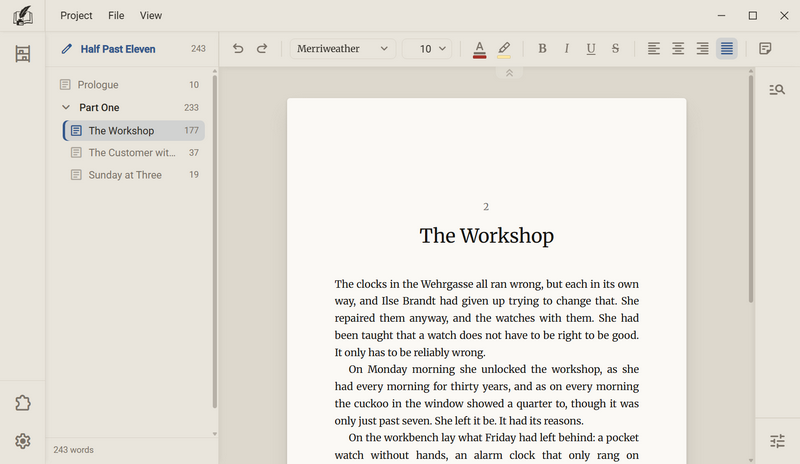
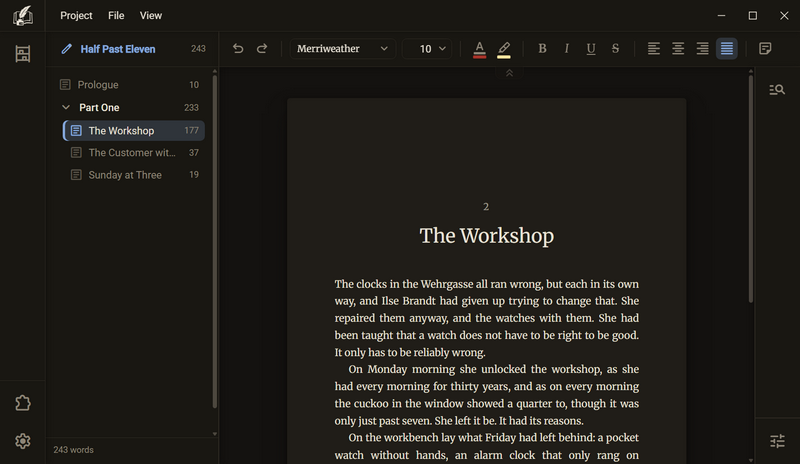
- Click an entry. The chapter opens on the sheet.
- Right-click the empty area below the tree to open a menu with New chapter and New section.
- Drag the dividing line between the tree and the sheet to change the width. Double-click the line to reset it.
Good to know
- A section looks bold and has an arrow to fold it open and shut. A chapter looks paler and has a sheet icon.
- The bar on the left of a row shows which chapter is on the sheet. The area behind a row shows which entries the next command applies to. Most of the time that is the same chapter.
- The word count of each row is on its right. For a section it is the sum of everything inside. It stays visible when the section is folded shut.
- To choose several entries: Shift + click chooses a range, Ctrl + click adds or removes single entries. On the empty area you can draw a box. An entry does not have to lie completely inside the box.
- A click in the sheet, in the bar, or on the empty area below the tree clears the selection.
- The width is between 180 and 400 pixels and applies to all books. If you drag the line further to the left, the tree disappears. Bring it back at the same line, or with F9.
- A manuscript always has at least one chapter. If there is none, an Untitled chapter appears right away.
- There is no plus button. You create new entries through the menu or with the shortcut.
Creating a chapter
A chapter is a piece of text with a title. You always write in a chapter, and it is alone on the sheet. In a binder it is called a document.
- Press Ctrl + N, or right-click in the tree and choose New chapter.
- The chapter appears after the entry you are on. From the menu of a section it appears inside the section.
- The name is in an editable field right away. Enter confirms.
The menu of a chapter
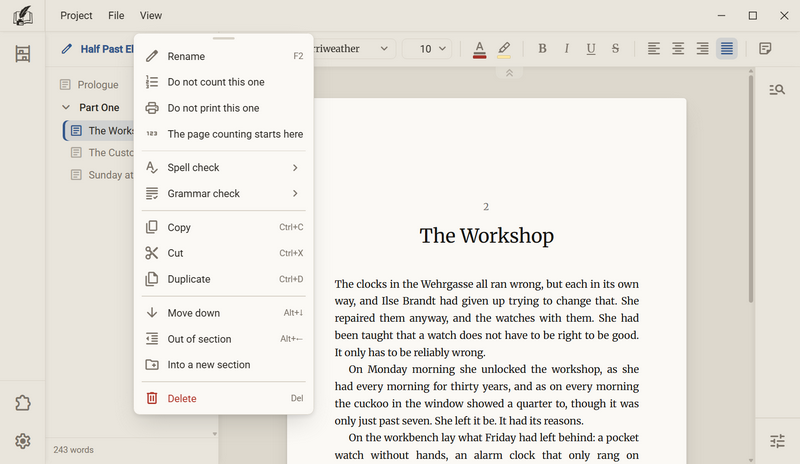
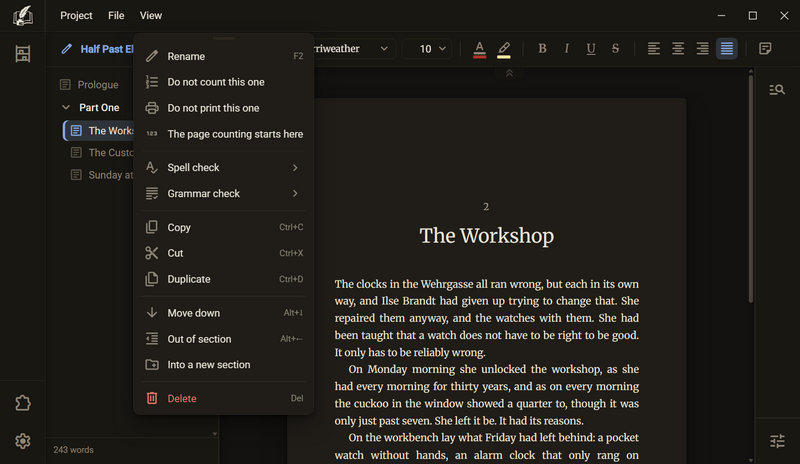
| Entry | What happens | Key |
|---|---|---|
| Rename | The name becomes editable in its row, see Renaming. | F2 |
| Do not count this one | The chapter gets no number, see Not counting and not printing. Only in books that count their chapters. | |
| Do not print this one | The chapter stays out of the export. | |
| The page counting starts here | From this chapter on, pages count in arabic numerals starting at 1, everything before it in roman numerals. Only in books with page numbers. | |
| Spell check Grammar check | Sets whether this chapter is checked: on, off, or as the book. | |
| Copy Cut Duplicate | See Copy, cut, paste. | Ctrl + C Ctrl + X Ctrl + D |
| Move up Move down Into section Out of section | Moves the chapter, see Moving. | Alt + ↑ Alt + ↓ Alt + → Alt + ← |
| Move to | Shows all sections to choose from. | |
| Into a new section | Creates a section and puts the selection inside it. | |
| Delete | See Deleting. | Del |
Good to know
- A chapter is a file in the folder of the book. Its name is a number and not the title, so renaming does not move any file. Which file is which chapter is recorded in
index.jsonin the foldermanuscript. - A chapter lies in a section or free in the tree. A book does not need a single section.
- Two chapters may have the same name.
- A chapter can have a language of its own and its own checks, for example for an English foreword in a German book.
- Whether the title stands above the text is set by the typesetting of the book, under “Above the chapter”: Heading, Number, Both or Nothing, see The book dialog. In a binder you switch the title on for each document separately: right-click → Show the title.
Sections
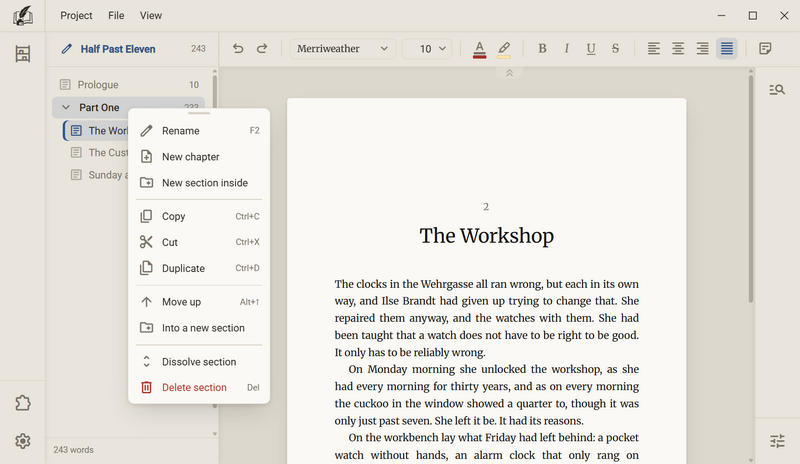
A section is a group in the chapter tree that you name yourself and can fold open and shut, for example Part One or Flashbacks. It puts the tree in order. It does not go into the export: no sheet, no line in the table of contents. In a binder it is called the same.
Creating a section
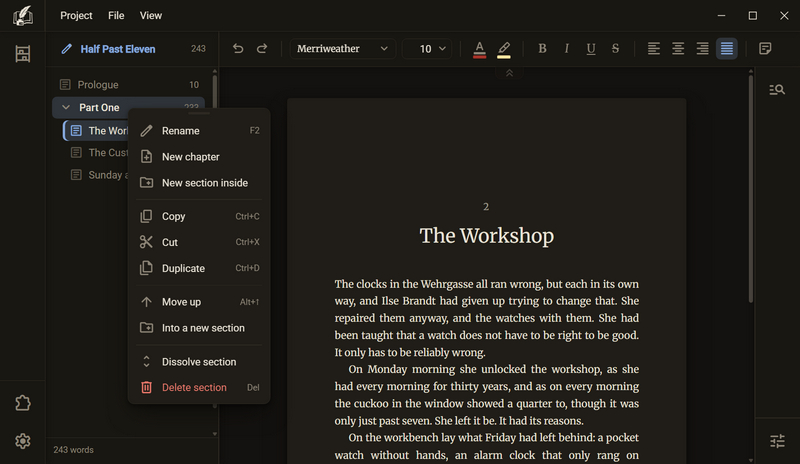
- Press Ctrl + Shift + N, or right-click and choose New section. In the menu of a section the entry is called New section inside.
- Enter the name and press Enter.
Putting existing entries into a section
- Choose the entries.
- Right-click → Into a new section.
- Enter the name and press Enter. The selection is already inside the section.
Good to know
- A click on the head folds the section open and shut. A double-click therefore does not rename it. Use F2 or the menu for that.
- A section may stand in a section, up to ten levels deep. Anything deeper is refused, and a message says so.
- Moving, copying, cutting, duplicating and exporting take everything with them that is in the section.
- A section that is folded shut still takes things in: if you drag an entry onto it, it opens by itself when you drop.
- Dissolve section and Delete section are two different things, see Deleting.
- A part-title page in the printed book does not come from a section. For that you create a chapter and take it out of the counting.
Renaming
The name of a chapter, a section, a book or a project changes on the spot. The row turns into a field, there is no dialog.
- Choose the row in the chapter tree or the tile in the library.
- Press F2. The name is selected in the field. A double-click on a chapter does the same.
- Type the new name and press Enter. Esc leaves everything as it was.
Good to know
- A click beside the field ends the typing and keeps the name.
- On the head of a section the double-click does not rename, because a single click already folds it open and shut. There, use F2 or the menu.
- For a book, a binder or a project, only the name on the screen changes. The folder keeps its name, so your backup still finds it.
- A renamed project does not move to the front of the list, because renaming does not count as work on the text.
- Duplicate names are allowed.
- Ctrl + Z undoes the renaming.
Moving
The order of the book is the order in the chapter tree. You change it by pushing entries around, with the mouse or with Alt and the arrow keys. Chapters and sections move the same way.
With the keyboard
| Key | What happens |
|---|---|
| Alt + ↑ Alt + ↓ | One place up or down, on the same level. |
| Alt + → | Into the section above. |
| Alt + ← | One level out, right after the section. |
With the mouse
- Grab the entry and drag it. It stays where it is and turns pale.
- Watch the line that appears while you drag. It shows where and on which level the entry lands.
- If a section is highlighted, the entry lands inside it. Otherwise it lands on the line.
- Let go.
Long distances
Right-click → Move to shows all sections with the way to each, for example Part One › Over the Mountains. Into a new section creates a section and puts the selection inside it.
Good to know
- Over the upper half of a section head the entry lands beside it, over the lower half inside it.
- A section cannot be dragged into itself or into one of its own sections. No line appears there.
- Chapters and sections may be chosen together. They land one after another at the target, in their order from the tree.
- At the bottom of the window it says what happened, for example The Workshop: 2 of 3 in Part One. A screen reader reads it aloud.
- The focus moves with the moved entry. A second Alt + ↓ therefore moves the same entry again.
- Ctrl + Z undoes the move as long as the focus is in the tree.
Copy, cut, paste
In the chapter tree, Ctrl + C, Ctrl + X, Ctrl + V and Ctrl + D work as they do in text. What you copy lies on the shelf of Regletto Writing itself, not on the clipboard of your system. That is how a chapter gets into another book, into a binder or into another project.
| Key | What happens |
|---|---|
| Ctrl + C | Puts the selection on the shelf. The original stays. |
| Ctrl + X | Puts the selection on the shelf and takes it out of the tree. |
| Ctrl + V | Pastes after the entry that has the focus. If the focus is on a section, it goes into the section. |
| Ctrl + D | Duplicates: copy and paste in one step. The duplicate stands next to the original and has the same title. |
Good to know
- The text and the notes of the chapter travel with it.
- Both projects must be in the library for a chapter to travel from one to the other.
- A chapter in a binder is a document. Nothing more happens.
- When a chapter goes into another book, it keeps its language. The text stays as it is.
- Paste here is in the menu only when something is on the shelf.
- Right-click on the lower half of a section: there the entry is called Paste into “Part One” and pastes into the section. On the upper half it pastes beside it.
- Cut does not ask, because it only puts the entry on the shelf. At the bottom of the window it says that the entry lies there. If you cut and never paste, you have deleted.
- Duplicate does not touch the shelf. What you copied before stays there.
- The shelf stays occupied after pasting. You can paste the same thing twice.
- Nothing goes onto the clipboard of the system. If the cursor is in the text, the keys belong to the text. If the focus is in the tree, they belong to the tree.
- If the target would be more than ten levels deep, nothing happens, and a message says so.
- Ctrl + Z undoes each of these actions in one step.
Deleting
A deleted chapter goes to the recycle bin of your system. Ctrl + Z brings it back. If there is text in it, Regletto Writing asks first and names the word count.
- Choose the entry or several entries.
- Press Del, or right-click → Delete. The entry turns red.
- If there is text in the chapter, a question appears with the title and the word count. Confirm.
- At the bottom of the window it says where the chapter lies and that Ctrl + Z brings it back.
Dissolving or deleting a section
| Entry | What happens |
|---|---|
| Dissolve section | The chapters inside move up one level. No text is lost, and there is no question. |
| Delete section | Asks first. A checkbox decides whether the chapters inside go to the recycle bin as well. It is not checked at first: then only the section disappears. |
Good to know
- An empty chapter is deleted without a question.
- If chapters and sections are chosen together, the entry is called, for example, Delete 5 entries, and the question comes once.
- A chosen chapter inside a chosen section is deleted along with it even without the check mark. Without the check mark, only what was not chosen stays.
- The text is saved before deleting. What comes back is the text as it was last.
- Ctrl + Z restores the text from what Regletto Writing had read beforehand. The program does not fetch anything from the recycle bin itself. The copy there stays where it is.
- If you delete the last chapter, an untitled one appears in its place right away. Bringing the deleted one back clears it away again.
- Ctrl + Z does not bring back a deleted book, see Deleting a book.
Not counting and not printing
Two switches on the chapter, meant for prologue, epilogue and afterword. Do not count this one takes a chapter out of the numbering, and the others carry on counting without it. Do not print this one keeps it out of the export, for example for notes that stand in the manuscript but should not go into the book.
Chapter tree → Right-click a chapter- Right-click the chapter.
- Choose Do not count this one or Do not print this one.
- At the bottom of the window it says what applies now, for example “Prologue” is not counted.
- The same row is then called Count this one again or Print this one again and undoes it.
Good to know
- Counting and printing are two separate questions. A prologue is in the book but has no number. A list that you wrote for yourself should not go into the book at all.
- Do not count this one is in the menu only when the book counts its chapters, that is, with Number or Both above the chapter. With Heading or Nothing the entry is missing.
- A chapter that is not printed appears in the tree with a note. You see it, you write in it, and it counts in the word count. It just does not go into the export.
- Both marks travel along when you copy the chapter into another book.
- In a binder, Do not count this one is missing, because a binder does not count. Show the title is there instead.
- The program stores the marks in
index.jsonand not in the file of the chapter.
The side column
To the right of the sheet is the side column. It has a narrow rail at the edge of the window, and next to it opens the area of a panel. A panel is a tool for the book. The program brings the advanced search, and add-ons can bring more panels. The side column is closed by default.
- Press F10. The area opens.
- Drag the line between the sheet and the column to change the width, between 180 and 400 pixels. If you drag further than halfway in, the column closes.
- A double-click on the line resets the width. If the column is closed, it opens it.
- With the keyboard: jump to the line, then ← for wider, → for narrower and Home for the default.
Good to know
- One panel is open at a time. A click on the icon of a panel opens it, a click on the open one closes the column, a click on another one switches.
- The width applies to all books.
- In focus mode the column slides out with everything else. As long as it is on, no gesture changes what the program remembers.
- If the sheet is wider than the room next to the column, it scrolls instead of getting narrower.
- You can reassign F10 under Settings → Shortcuts.
The advanced search
The first panel of the side column searches for a word or a sentence in the whole book. Below it is every document in which the search term occurs, with the number of matches. A click on a place jumps there. The search covers the text, the notes beside the sheet and the footnotes.
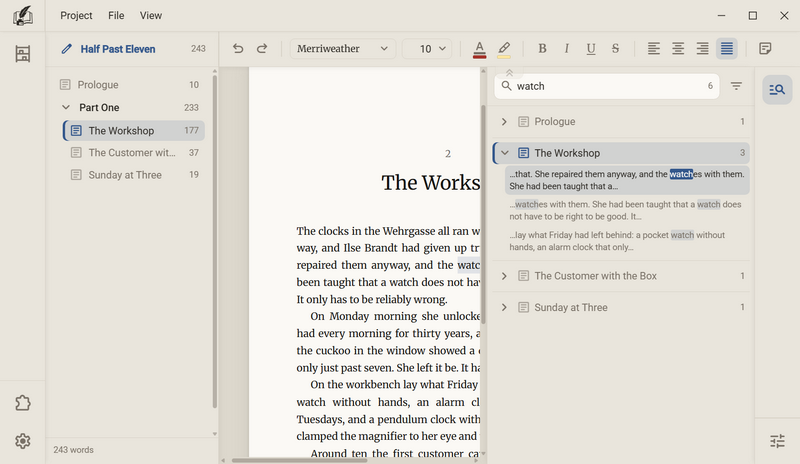
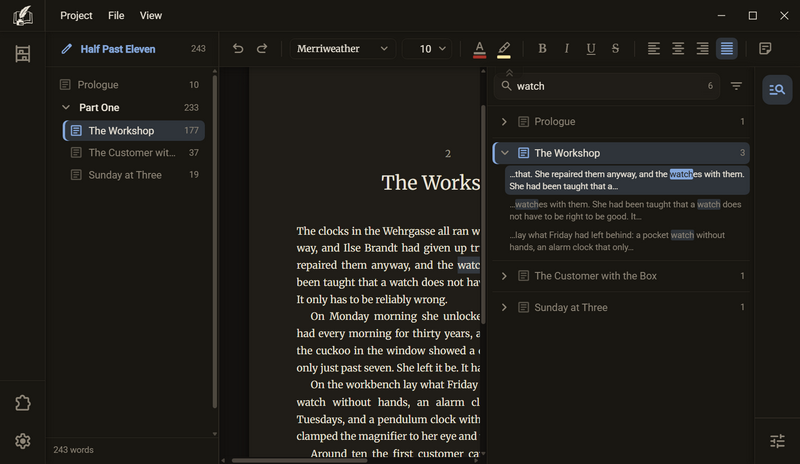
- Press Ctrl + Shift + F and type the word. After a short moment the list appears. Enter searches right away.
- The number in the field is the sum over the whole book. If nothing matches, it is red.
- Each row is a document with its number of matches, in the order of the chapter tree. Documents without matches are not in the list.
- A click on the arrow shows the places, two lines around each match. A click on a place jumps there. A click on the name jumps to the first place.
- Matches in notes and in footnotes stand under rows of their own: On notes and In footnotes. Jumping to a note opens it. Jumping to a footnote goes to the box at the foot of the page.
- The funnel beside the field opens the filters: Text, Notes and Footnotes for what is searched, Printed and Not printed for the documents. All are on. If you switch one off, you take it out of the search.
With the keyboard
| Key | What happens |
|---|---|
| ↓ | From the field into the list, then through the list. Every step jumps along. |
| → ← | Folds a document or a group open and shut. |
| Enter | Jumps to the chosen place. |
| Esc | Gives the cursor back to the sheet. The panel stays open. |
Good to know
- The search applies to the open book and not to the whole project. It reads all chapters, including folded ones.
- It only finds and changes nothing. Replacing works in the search bar above the sheet, but that searches only in the open chapter.
- The search matches parts of a word, and upper and lower case do not matter: watch also finds watchmaker. You switch on whole words and case in the search bar above the sheet.
- The place you jump to stands in the middle of the sheet.
- Up to 500 places are shown. If there are more, the line at the foot of the list says so, for example 500 places shown · 4,812 found. The match counts of the documents are still right.
- The search reads from the disk. What you typed in the last few seconds may be missing until the manuscript is written.
- The search term and the filters stay until you close the window.
- If nothing is left, the panel says whether a filter is the cause, for example Nothing found. A filter leaves out 13 of 24 documents. Below it is a button that clears the filter.
- You cannot reassign Ctrl + Shift + F.
Arranging the panels
Which panels are on the rail of the side column, and in which order, is up to you.
- Click the button at the very bottom of the rail, or choose View → Customise the side column.
- On the left under Every panel, click a panel. Below it is what it is for and, for an add-on, where it comes from.
- Drag the panel into the rail on the right. With the keyboard: choose the panel and press Enter, and it attaches at the end.
- To change the order, move an icon in the rail, or use Alt + ↑ and Alt + ↓ on the keyboard.
- To take a panel out, drag it out of the rail, or use Del on the keyboard.
- Apply saves the order. Cancel saves nothing.
Good to know
- A pale panel is already on the rail. You can still click it to read what it is. Each panel is on the rail at most once.
- Undo and Redo are at the top right of the window, and Ctrl + Z and Ctrl + Y work too. Back to the default puts the panels of the program back in their order. Panels from add-ons are not part of the default.
- The order applies to all books on this computer.
- If you take out all panels and apply, you get an empty rail.
- Panels from add-ons never get onto the rail by themselves. If an add-on brings a panel, its setup asks after the installation, in the tab General with the switch Put it in the side column. Later you put it in here under From add-ons, or take it out. Whether an add-on brings a panel is shown by the badge Panel on its card.
- If you switch an add-on off, its panel disappears. If you switch it on again, it is back in its old place. If you remove the add-on, the place is gone.
- What is shown inside a panel from an add-on is drawn by the add-on itself.
Where you left off
Regletto Writing remembers where you stopped, on three levels: which window, which chapter and which place in the chapter. This happens by itself, there is no setting for it.
Good to know
- If you stop in the manuscript, you are in the manuscript at the next start. If you stop in the library, you are in the library.
- Each book remembers its last opened chapter.
- Each chapter remembers how far down you had scrolled. The place is stored in
index.jsonand travels with the project to another computer. - If the remembered chapter no longer exists, the first one opens.
- Whether a section is folded open or shut is not remembered by the program.
- If the folder of the last open project has been moved, the start opens the project choice.
- At the bottom left of the manuscript is the sheet scale, pale as long as it is not 100 %.
Ask in the help channel on our Discord server (the server is German-speaking).