Insert at a glance
You place a picture, table, scene rule, chapter link, footnote, source and block quotation at the cursor. The quickest way is the slash, which also opens the paragraph sorts (see Writing). The note is not part of this: it lies beside the sheet and is created there.
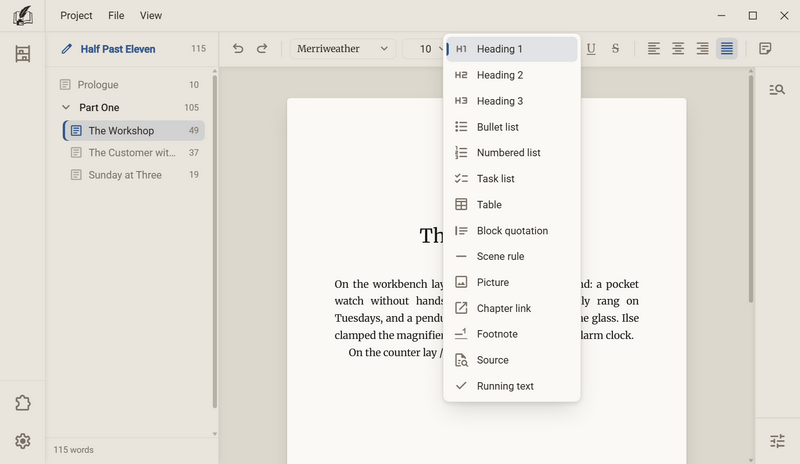
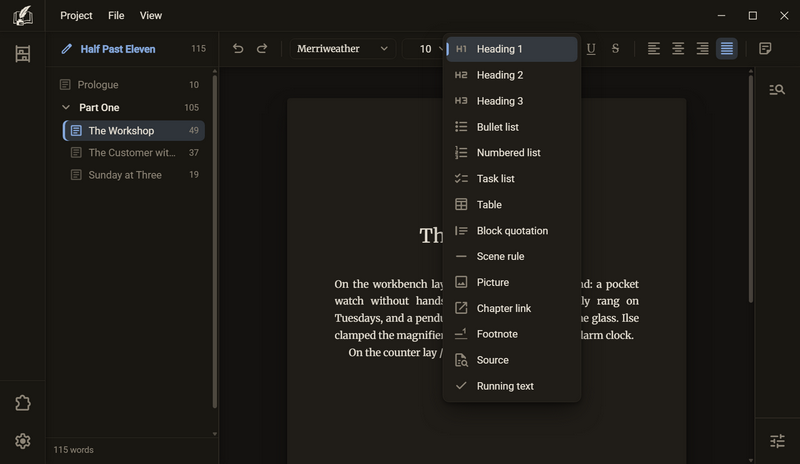
| Entry | What it inserts | Also found under |
|---|---|---|
| Picture | A picture from a file | Image Photo Figure |
| Table | A table with two columns and two rows | Grid Matrix |
| Scene rule | The line between two scenes | Line Scene break Asterisks |
| Chapter link | A jump to another chapter | Link Chapter Jump |
| Footnote | A number in the text and the note at the foot of the page | Annotation |
| Source | The citation of a recorded source | Citation Reference Literature |
| Block quotation | The paragraph becomes an indented quotation block | Quote |
Good to know
- Every entry also exists as a button for the toolbar. The buttons are available in the group Paragraph sorts. By default they are not in the toolbar, with one exception: the set Academic contains footnote, block quotation and source.
- Picture and scene rule are paragraphs with no text in them. They can be selected, copied and undone like a paragraph.
- Where a setting sits in the book dialog is given under Edit book → Advanced settings. In a binder the entry is called Edit binder.
- When you import a Word file, footnotes come along. Pictures and tables do not, and the import dialog tells you beforehand how many there are.
Picture
A picture stands in a paragraph of its own. It comes from a file, from the clipboard, or by dragging it onto the sheet into the chapter. JPG, PNG and WebP are accepted.
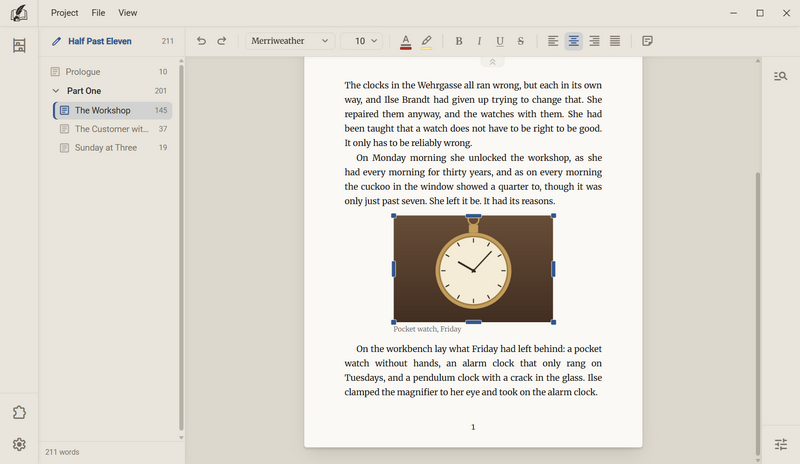
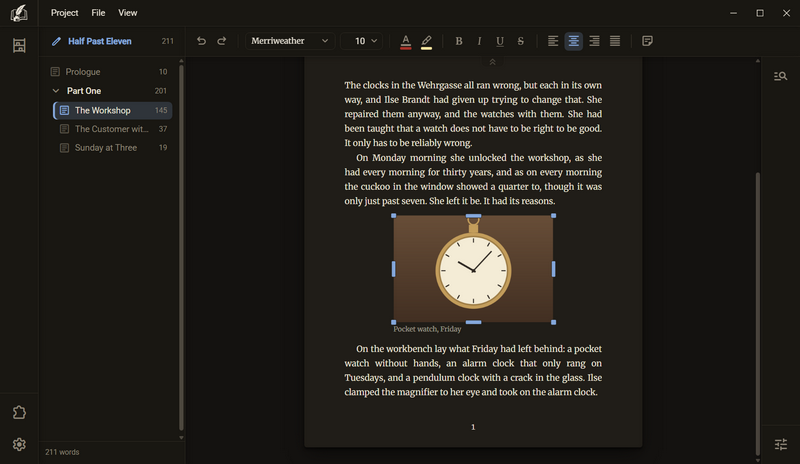
- Drag a picture file from a folder onto the sheet. Or type /picture and choose the file in the dialog. Or put a picture on the clipboard and press Ctrl + V.
- A click on the picture puts the cursor in front of it. A double click selects it, and eight handles appear at the edge.
- Drag a handle. A corner changes the size and keeps the ratio. Left or right makes the picture wider or narrower, top or bottom taller or shorter. The picture is stretched, never cropped.
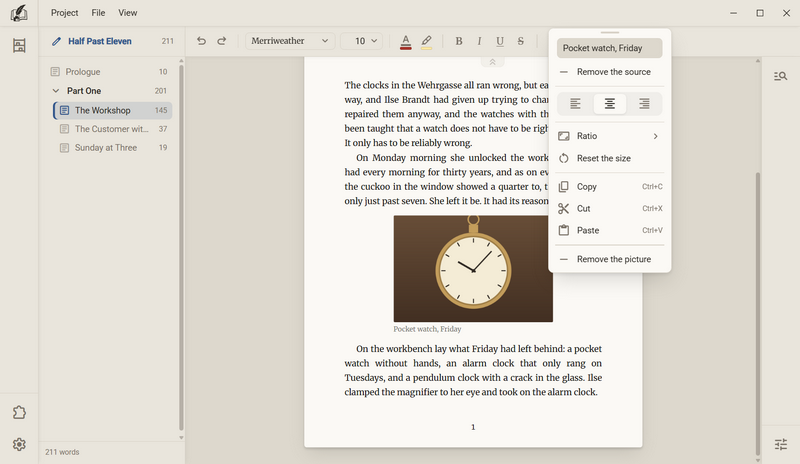
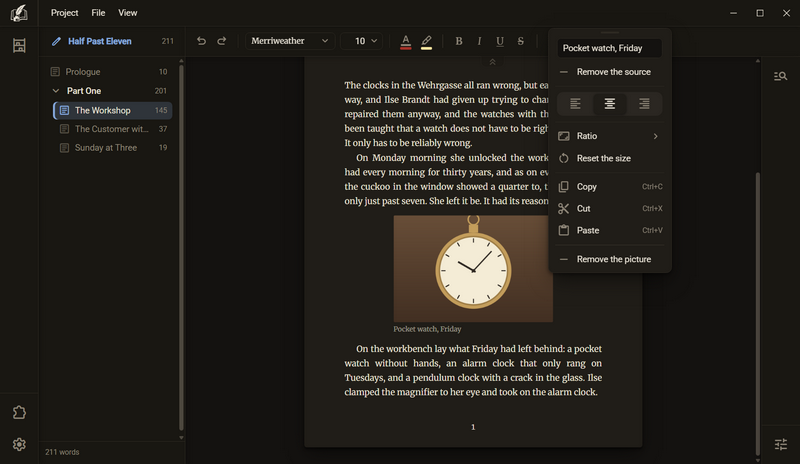
- A right click on the picture opens the menu from the table below.
| Row in the menu | What it does |
|---|---|
| Source (field) | A line under the picture, for example where it comes from. Up to 300 characters. |
| Remove the source | Appears only where a source is set. |
| Three alignments | Left, centre or right. It applies to a picture that is narrower than the text. |
| Ratio | As the file is, 1:1, 4:3, 3:2, 16:9, 3:4, 2:3 or your own ratio such as 16:10. |
| Reset the size | Appears only where the width or the ratio has been changed. |
| Copy Cut Paste | As with text, with the usual keys. |
| Remove the picture | Takes the picture out of the chapter. |
Good to know
- The file is copied into the images folder of the book or binder, not linked. Your file stays where it is, and the book is complete when you copy its folder.
- Unless you set otherwise, the picture fills the text width. Smaller than 8 percent is not possible, because it could no longer be grabbed.
- The cursor can stand in front of the picture. Enter there opens a line above it, just as with text.
- Several files at once come in in the order in which you drag them. One Ctrl + Z undoes the whole row.
- From the clipboard you can paste screenshots and pictures copied in the browser. If a picture and text are both on the clipboard, the picture is pasted. A picture that appears only as an address in the copied text is not loaded from the internet.
- Remove the picture does not delete the file. It stays in the images folder.
- A picture that cannot be read during export does not stop the export. An empty paragraph stands in its place, and a message says so. Your text stays untouched.
- The program rejects any file other than JPG, PNG or WebP: A chapter takes JPG, PNG and WebP only.
Table
A table has two to twelve columns and any number of rows. It is a paragraph like any other: it can be selected, copied and undone. When inserted it has two columns and two rows, with an empty line below it for writing on.
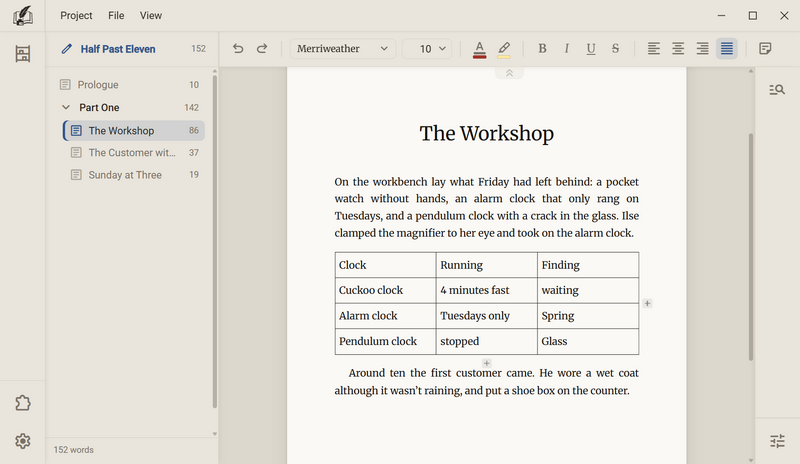
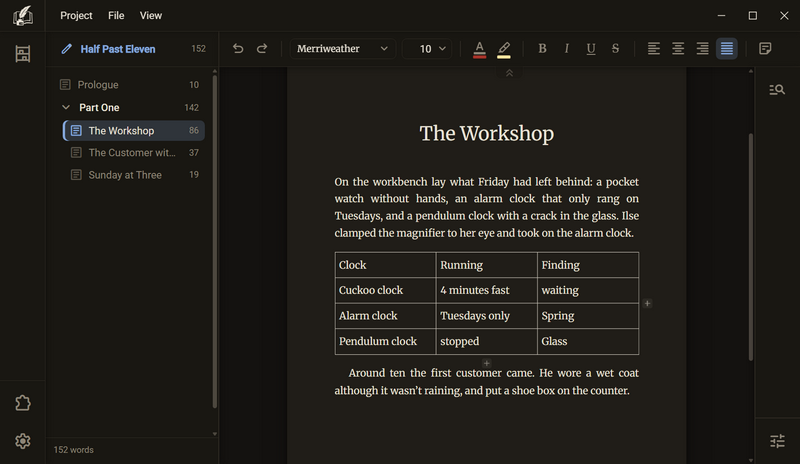
- Type /table. The table appears, with the cursor in the first cell.
- Tab moves one cell on, Shift + Tab one back. In the last cell, Tab appends a new row.
- When the mouse moves over the table, a plus for a new column appears to the right of it and a plus for a new row below it.
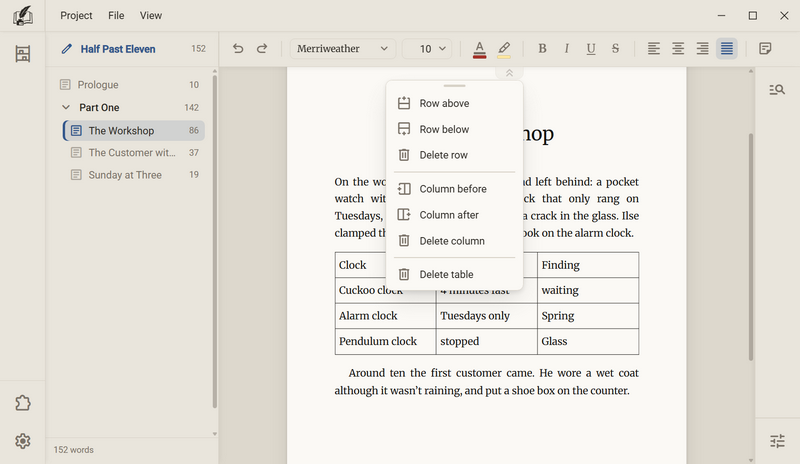
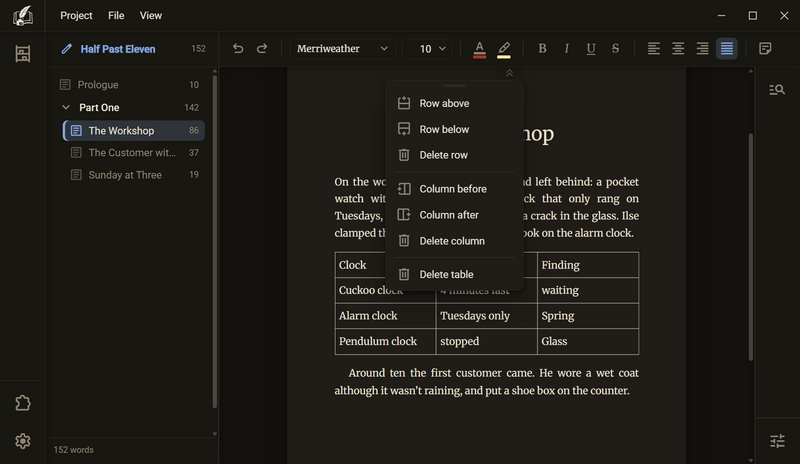
- A right click in a cell opens the menu: Row above, Row below, Delete row, Column before, Column after and Delete column. Behind a line stands Delete table.
- You change the width of a column at the grid line: grab it and drag.
Good to know
- When you drag, only the two columns next to the line change. Their sum stays the same, so the table does not move. No column becomes narrower than five percent.
- Even columns in the menu restores equal widths. The row appears only where there is something to undo.
- Every cell has its own alignment. The four alignment buttons act on the cell with the cursor or on all cells of the selection.
- In a cell, Enter breaks the line within the cell. Ctrl + Enter leaves the table downwards and creates a new paragraph there.
- The cursor can stand in front of the table, in the first cell before the first letter. There Enter pushes the whole table down one line and makes room above it. The Backspace key brings it back up. Shift + Enter stays a line break there too.
- A table is deleted only through the menu, never with a key. It holds text, and a key press at its start should not take that text along. Ctrl + Z brings it back.
- You set how it looks in the book dialog: Edit book → Advanced settings → The text → The table. There you find the thickness of the lines, the air in the cell and the space above and below. For the thickness of the lines, 0 is allowed, and then the table has no lines.
- The export takes the table along in every format. PDF, Word, Rich Text, EPUB and HTML set it with its column widths. Markdown writes it as a table with vertical bars, plain text as columns of spaces.
Scene rule
The scene rule stands between two scenes when no new chapter begins there. It looks like a line or like three asterisks. What applies to the whole book you set in the book dialog. A single rule may deviate from it.
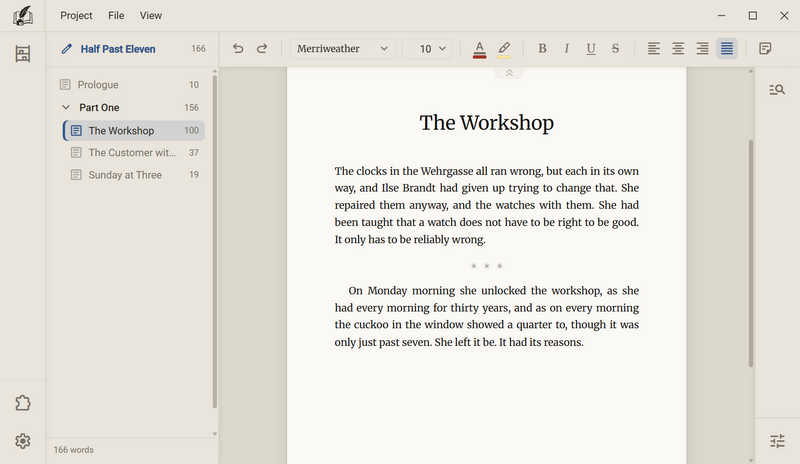
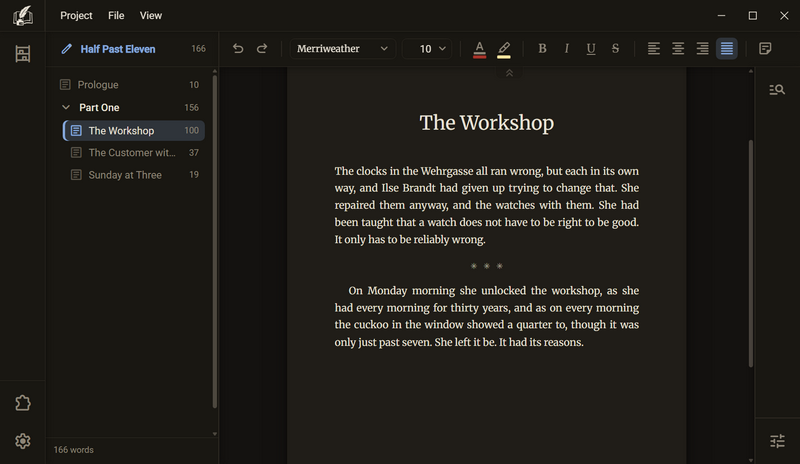
- Type three hyphens on an empty line. The rule appears at once. Ctrl + Z gives the three hyphens back.
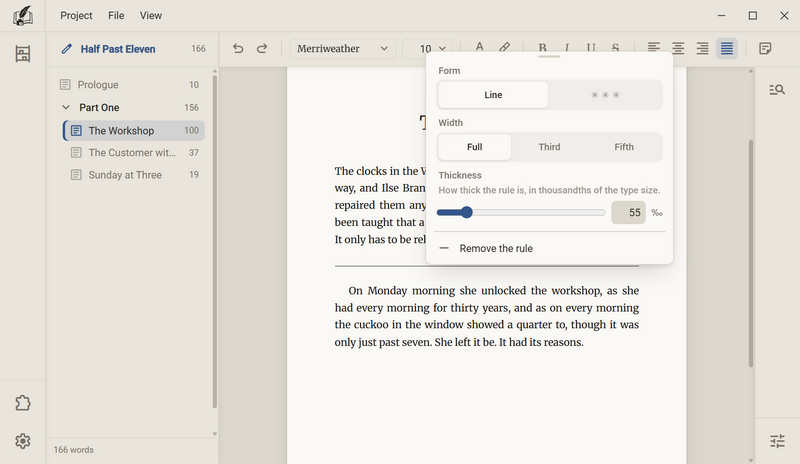
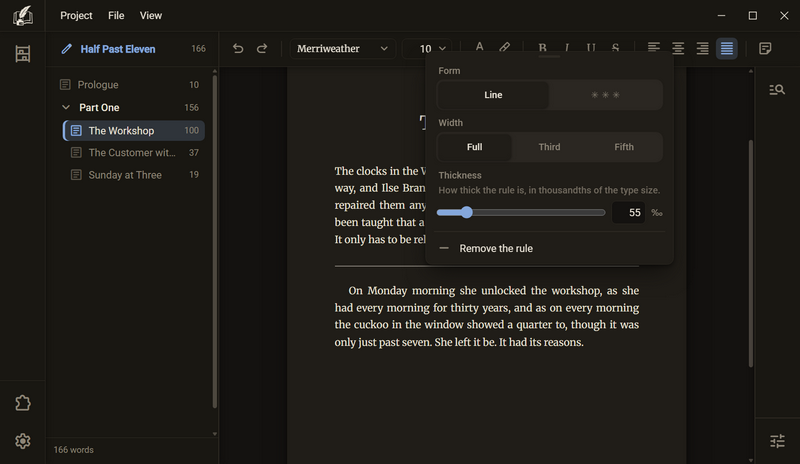
- If a single rule should look different: right click it. The menu has four settings. Form is the line or ✳ ✳ ✳, and there are Width (Full, Third or Fifth), Alignment (Left, Centre or Right) and Thickness.
- A click on a value takes effect at once, and the menu stays open. This way you can try out the forms. If the menu lies over the rule, drag it aside by the handle at the top.
- Back to the book's value: Back to the book's setting. The row appears only if the rule deviates.
- To remove it: right click the rule, then Remove the rule.
Good to know
- The menu holds only rows that change something on this rule. With the three asterisks, width, alignment and thickness drop out. With the width Full, the alignment drops out.
- What you set on the book applies to every rule that does not deviate. If you click in the menu the value the book already has, the rule keeps following the book. If you later change the book's default, these rules move with it.
- The default for the book is under Edit book → Advanced settings → The text → The scene rule. The distance above and below the rule is set there too. You cannot set this distance for a single rule.
- The thickness is given in thousandths of the type size, from 10 to 300. So the rule grows with the text. When you drag the slider you see the stroke grow, and one drag is one step for undo. You type a specific number into the field beside it and confirm with Enter.
- The cursor can stand in front of and behind the rule, and the two places mean different things. In front of the rule, Enter pushes it down a line, and behind it Enter opens an empty line below. The Backspace key behind the rule deletes it, and so does Del in front of it. If a paragraph with text stands above the rule, the Backspace key in front of it does nothing.
- The Scene rule button does not take marked text along. It places the rule at the start of the selection.
- The replacement of --- can be switched off: Settings → Writing → While typing → Scene rule. The route via the slash stays.
Note
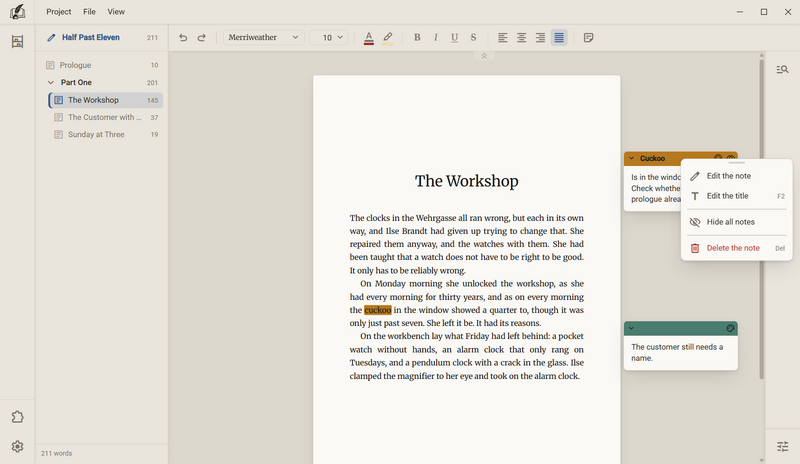
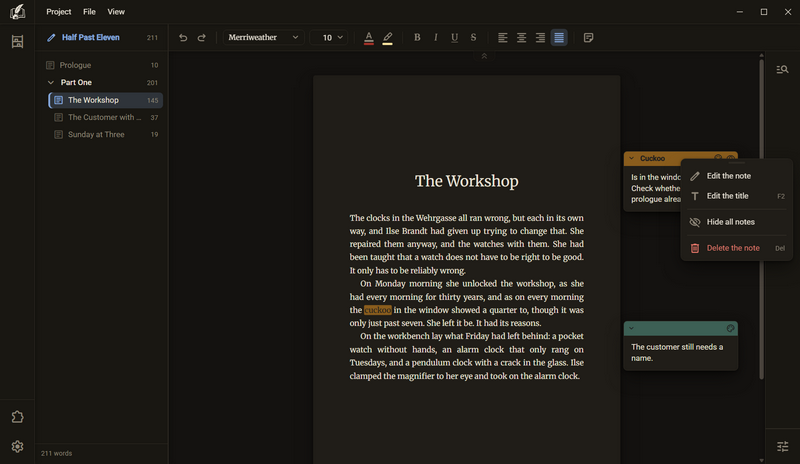
A note is a slip beside the sheet. It belongs to you and not to the book: it is never printed and is not exported in any format. It can lie free or be attached to a passage of text.
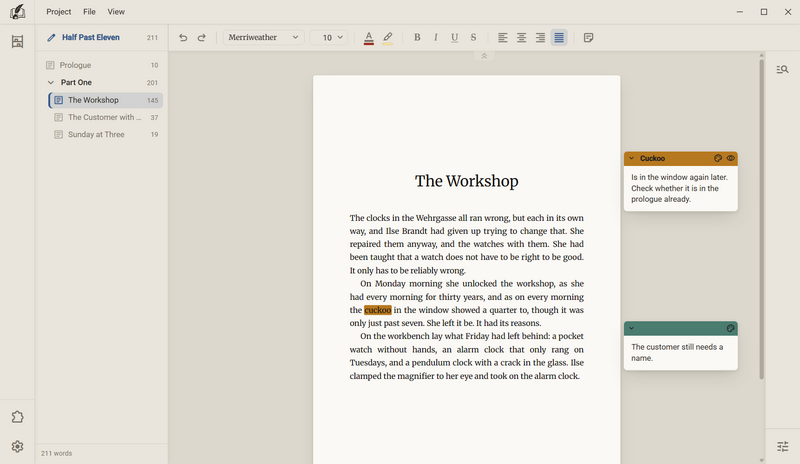
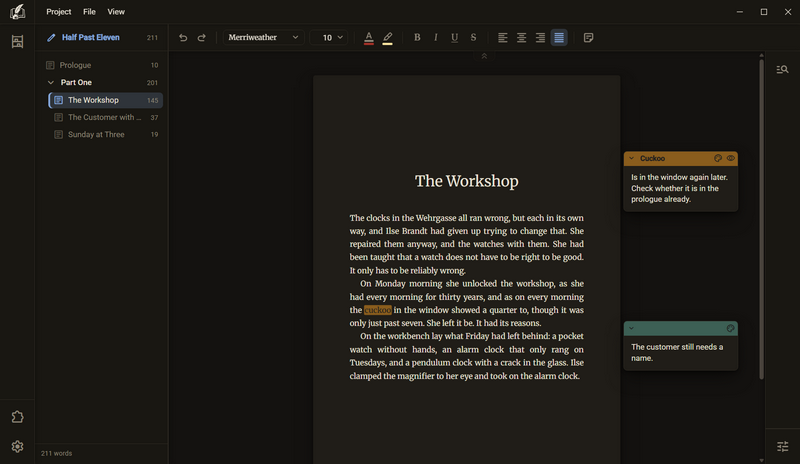
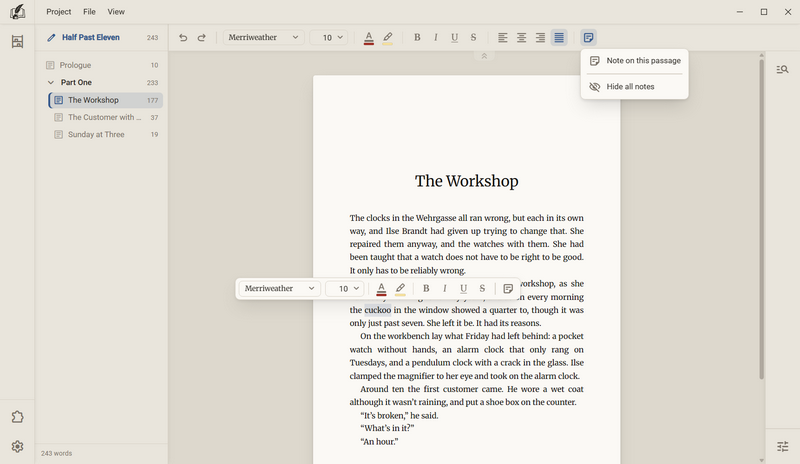
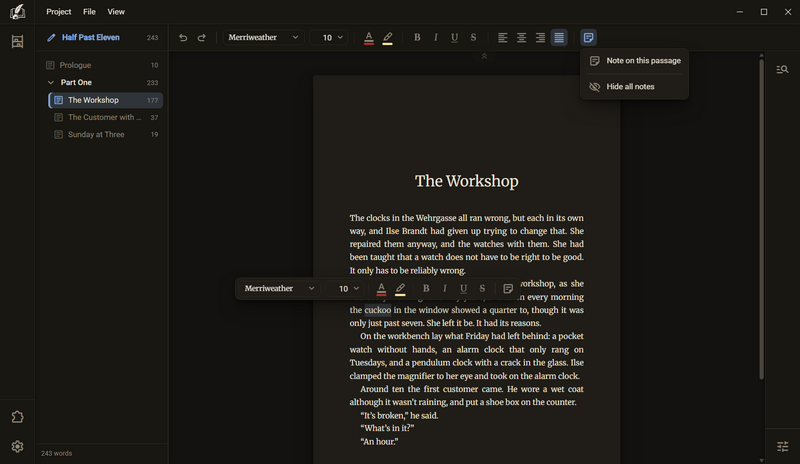
- Right click the desk beside the sheet, then Add a note. The field is open at once. If text is marked, the row is called Note on this passage.
- Write. Enter files the note, Shift + Enter breaks the line, Esc takes back what you wrote.
- A click on the note opens it again. You give it a title by double clicking the head or with F2.
- You move the note by its head, and at the right edge you drag its width.
- Del deletes the note that has the focus. Ctrl + Z brings it back.
Good to know
- With text marked there is a way without the menu: the tool Notes in the toolbox over the marking creates the same note.
- A note points to exactly one passage. If you tie it anew, the old tie lets go, in one step for undo. The marker in the text has the colour of the note.
- You can tie a note afterwards: mark text, right click the note, then Tie to this passage. The row appears only while something is marked.
- The eye in the head of the note takes the marker off the passage and nothing else. The text reads afterwards as before.
- You choose the colour of the note in the head. A free note has one too, so that many slips can be ordered by colour.
- You select several notes with a frame on the desk. Afterwards they can be moved, coloured or deleted together.
- Hide all notes is in the menu of a note and in the list of the tool Notes. After that the list shows Show all notes. If you select several notes, their menu offers Hide the markers: the slips stay where they are, and the text is free of markers.
- Notes belong to the chapter. If you copy the chapter, they come along.
- The tray Advanced search of the side column also searches the notes and shows hits in the group On notes. A click jumps there and opens the slip, even if the notes are hidden at the moment.
- The note is not a footnote. The footnote stands on the paper, the note never does.
Chapter link
A chapter link leads from the middle of the text to another chapter of the same book (in a binder: to another document). In front of the name stands a small sign, a frame with an arrow pointing out. A click on it opens the chapter. The name of the chapter is the text of the link.
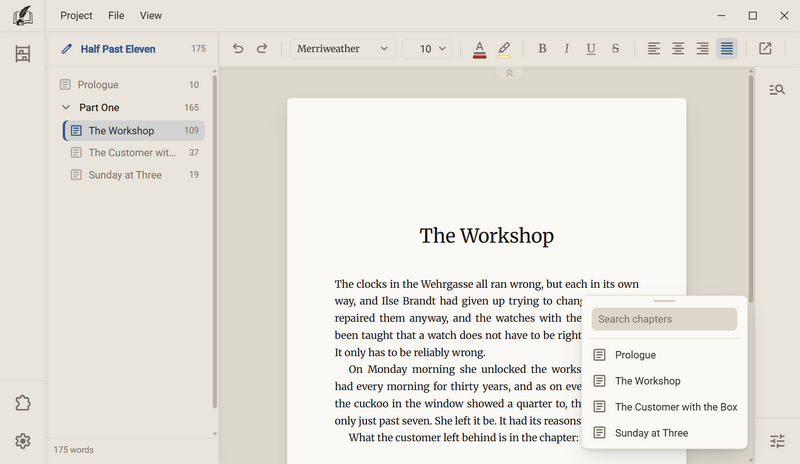
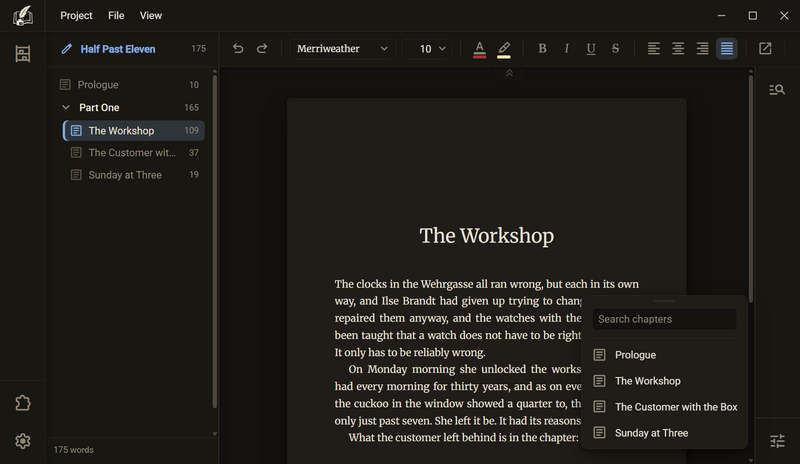
- In the text type /link, or type / and choose Chapter link in the list. Or click the tool. All ways open the same window.
- The window opens at the cursor: a search field at the top, below it all chapters of the book.
- Typing filters the list. Enter takes the first chapter still there. With the arrow keys you go through the list, and Esc closes it.
- The chapter name then stands in the paragraph, with the sign in front. If you marked words beforehand, those words are linked.
- A right click on the link opens three rows: Include in export, Link to another chapter and Remove link.
Good to know
- The name travels with it. If you rename a chapter, every link to it changes throughout the book, even in chapters that are not open at the moment. One Ctrl + Z undoes the renaming and the adjusted names in one step.
- The link is an object and not text. You do not type in the name, and a deleted character deletes the whole link. Before and after it you write on as normal.
- The sign stands only on the desk. On the printed sheet the name stands alone.
- Three formats really jump: PDF, EPUB and Word. Markdown, Rich Text and plain text have no jump, and there the name stands as an ordinary word.
- Include in export is the default. If you switch it off, the link on the desk turns paler and is underlined with dashes, and in the export the name drops out in every format.
- A link to a chapter that you do not export keeps its name and loses only the jump.
- If the target chapter is deleted, the name stays as text. A click on it says that the chapter no longer exists.
Academic papers
For a term paper or a thesis there are footnotes, sources with citations, block quotations and a bibliography. They are available in every book and every binder. The template Academic paper sets the usual form when you create a binder.
The template sets A4, the typeface Tinos, justified text, an outer margin of 35 millimetres for corrections, the page number on the right and the calculated outline (1, 1.1, 1.1.1). Tinos has the same character widths as Times New Roman. It creates seven documents: Cover sheet, Contents, Introduction, Main part, Conclusion, Bibliography and Statutory declaration. Cover sheet, Contents, Bibliography and the declaration do not count towards characters and words, and the page count begins at the Introduction. The cover sheet is a free document without fixed fields. The template is asked for only when you create the binder. Afterwards you set each row individually, in the book dialog under Advanced settings.
The footnote
A footnote is a superscript number in the text and the note belonging to it at the bottom of the same page.
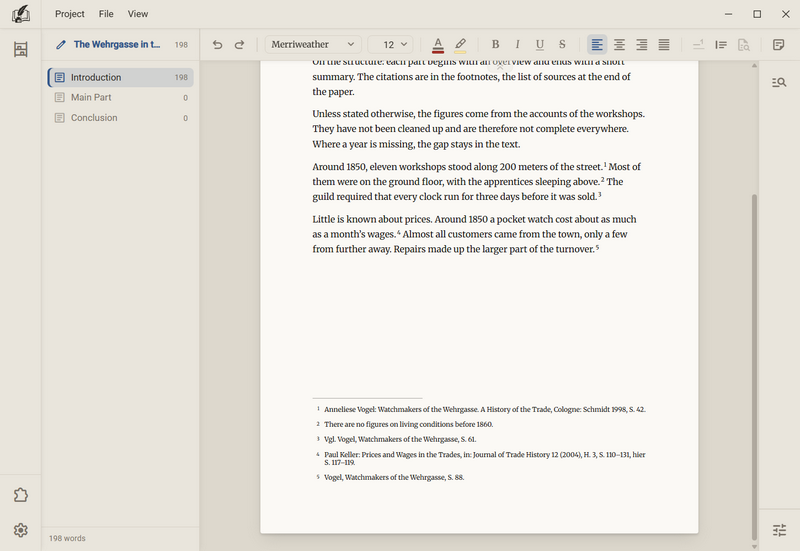
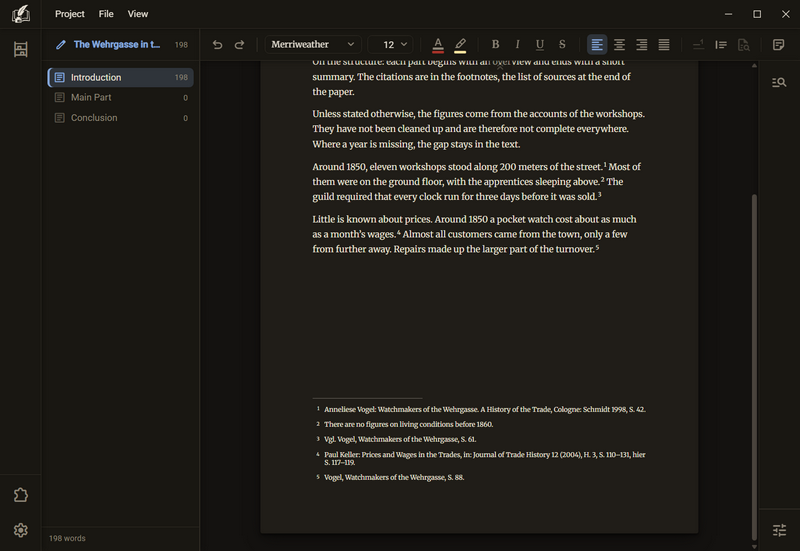
- Go to the place where the number should stand and type /footnote. The number appears at once, and the box at the foot of the page opens. With the button you put the number after the marking.
- Write the text of the note in the box. Bold, italic and the spell check work in it as in the running text.
- Click back into the text to keep writing. A click on the number or on the line in the box leads to the other one at any time.
- To delete: Backspace after the number takes number and note away in one step.
Good to know
- The number is calculated, never typed. Whoever inserts a note renumbers nothing. The count runs per chapter.
- The note stands at the foot of the page on which its number stands. If the paragraph moves to the next page, the note goes with it. A very long note runs on onto the next sheet.
- The Footnote button works only with marked text and is grey otherwise. The slash needs no marking.
- How the footnote is set is under Edit book → Advanced settings → The text → The footnote: Size, leading, air above the box, length of the rule, weight of the rule and air under the rule. The rule above the box disappears when you set its length to 0. The leading of the note is its own and not a factor of the running text.
- The tray Advanced search of the side column also searches the notes and shows hits in the group In footnotes. A click jumps into the box.
- Six of seven formats take the footnotes along. PDF sets them on the sheet, Word and Rich Text write real footnotes, EPUB shows them as a pop-up, HTML sets them as a list at the end of the chapter, and Markdown writes them as footnotes with [^1]. Only plain text loses them, and the export dialog says so for every format.
- On import, footnotes from Word come along. Endnotes are read as footnotes.
- In the German citation style, a citation is itself a footnote, with the same number and the same box.
The source
You record a source once, and after that you only place citations. The citation in the text and the bibliography at the end are calculated from it.
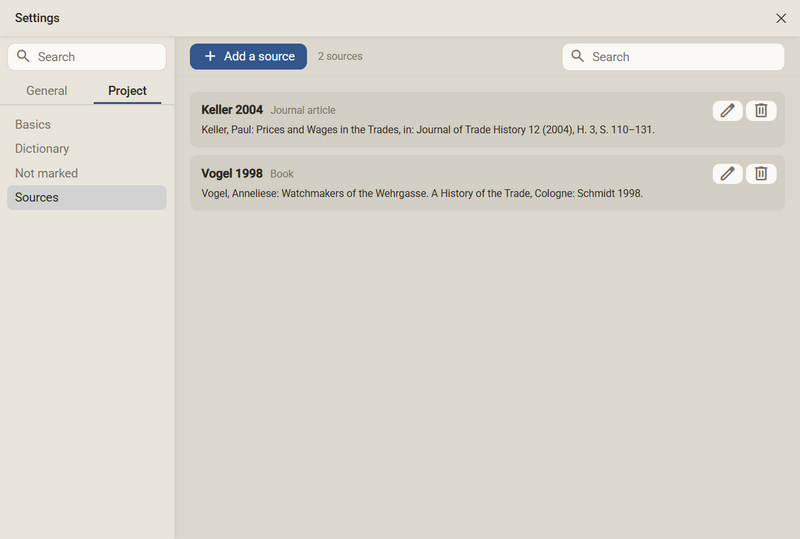
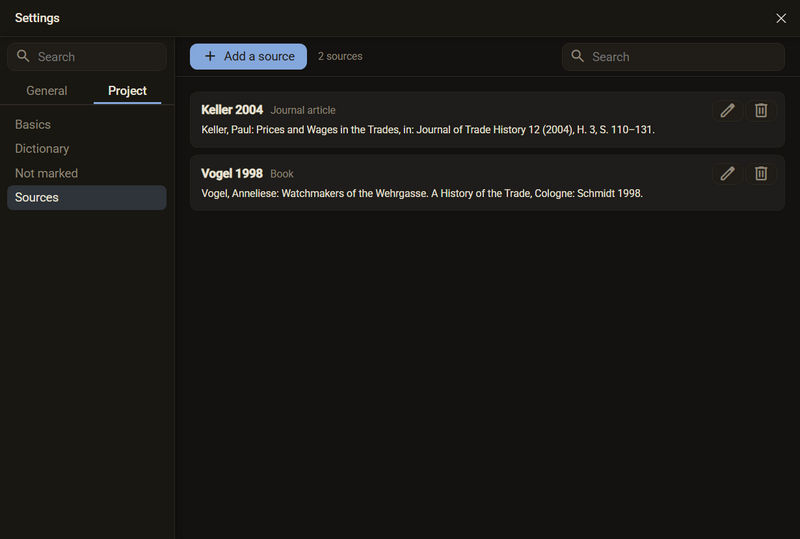
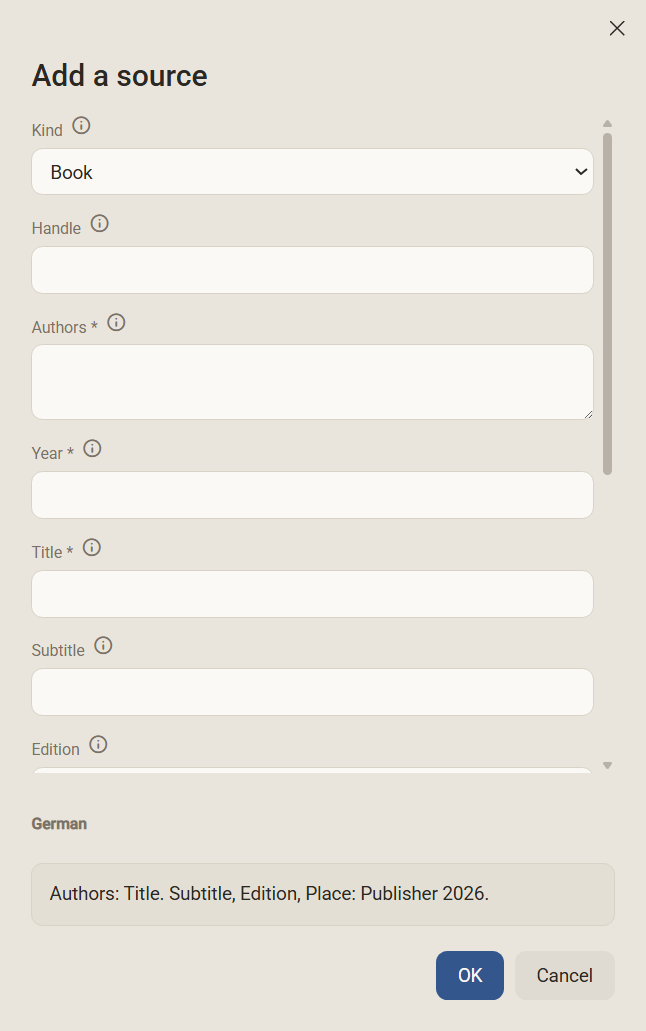
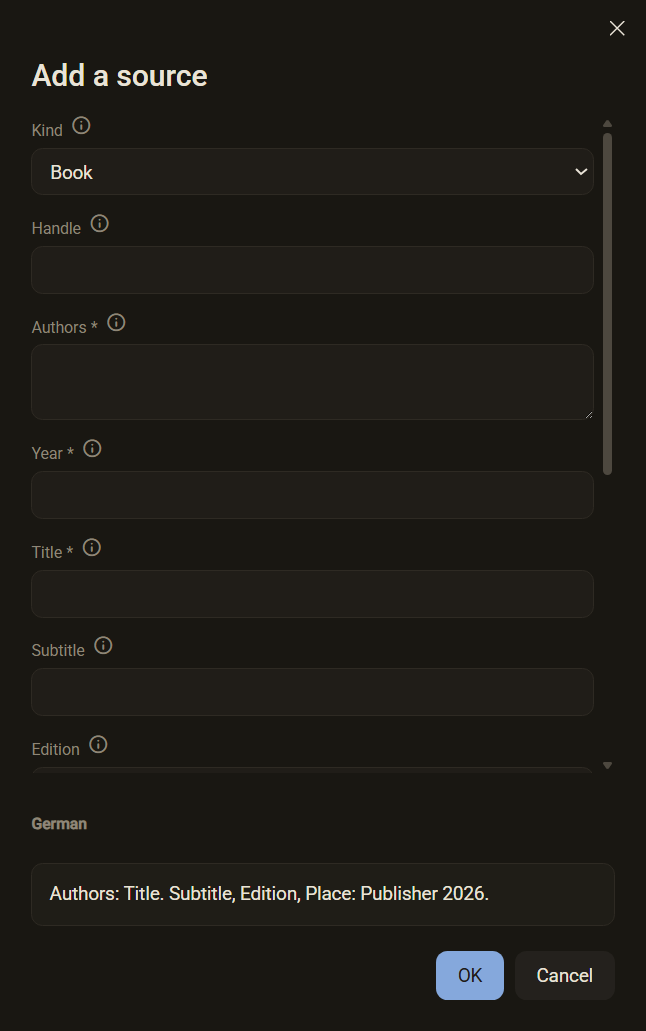
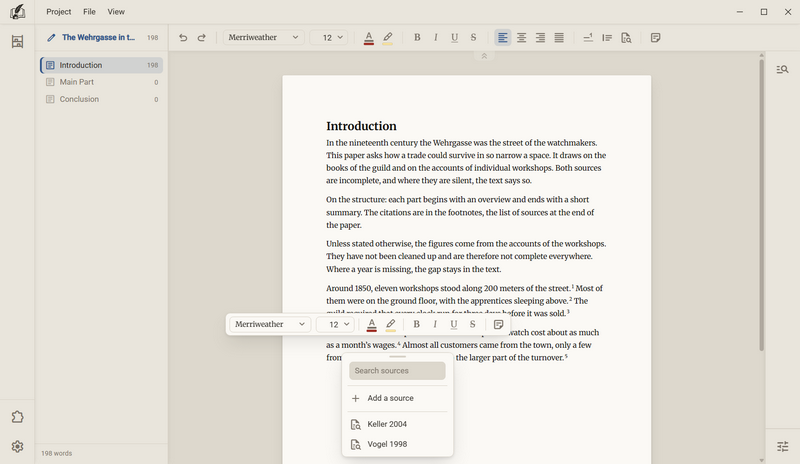
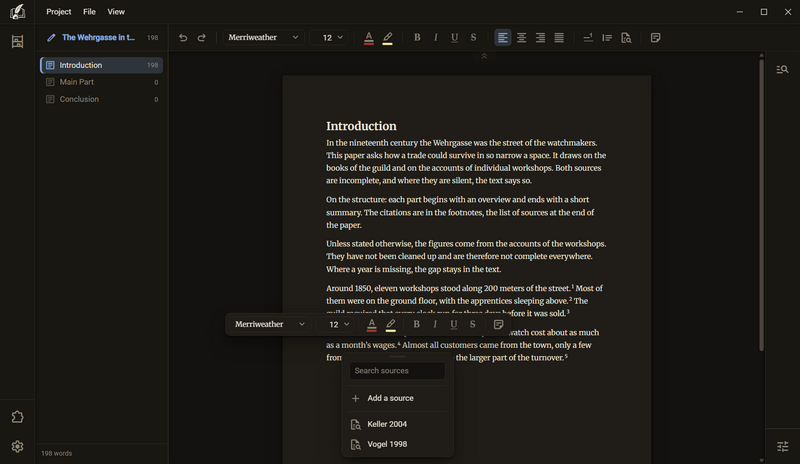
- Record a source: Settings → Project → Sources → Add a source. First choose the Kind: Book, Contribution to an edited volume, Journal article, Online source or Thesis. The fields depend on it. Every field has an icon with an explanation and an example, and required fields carry an asterisk.
- The Handle is calculated from author and year, for example Vogel 1998. It is what you find the source by when you insert it, and it can be changed.
- To cite in the text: go to the place, type /source, search for the source and choose it, then enter the page, for example 42. The first row of the list is always Add a source, even if no source has been recorded yet. A new source is cited at once at the place where you called the tool.
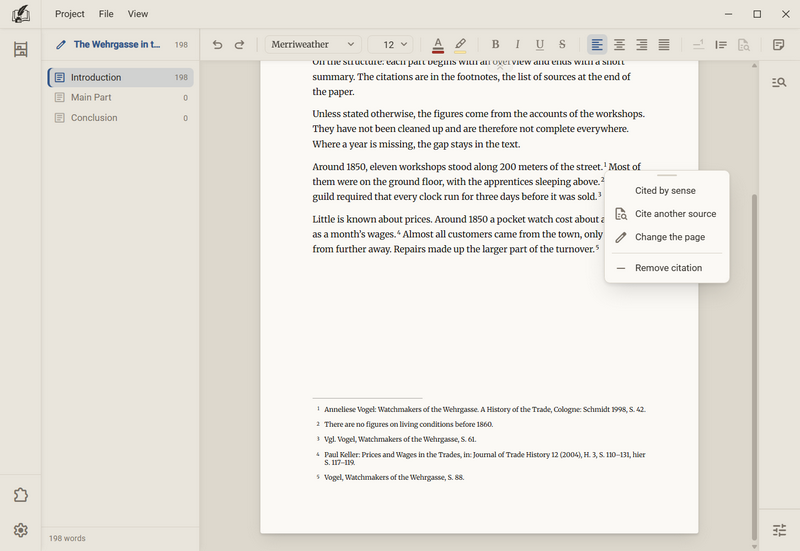
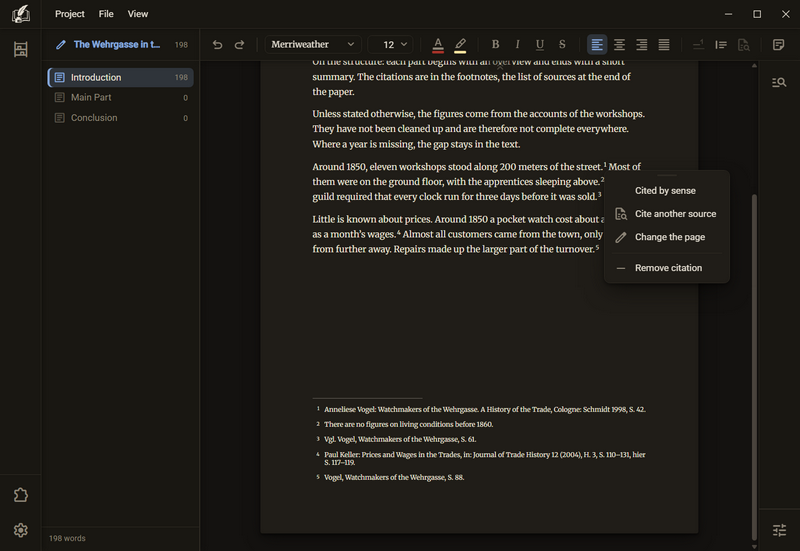
- To change it later: right click the number, or with APA and Harvard the citation in the line. The menu has Cited by sense, Cite another source, Change the page and, behind a line, Remove citation. Only the citation in the text is removed, and the source stays in the project.
How a citation looks is decided by the citation style. It is set on the book or binder, since a paper has exactly one, and it applies to all citations at once:
| Citation style | Where the citation stands |
|---|---|
| German | As a footnote. The first time, the full reference stands there, for example Anneliese Vogel: Watchmakers of the Wehrgasse. A History of the Trade, Cologne: Schmidt 1998, S. 42. After that comes the short form, and on an immediate repetition Ebd. |
| APA | As a short citation in the line, for example (Vogel, 1998, S. 42) |
| Harvard | As a short citation in the line, for example (Vogel 1998, S. 42) |
You set it under Edit book → Advanced settings → The text → How sources are cited, row Citation style.
Good to know
- The sources belong to the project and not to the book, next to the dictionary. A source applies to all books and binders of the project.
- A cited source cannot be removed. The program says how many times it is still cited and asks you to remove the citations first. If you delete the number in the text, the source is free at once and drops out of the bibliography.
- If a source lacks a required field, the list says which: Incomplete and the names of the fields.
- You set the Vgl. (cf.) on the citation: right click the number, then Cited by sense. In the German citation style, Vgl. then stands before the note. In APA and Harvard the row is missing from the menu. The setting stays saved anyway and takes effect again when you switch back to German.
- The program fetches nothing from the internet. There is no search by DOI and no research function, so you type the details yourself.
The block quotation
A longer quotation stands indented, set tighter and usually one size smaller. The block quotation is a paragraph sort, like heading or bullet list.
- Go into the paragraph that should become the quotation and type /quote. The paragraph is indented.
- Write or paste. Enter at the end leaves the quotation. The Backspace key at the start removes first the sort and then the paragraph.
- To take it back: /quote once more, or the button, as long as the cursor stands in the quotation.
- You set the form under Edit book → Advanced settings → The text → The paragraph sorts. There are five rows: Block quotation, indent left, Block quotation, indent right, Block quotation, leading, Block quotation, size and Block quotation, bar at the left.
Good to know
- The leading of the quotation is its own, a multiple of its own type size. Many guidelines ask for 1.5 in the text and single spacing in the quotation, which is why it is a number of its own.
- The indent on the left and on the right can be set separately. Many guidelines indent only on the left, and then a 0 stands on the right.
- The bar at the left has the colour of the text. If Block quotation, bar at the left is set to 0, there is no bar. There is no switch of its own for it.
- PDF, EPUB, HTML, Word and Rich Text draw the bar. Markdown writes the quotation with >, and plain text indents it.
- A quotation that the page break splits carries the bar on both pages.
The bibliography
The bibliography is set and not typed. It contains every cited source exactly once, alphabetically, and stands on the desk after the last chapter.
- On export you tick Bibliography. For a term paper, with PDF the tick Contents is added. The bibliography is available for PDF, Word, Rich Text, EPUB and HTML.
- How the bibliography looks is set in the binder, in the category The Sources: heading, head height, type size, leading, hanging indent, entry spacing, setting, leaf of its own and order. A book has no such category, and there the bibliography keeps its fixed look.
- The heading can be Bibliography, List of sources, Literature or Works cited. The order is by surname, by year or by the sequence in which the text cites the sources.
- If Leaf of its own is off, the list runs on below the last line of text, the way a short seminar paper is handed in.
- What stands in a line is decided by the citation style. These settings only say how the list looks.
Ask in the help channel on our Discord server (the server is German-speaking).