What is checked
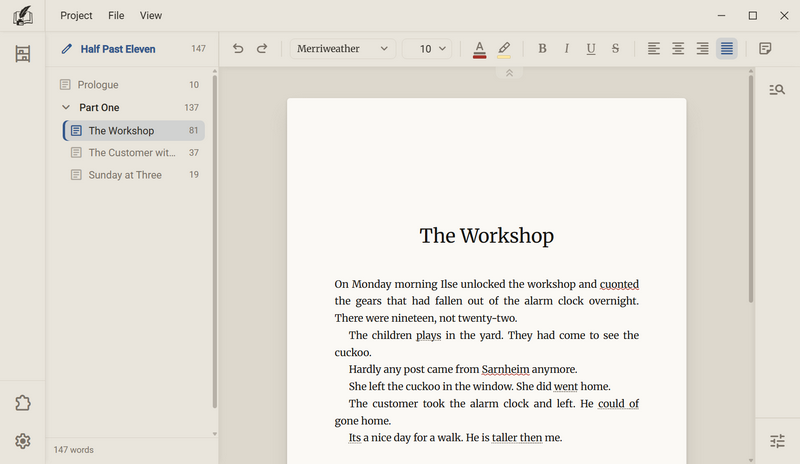
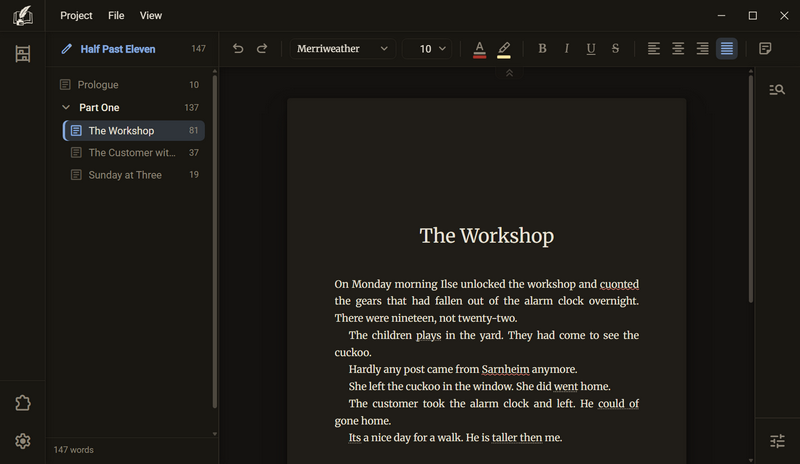
Regletto Writing checks your text while you write, in two ways. The spell check marks in red with a wavy line whatever stands in no dictionary. The grammar check marks with a dotted line whatever does not work grammatically. Both run on your computer. No word of your text is sent to the internet.
Good to know
- Both checks need the language package of the language the book is written in. You can choose German and English (US). The package is downloaded under Settings → Languages, more on that under Language packages. If it is missing, Regletto Writing marks nothing and you write as usual.
- The marks do not change the text.
- Regletto Writing does not use the spell check of your system but one of its own. That is why waves and suggestions are the same on Windows and Linux.
- You can switch the check off in the program, for a book and for a chapter, see Switching the check off.
Spell check
A word that stands in no dictionary of the book's languages gets a red wave. A right-click on the word opens a menu with suggestions.
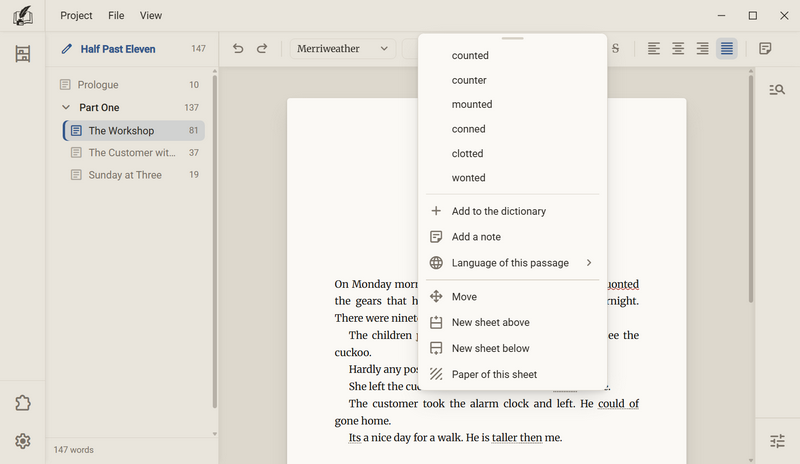
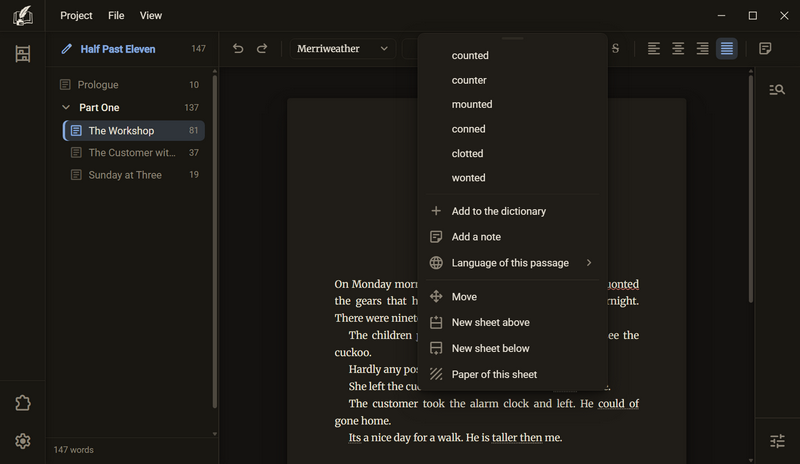
- Right-click the marked word.
- At the top are up to six suggestions. A click on one replaces the word.
- If the word is right, choose Add to the dictionary. After that it is no longer marked.
Good to know
- The check runs in all languages that are ticked for the book. If a word stands in one of them, it stays unmarked.
- Each language has a word list that Regletto maintains: correct words that are missing from the dictionary. It is fetched from the internet in the background at start, without a message. It is not your dictionary, the two are separate.
- Added a word by mistake? Right-click the word, then Remove from the dictionary.
- If the check is off for a chapter, there are neither waves nor entries in the menu there.
- Without a language package nothing is marked.
Grammar check
The grammar check marks with a dotted line whatever does not work grammatically. It speaks up when you have not typed for about two seconds, not while you are typing.
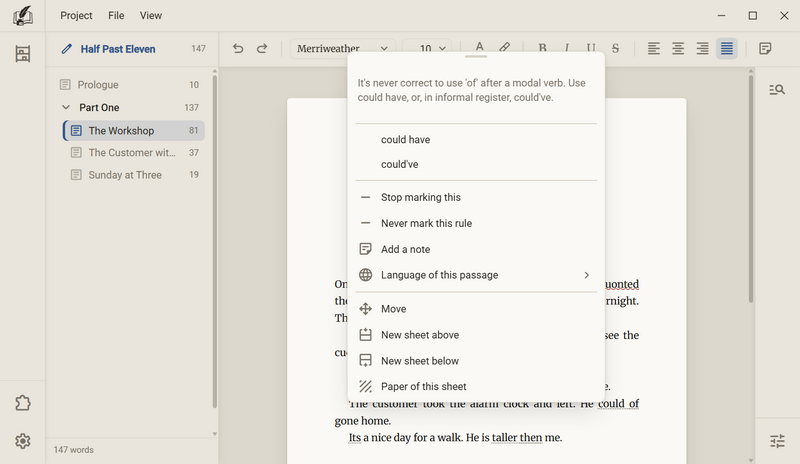
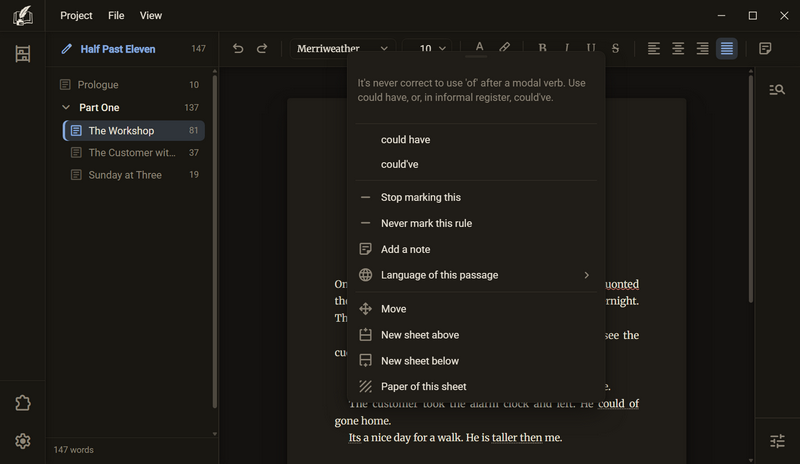
- Right-click the passage with the dotted underline.
- At the top is what Regletto Writing means, below it usually a suggestion. A click on the suggestion replaces the passage.
- Stop marking this leaves exactly this phrase alone from now on. Never mark this rule switches off the whole rule in the project.
| What is recognised | Example |
|---|---|
| A verb that does not agree with its subject | The children plays in the yard. |
| A verb in the wrong form after did | She did went home. |
| of instead of have after a modal verb | He could of gone home. |
| its where it's is meant | Its a nice day for a walk. |
| then instead of than in a comparison | He is taller then me. |
Good to know
- The program does not find every error. Where it is not sure, it marks nothing.
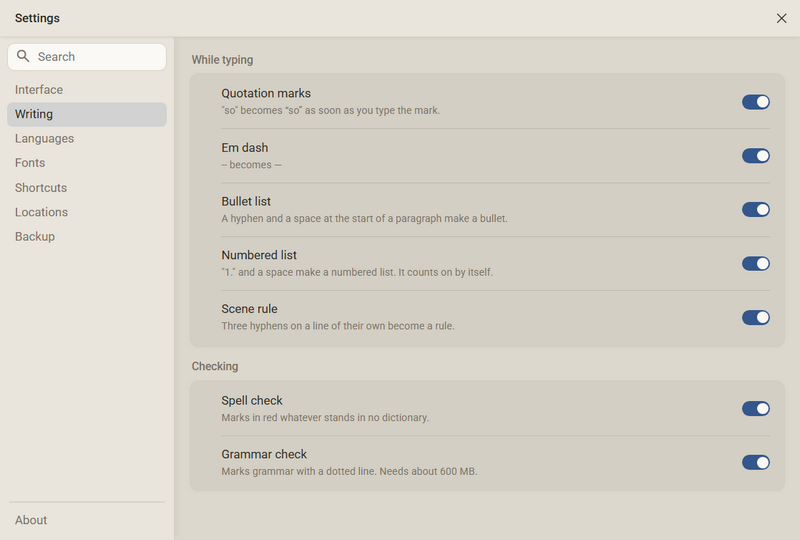
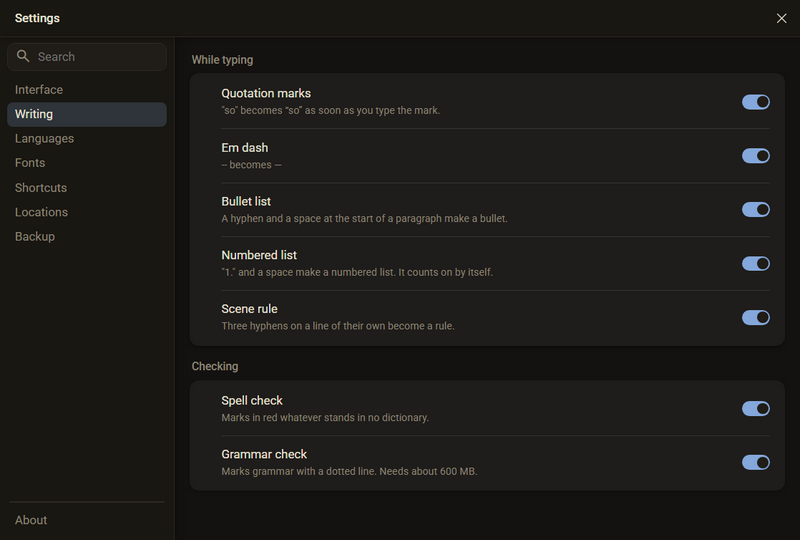
- If the grammar check is not yet on your computer, Settings → Writing → Checking shows a Download button with the size of the download instead of the switch. A click downloads it.
- What you have waved away with Stop marking this is under Settings → Project → Not marked. There a click brings the passage or the rule back.
- What you have waved away belongs to the project. In the next project it is marked again.
- A book in two languages is checked sentence by sentence in the language in which the sentence is mostly written. You do not have to switch anything.
- The grammar check skips a passage that you have marked as another language, see The language of a passage.
- The check runs in the program itself. There is no service in the background and no sign-in.
Your own dictionary
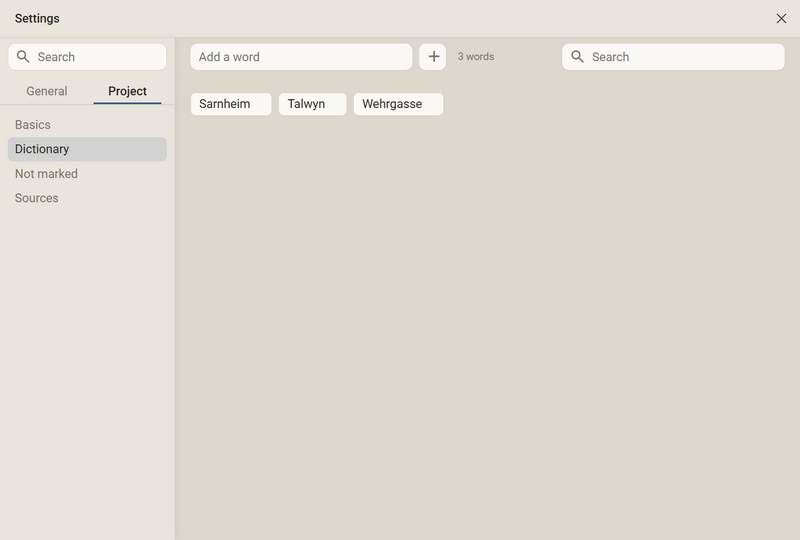
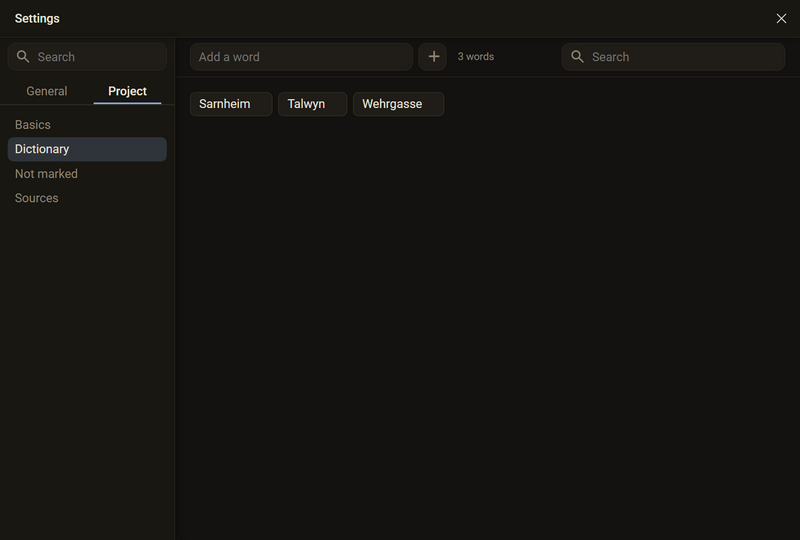
The dictionary of a project collects words that exist only in your text: names of characters, names of places, invented words. What is in it is no longer marked. It belongs to the project, and all books and binders in it use it.
Adding a word
- In the manuscript, right-click the marked word.
- Choose Add to the dictionary.
For names that do not yet occur in the text, you type the word into the Add a word field in the dictionary itself and confirm with Enter or the plus.
Removing a word
- Open Settings → Project → Dictionary. With a long list, the search field at the top right helps.
- Move the pointer onto the word and click the cross. Ctrl + Z takes it back.
Good to know
- The dictionary belongs to the project. Talwyn is in the dictionary of one novel and is marked in red again in the next, because there it would be a typo.
- An added word has no language. In a book with two languages you do not have to add it twice.
- Your words improve the suggestions. If you have added Talwyn and later type Talwn, the name is at the top of the list.
- The list lies in the project folder and travels along when you copy or back up the project.
- It is independent of the language packages. Even without a package your words are kept.
Recognising names
Regletto Writing comes with a list of 55,730 first names and asks it before it marks a word in red. Names such as Gianluca, Katarzyna or Liam therefore stay without a wave, even if no dictionary knows them. You do not have to set or click anything for this.
Good to know
- A first name belongs to no language. The list applies in every language you write in.
- The possessive comes along: Liam's book is not marked.
- Invented names such as Sarnheim are not in the list. You add them to your own dictionary.
- The list is a directory and not a similarity search. A typo that happens to equal exactly one name therefore stays unmarked, for example at the start of a sentence.
The language of a book
Every book and every binder has one language or several. It decides what spelling and grammar are checked against. It has nothing to do with the language of the interface. You can choose German and English (US).
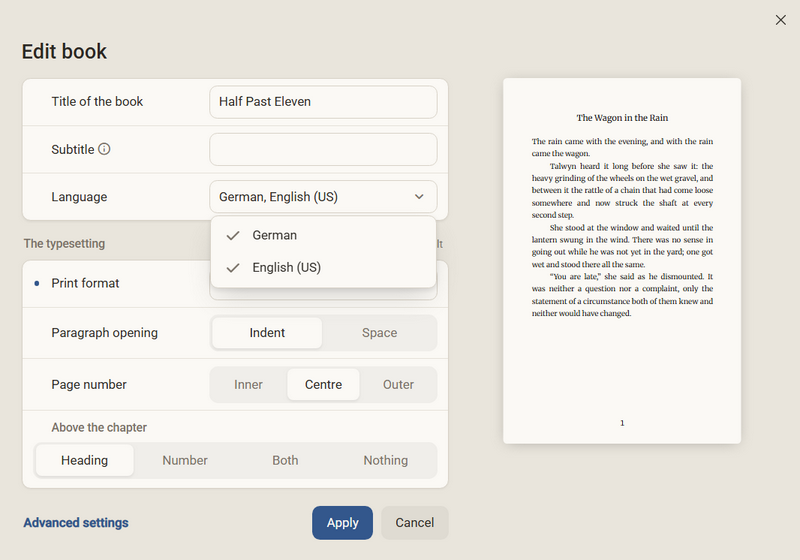
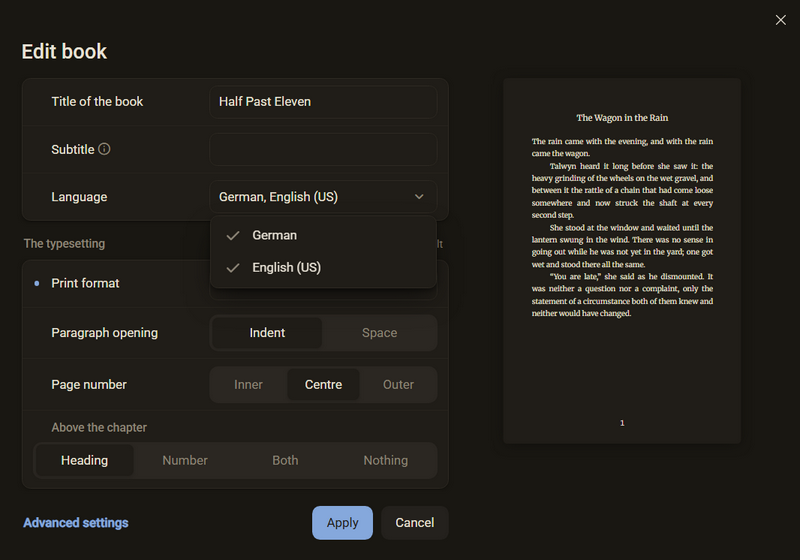
- Open the Edit book dialog. For a binder it is called Edit binder.
- At Language, open the list.
- Tick whatever applies. Several languages are possible, and the list stays open until you click beside it.
- Click Apply.
Good to know
- A German novel with English quotations is written in both languages. If you tick both, it is checked against both, without you switching.
- The last language cannot be unticked.
- The field is at the front by the title and not under Advanced settings. If the language is set wrongly, every word is marked in red.
- Only what has a language package on the computer is checked. If it is missing, you tick the language all the same and download the package under Settings → Languages.
- Changing it does not change the text.
- For a single quotation there is the language of a passage.
The language of a passage
An English quotation in a German book can get a language of its own. The passage is then checked only against that language. The language is a mark on the text, like bold or a colour. The list shows the languages of the book.
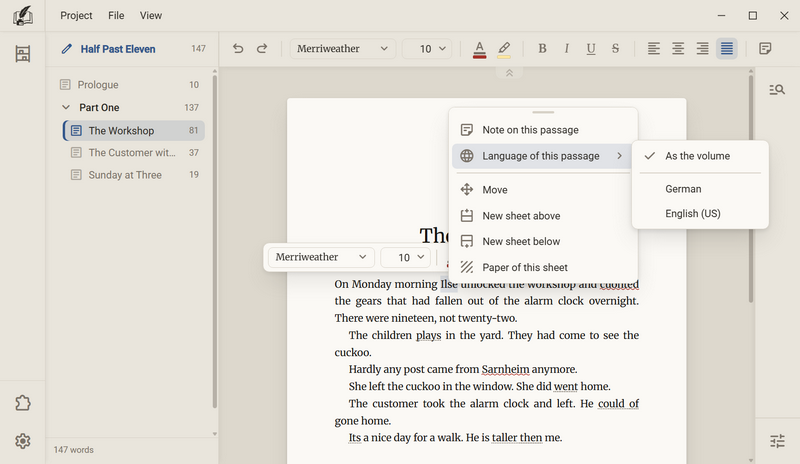
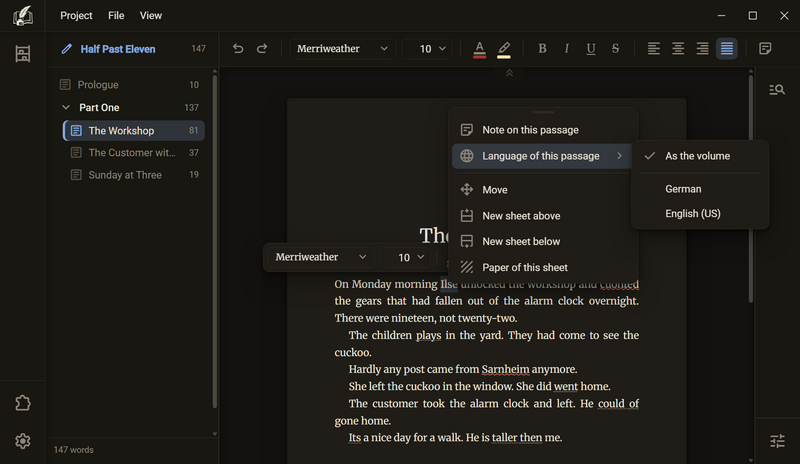
- Select the passage, or put the cursor at the spot.
- Right-click, then Language of this passage, and choose the language.
- To go back, choose As the volume.
Good to know
- Without a selection the choice applies to what you type next, as with bold and italic. Whoever keeps writing after the quotation keeps writing in the chosen language until they return to As the volume.
- The language is not visible in the text. In the menu, a tick stands by the language that applies at the cursor.
- The same word can get two answers in the same paragraph: marked as German, receive is marked, unmarked it is not, if English is ticked for the book.
- By default the language of a passage has no shortcut. You set one under Settings → Shortcuts at the entry Language of this passage. There is no tool for the toolbar.
- Regletto Writing does not detect the language of a passage by itself.
- The language of a passage is kept in the export to Word, HTML and EPUB. In Word the English sentence is then no longer underlined as an error. Markdown and plain text do not know it.
Switching the check off
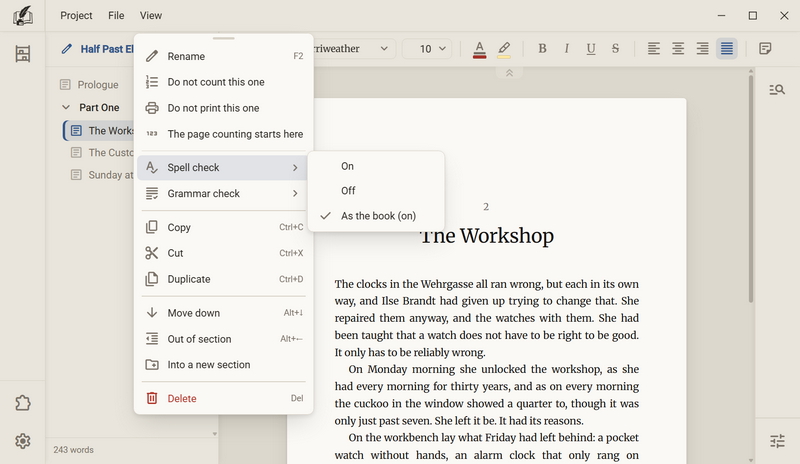
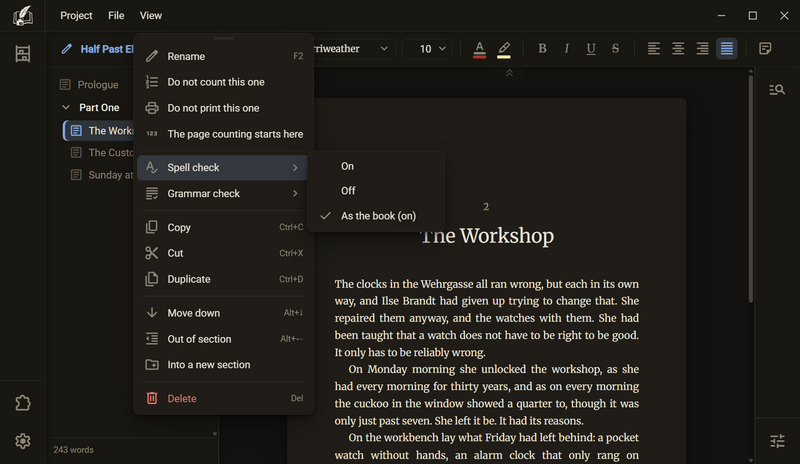
Spelling and grammar can be switched off at three levels: in the program, for a book and for a chapter. The narrower level applies: the chapter comes before the book, the book before the program.
| Level | Where | Form |
|---|---|---|
| Program | Settings → Writing → Checking | One switch per check |
| Book or binder | Edit book → Advanced settings → While typing → Checking | A list with On, Off and As the program |
| Chapter or document | Chapter tree → right-click → Spell check or Grammar check | A submenu with On, Off and As the book |
- Choose the level at which the check is to apply.
- Choose On, Off, or As the book or As the program, depending on the level.
- The change takes effect at once. The waves and dots are gone in the same moment.
Good to know
- Off means that nothing is checked at all.
- The As the book row shows in brackets what currently applies there, for example As the book (on) or As the program (off).
- Where nothing is marked, there is no suggestion and no Add to the dictionary either.
- The row for the grammar check is missing at the book and at the chapter if the grammar check is off in the program or the language package is not on the computer. The spell check always has its row.
- In the program it is a switch and not a list, because the program inherits from nothing above it.
- Clicking the answer that already applies changes nothing.
- A change at the chapter is undone by Ctrl + Z.
Ask in the help channel on our Discord server (the server is German-speaking).