The sheet
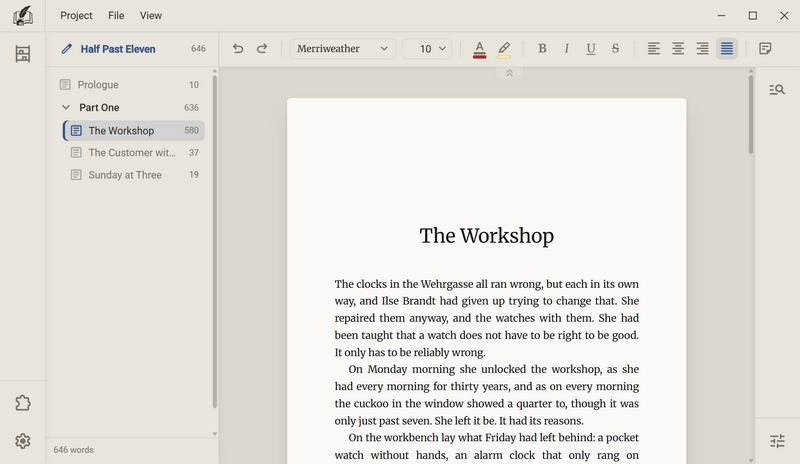
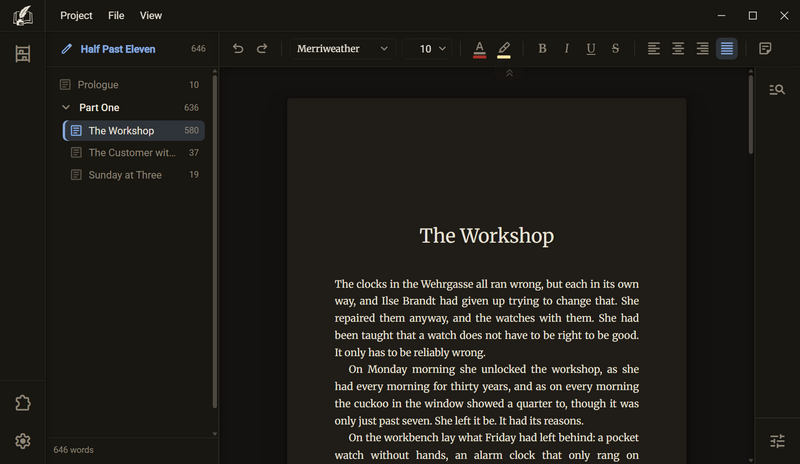
The sheet is the page you write on. It sits on the desk in the manuscript, to the right of the chapter tree, and shows the open chapter. It is not a preview: Regletto Writing sets the book with the same page breaks and the same typeface you see here, and the PDF is made from those page breaks. The typesetting settings such as print format and margins are in the book dialog.
Good to know
- The sheet has the book's print format. A wider window does not make it wider. How large it appears on screen is set by the sheet scale.
- A different print format changes no character. The manuscript stores text, not pages. The text flows onto the sheets again, and the number of sheets works itself out.
- The sheet always shows only the open chapter. The page number at the foot counts from that chapter. In an export it counts from the start of the book.
- There is room to the left and right of the sheet. Notes go there, if you create any.
- The word count is not on the sheet. You find it in the chapter tree, for each row and as a total at the bottom.
- A book can carry a texture as paper. You choose it in the book dialog under Advanced settings in the area The outside.
- A single sheet gets its own paper with a right-click on the sheet → Paper of this sheet. You choose an image, and it lies under the text. The texture is printed with it. Reset this sheet's paper takes it away again.
- The texture belongs to the sheet number. If the text before it grows, it stays on its sheet and the text slides away from underneath it.
Insert a blank sheet
A blank sheet is a sheet made of empty lines, as if you had held down Enter for a whole sheet. You can write anywhere on it.
- Right-click the sheet above or below which the blank one should go.
- Choose New sheet above or New sheet below. The sheet is there at once. The cursor stays where it was, and the view does not jump.
- Click anywhere on the blank sheet and write. Every line takes the cursor.
- To remove it again: right-click the blank sheet → Remove the blank sheet. Ctrl + Z undoes the whole sheet at once.
- New sheet above and New sheet below appear on every sheet. Remove the blank sheet appears only on a sheet with nothing on it, and not if it would be all the chapter has.
- The chapter shows no marker for it, it is only empty paragraphs. You can delete them one by one with Backspace.
- The sheet belongs to the text, not to the page number. If you keep writing before it, it moves along. A blank sheet can thus turn into a gap of two sheets, as with empty lines you typed yourself.
- No paragraph is cut apart. If the sheet ends in the middle of a paragraph, the paragraph stays whole and the blank sheet lies after it. So it sometimes lies one sheet further down than chosen, never further up.
- A new chapter already stands on one blank sheet. After the first insert there are two.
- In an export the blank sheet arrives in the PDF, in Word and Rich Text as empty paragraphs and in Markdown and text as empty lines. EPUB and HTML have no pages, so there are empty paragraphs but no empty page.
Page breaks
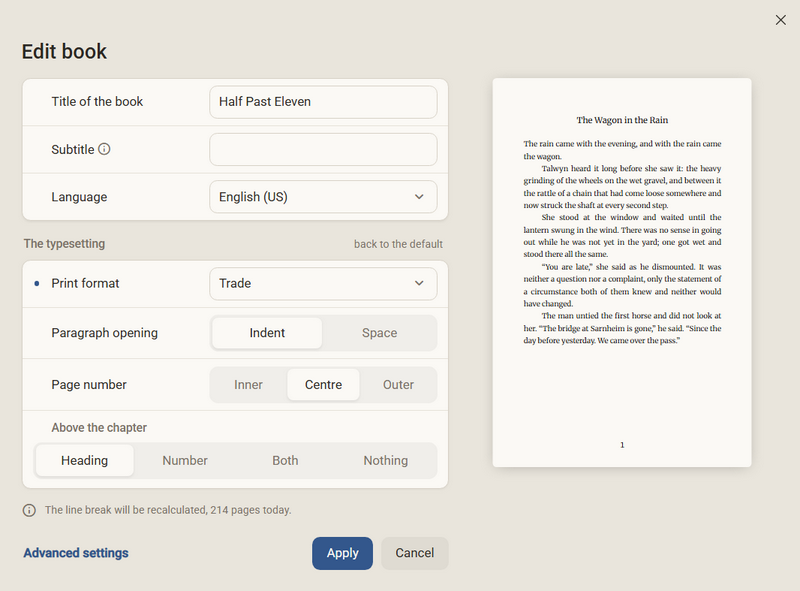
The page breaks decide how the text becomes pages. They work by themselves, there is no switch for them. Regletto Writing calculates them on the drawn sheets and not on an estimate, and the same page breaks go into the PDF.
They are calculated again with every text you write and with every change in the typesetting that moves lines or pages, for example print format, margins, typeface, type size, leading and paragraph opening. The sheet scale calculates nothing again, it only enlarges what is already set.
Good to know
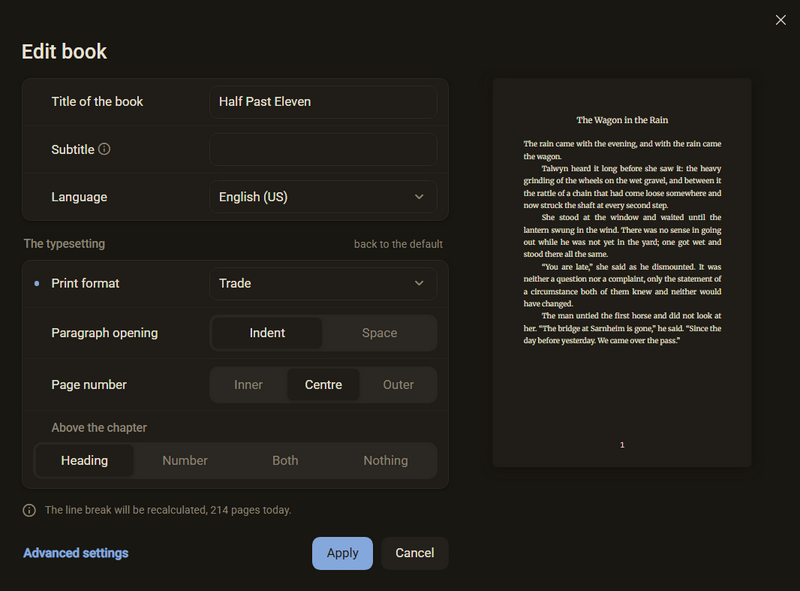
- The book dialog tells you beforehand what the page breaks will cost. If something changes that reflows the pages, it says, for example, The line break will be recalculated, 214 pages today.
- Only the sheets you see are drawn, and the ones next to them. A chapter of a hundred pages does not draw a hundred sheets at once.
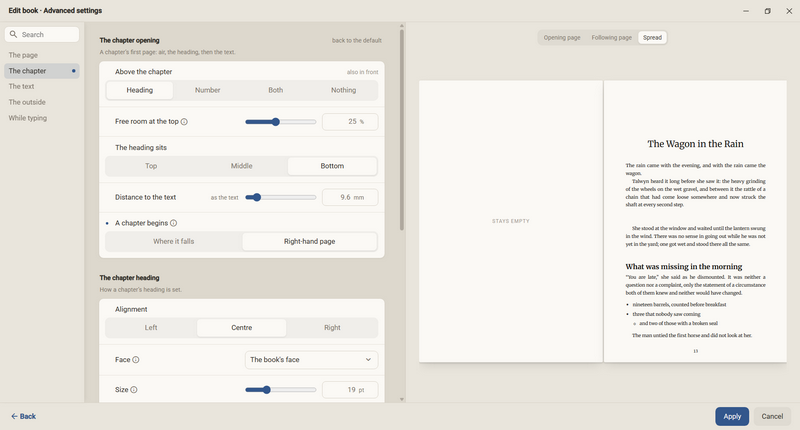
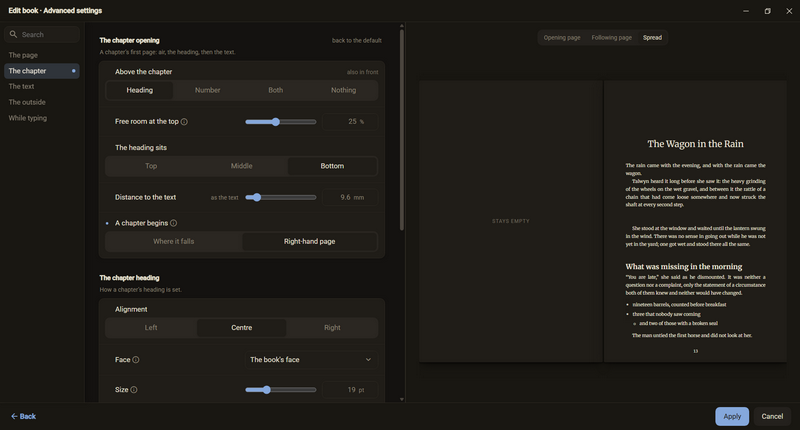
- If a chapter begins on a right-hand page, a left page sometimes stays completely empty. Typesetters call it a vacat page. The setting is called A chapter begins with the values Where it falls and Right-hand page. In the book dialog the empty page says stays empty.
- The vacat page arises in the export. On the desk there is only ever one chapter, which begins on its first sheet.
- The vacat page is decided anew with every page break. An empty page you inserted yourself consists of empty lines and therefore moves along with the text.
- No single line prevents single lines of a paragraph at the top and at the foot of a page. The setting is off by default. You find it in the book dialog under Advanced settings in the area The text, card The line.
- A table breaks between two rows, never in the middle of a cell.
- A paragraph that runs over the page break gets no new indent on the new page. It is the same paragraph.
Sheet position
The sheet does not have to stand in the middle of the desk. You can push it to the side. That leaves more room next to the paper for notes.
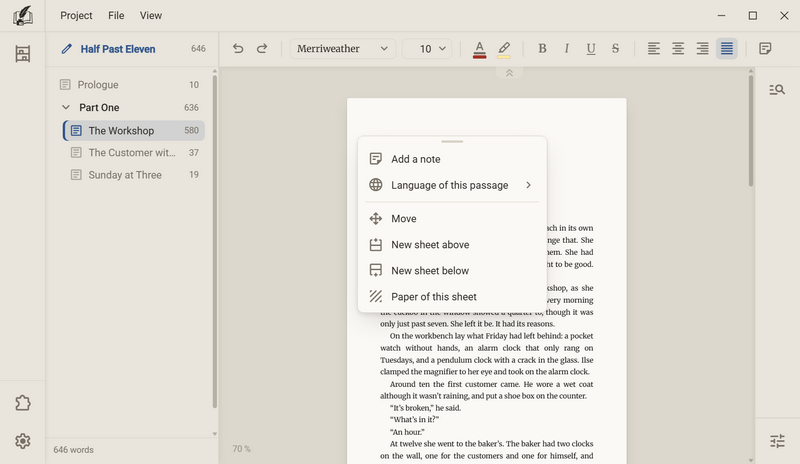
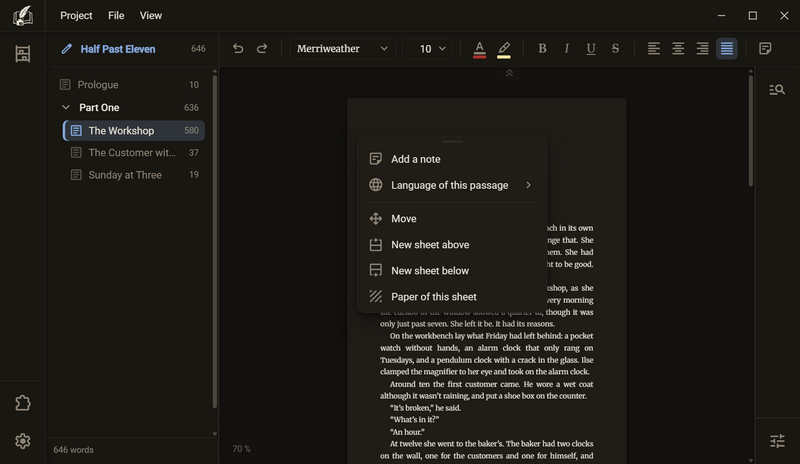
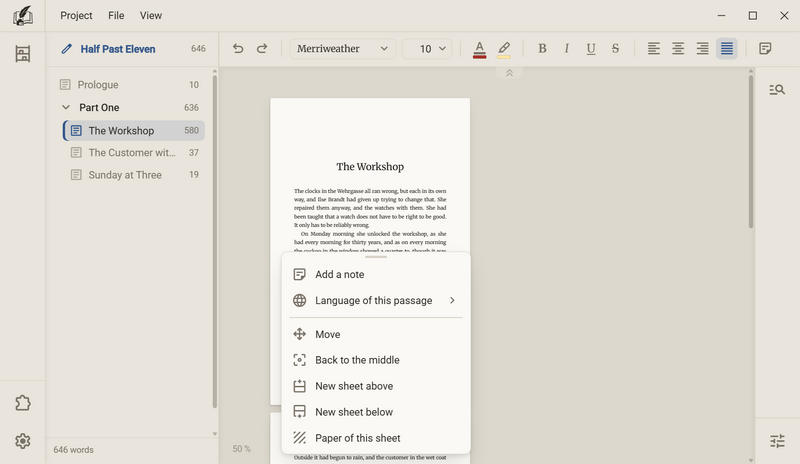
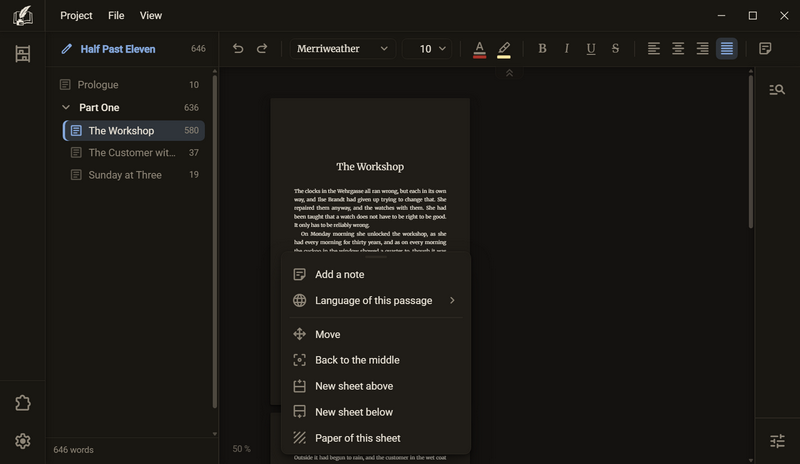
- Right-click the sheet, then Move. The sheet picks up the pointer: its middle moves under the pointer.
- Move the pointer without holding a button. A click sets the sheet down.
- With the keyboard: ← and → move it by one point, with Shift by ten. Home puts the sheet in the middle, Enter sets it down, Esc cancels and puts it back.
- Back to the middle: right-click → Back to the middle.
Good to know
- Back to the middle is only in the menu when the sheet is not in the middle.
- Move is only in the menu when there is room next to the sheet. If the window is so narrow that the sheet fills it, the entry is missing.
- A right-click on a picture, a scene rule or a table cell opens the menu of that object. Move is not there. Click next to it instead.
- Near the middle the sheet snaps in, to within twenty points, so that the middle can be hit by hand.
- What is remembered is a proportion and not a number of pixels: all the way left, the middle or all the way right and everything in between. So the position holds with a different window size, a different print format, a different scaling and a different sheet scale.
- If room gets tight because the window gets narrower or the chapter tree returns, the sheet moves to the middle. The remembered position comes back as soon as there is room again.
- The position applies to the program and not to a single book. Books and binders remember their position separately.
- The notes move along, because they belong to the sheets. A note may lie next to the paper.
Sheet scale
The sheet scale determines how large the sheet appears on screen. It changes nothing about the book: no line moves, the page count stays, and the PDF knows nothing about it.
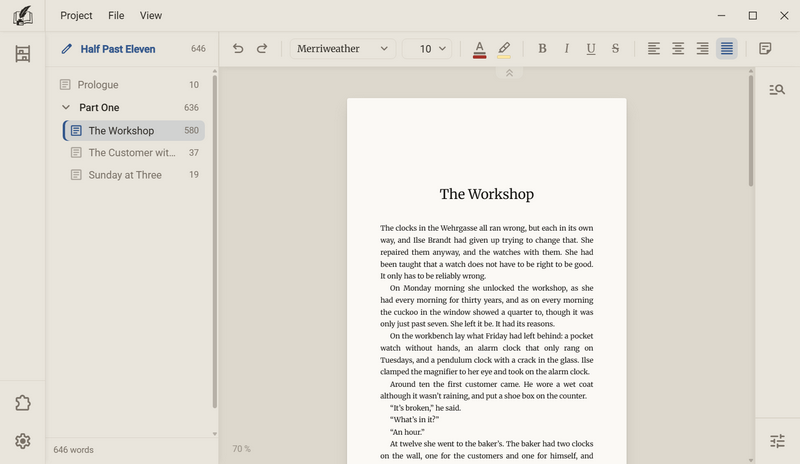
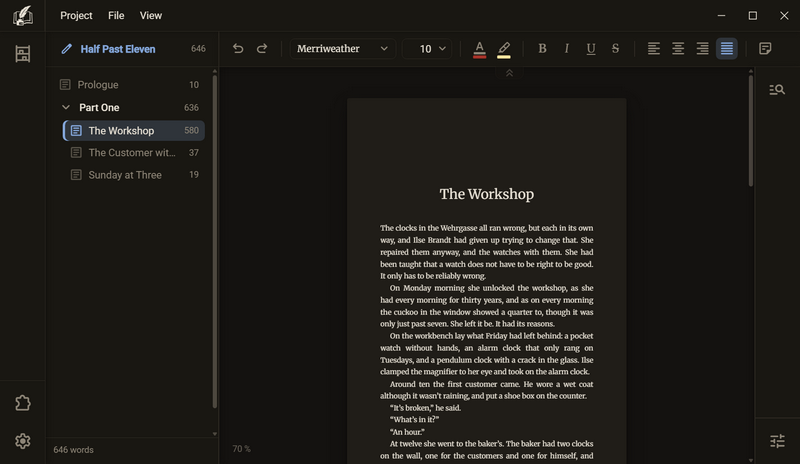
- Hold Ctrl and turn the mouse wheel over the sheet. Up makes the sheet larger, down makes it smaller.
- With every step a number in the middle of the window briefly shows the new size.
- Back to 100 %: click the number at the bottom left. Without a mouse, use Tab and Enter.
Good to know
- The scale runs from 50 % to 200 % in steps of 10 %. The default is 100 %.
- The number at the bottom left only shows while the scale is not 100 %. It is a button.
- At print size a book stands at 80 %, a binder at 100 %. At 100 % the program shows a book a quarter larger than in print, because paper at print size is smaller than you would want to write on all day. This holds at an interface scaling of 100 %.
- The mouse wheel means the sheet, the keys mean the window. Ctrl + mouse wheel over the paper changes the sheet scale. Ctrl + +, Ctrl + - and Ctrl + 0 always change the whole interface, even when the cursor is in the text.
- Ctrl + mouse wheel next to the sheet, over the chapter tree or the rail, does nothing.
- The sheet scale zooms only the sheet. The rail, the chapter tree and the toolbar stay as they are. You set the scaling of the whole interface under View → UI scaling or under Settings → Interface.
- Without a mouse the sheet scale can only be reset to 100 %. Changing it works only with the mouse wheel.
- The scale applies to the program, not to a book. Another book opens at the same scale.
- If you have a wide window or two screens, you see a lot of empty desk next to the sheet. The scale does not help there, but Pages side by side does.
Pages side by side
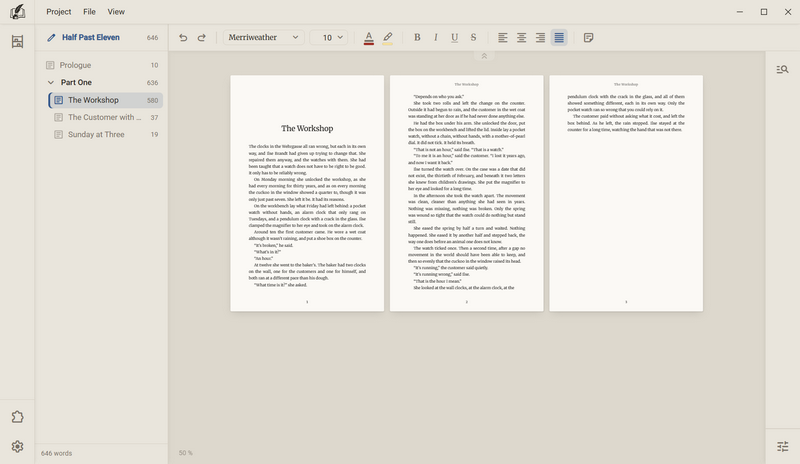
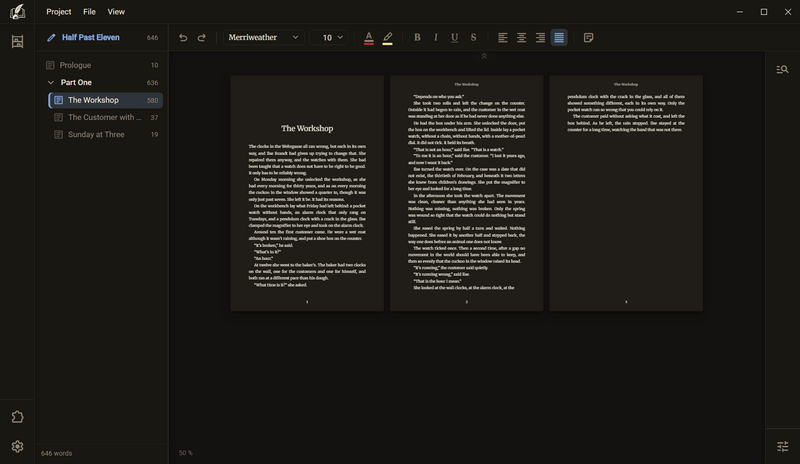
The setting determines how many sheets stand next to each other before the row wraps: one to five. It only changes how you look at the paper.
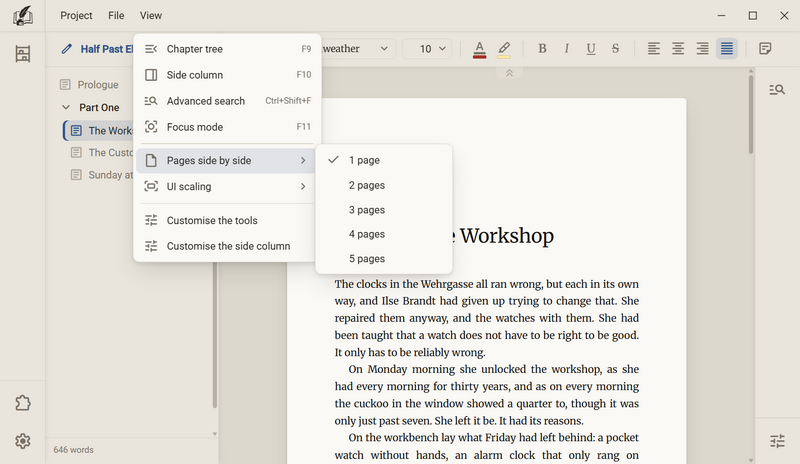
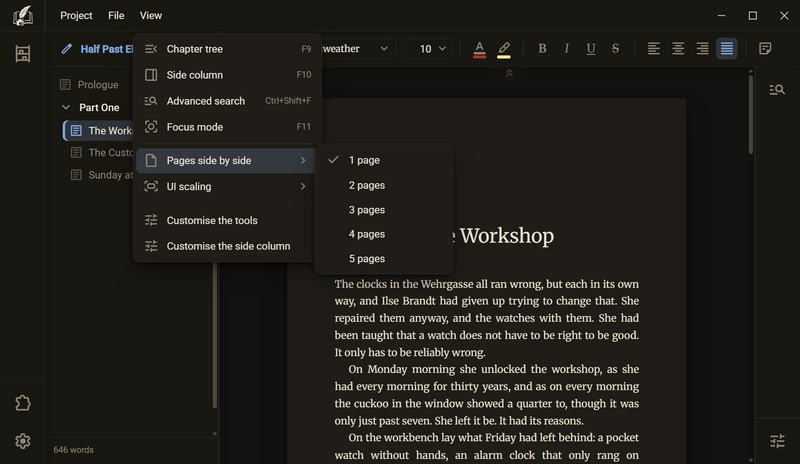
- Open the View menu in the bar at the top.
- Choose Pages side by side, then a number from 1 page to 5 pages.
Good to know
- The manuscript is untouched. No line break moves, and the PDF knows nothing about it: three sheets side by side are three pages one after another in print.
- If there are fewer sheets than set, only as many stand side by side as there are sheets.
- If the sheets do not fit the width of the window, you scroll sideways. With a smaller sheet scale more fit.
- The setting applies to the program and not to a project. Whoever works this way works this way in every book.
- By default it is only in the menu. As a tool it sits in the list of available tools in the group View and opens the same list. How to bring a tool into the toolbar is described under The toolbar.
- The notes move along, because they belong to the sheets.
Search in the advanced settings
In the advanced settings of a book or binder there is a search field above the areas. Typing line spacing gets you Leading, although no row is called that: behind many settings lie the words a typesetter knows them by. A hit is the row itself, and you can change it on the spot.
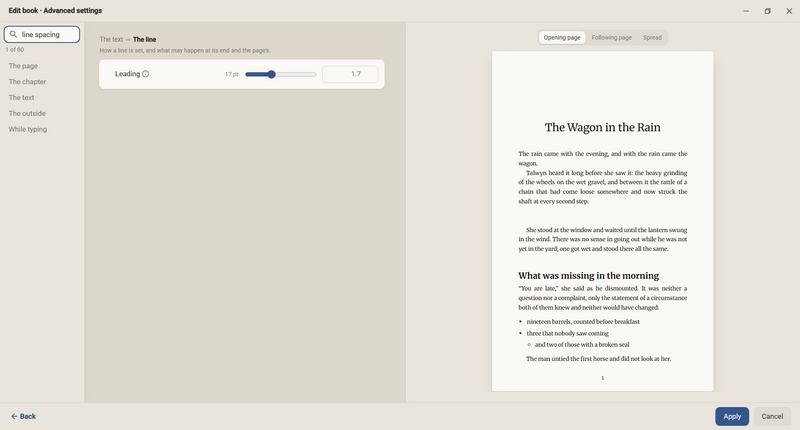
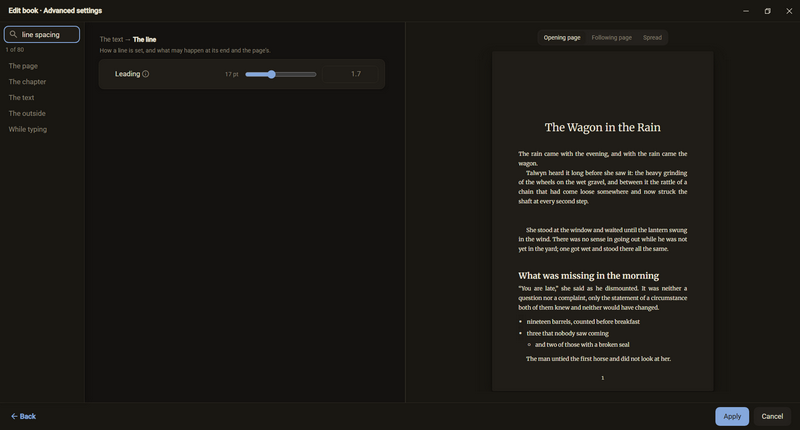
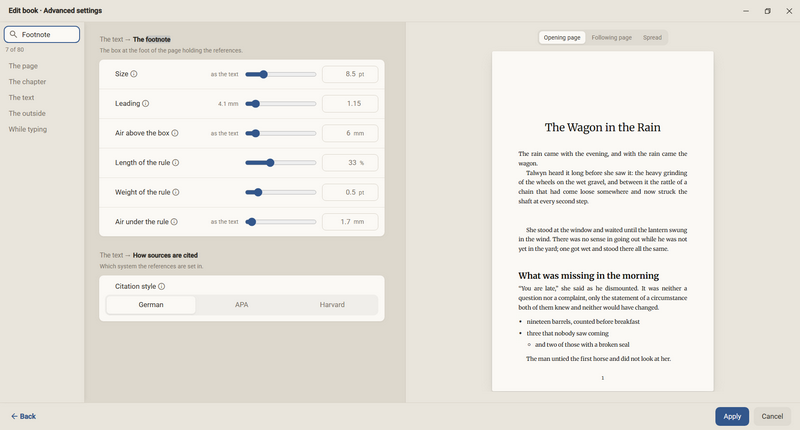
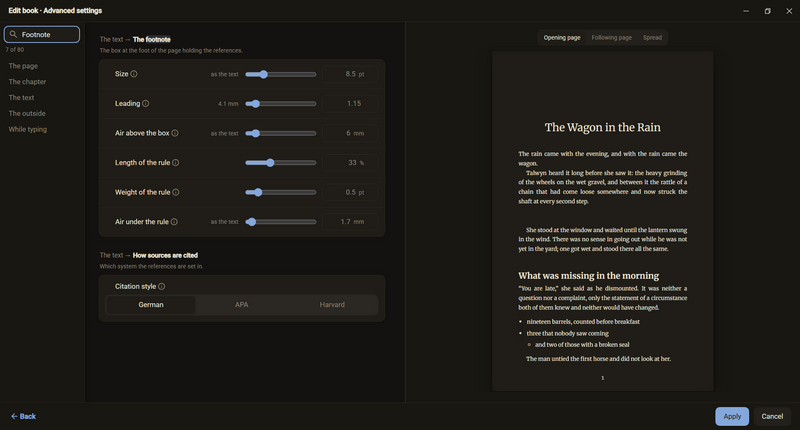
- Edit the book or binder, open Advanced settings at the bottom.
- Type into the field with the magnifier. From the first letter, the answer appears on the right instead of an area, and no area is selected on the rail any more.
- Every card of the answer says at the front where it belongs, for example The text → The line. Below the field it says how many rows match, for example 1 of 80. What was found is highlighted in colour.
- Change the row directly: number, slider, switch or list. The sheet on the right shows it at once, and the answer stays put.
- Esc clears the field, and the area from before is back. Only a second Esc closes the dialog. A click on an area ends the search too.
What you can search for
| Search word | Finds |
|---|---|
| line spacing line height | Leading |
| widow orphan | No single line |
| back margin fore-edge | Margin inner Margin outer |
| folio | Page number |
| running head | The page header |
| first-line indent | Indent Paragraph opening |
| drop cap | Large opening letter |
| uppercase small caps | Capital letters |
| tracking letterspacing | Letter spacing |
| point size | Type size |
| scene break | The Form of the scene rule |
| bibliography | The bibliography |
| annotation | The rows of the footnote |
Good to know
- The search covers all areas at once, including The outside and While typing.
- The name of a card brings the whole card. None of the rows of the footnote is called footnote, and typing footnote still brings them all. The same goes for the sentence under the name of the card.
- What is searched is what is there: the name of the row, its explanatory sentence behind the info icon, the positions of a switch and the entry a list currently shows. Numbers do not count, a digit would find almost every row.
- The technical terms in the table appear nowhere on screen, so nothing is highlighted for them. They are the terms of the English program, for example widow, orphan, tracking, drop cap, running head and small caps. A program in German takes German terms instead.
- Upper and lower case do not matter, and part of a word is enough: chap finds everything to do with the chapter.
- Enter does nothing in the search field. In the other fields of the dialog it applies the changes, here it does not.
- Above the cards of the answer, back to the default is missing, because it would also reset rows that the search is hiding. Every row still has its own point for that.
- If the search finds nothing, it says No setting matches that.
- The search remembers nothing. If you open the dialog again, the field is empty.
Ask in the help channel on our Discord server (the server is German-speaking).