The search bar
The search bar looks for a word or a sentence in the chapter that is open at the moment. It sits between the toolbar and the sheet and pushes the sheet down instead of covering it.
Ctrl + F
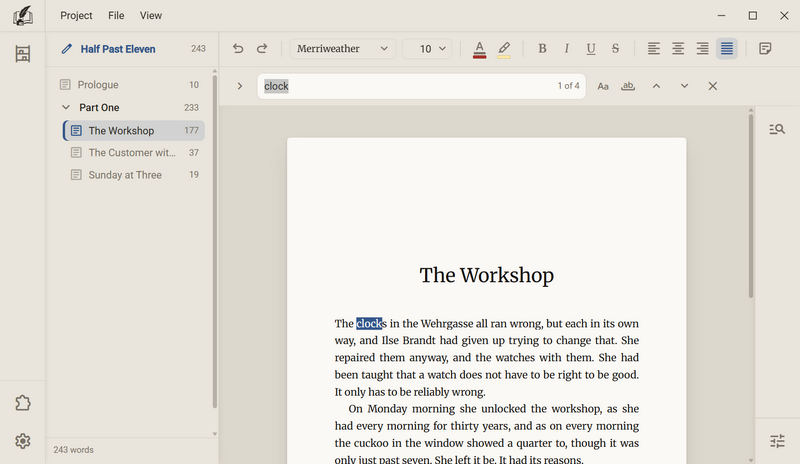
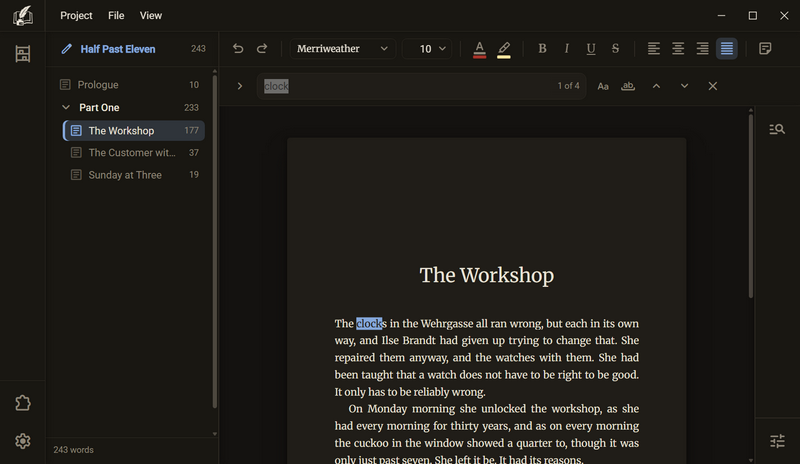
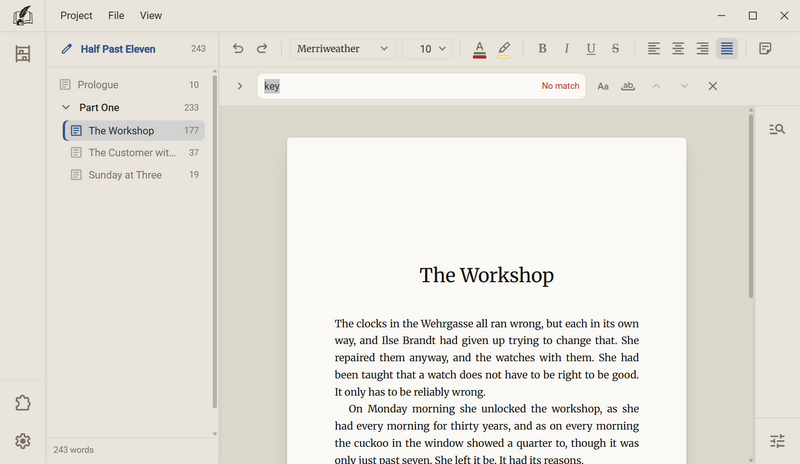
- Press Ctrl + F and type the word. The counter in the field tells you at once how many matches there are, for example 1 of 4. All matches are highlighted in the text, the current one more strongly.
- Enter goes to the match. The sheet scrolls there, and the match is selected. Each further Enter goes to the next one. After the last match it starts again at the first.
- Shift + Enter goes back one match. The two arrows to the right of the field do the same, Previous match and Next match.
- Esc closes the bar. The match stays selected, and the cursor is in the sheet, so you can type over the found word at once. The cross at the far right (Close the search) closes it too.
| Key | What happens |
|---|---|
| Ctrl + F | Opens the bar. If it is already open, the key selects the search field so that you can type a new term over it. |
| Enter | Goes to the next match, in the search field as in the replace field. |
| Shift + Enter | Goes to the previous match. |
| Esc | Closes the bar, in the field as in the sheet. |
Good to know
- Typing only counts, the sheet stays where it is. Only Enter or an arrow goes to the match. That way the sheet does not jump with every letter, and the sentence you are looking at stays visible.
- The first Enter goes to the match that the counter names, and not beyond it. No match is skipped.
- The counter starts where the cursor is, not at the beginning of the chapter. If you press Ctrl + F on page 90, the first match is the next one from page 90.
- A word that you selected before Ctrl + F is already in the search field. This holds for a selection within one paragraph.
- If the text changes while the bar is open, it recounts shortly afterwards.
- If you change the chapter, the bar stays open and counts from the beginning in the new chapter.
- A match always lies within one paragraph.
- Every character in the field means itself. Full stop, brackets and dollar sign are characters like any other, there are no special search expressions.
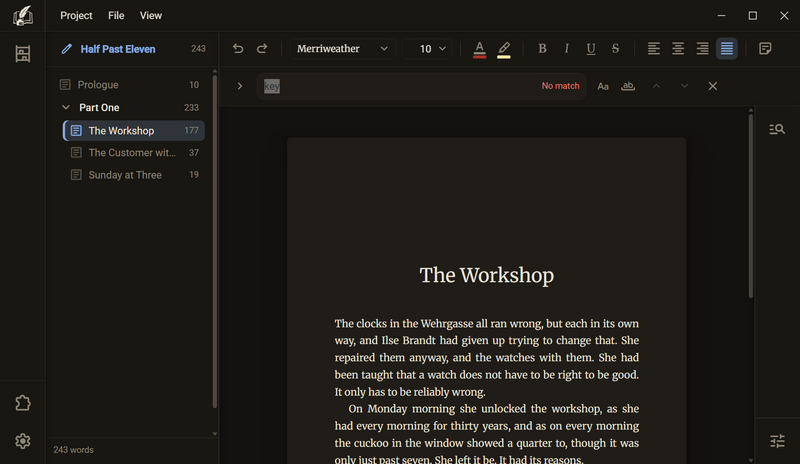
- With no text in the field there is no counter. With fewer than two matches the arrows are pale, Enter still goes to the single match.
- Ctrl + F cannot be reassigned.
Match case, whole words only
Out of the box, the search finds a word in any spelling and also as part of a longer word. Two switches next to the search field narrow that down.
Search bar → AaandSearch bar → ab
| Switch | What it changes |
|---|---|
| Match case (Aa) | The spelling must match. anna then no longer finds Anna. |
| Whole words only (ab) | The match must be a whole word. Anna then no longer finds Annabelle. |
Good to know
- Both switches stay as they are until you click them again. A click recounts at once, the sheet stays where it is.
- The switches apply to searching and to replacing. With Whole words only, only whole words are replaced.
- Accented letters are part of the word: with whole words only, caf finds no match in café.
- The switches are not a setting. After a restart of the program, both are off again.
- Leave the pointer on a switch and you see its example.
Replace
Under the search field is a second row where you set what the match is replaced with. It is folded away at first, because you search more often than you replace.
Search bar → arrow at the far left (Show replace)
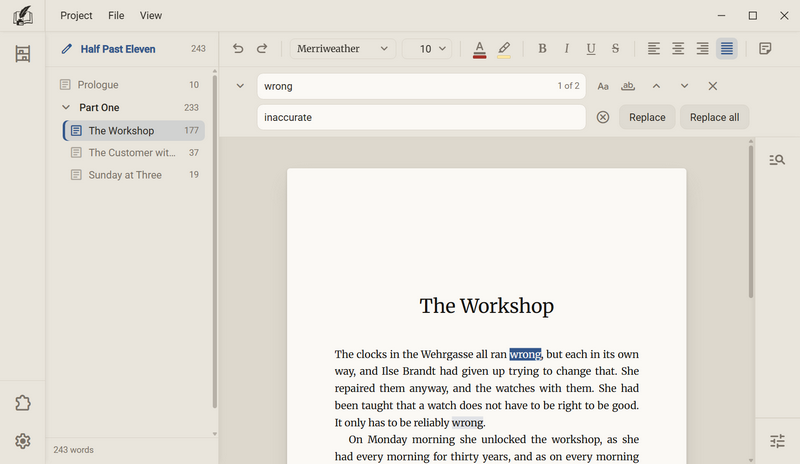
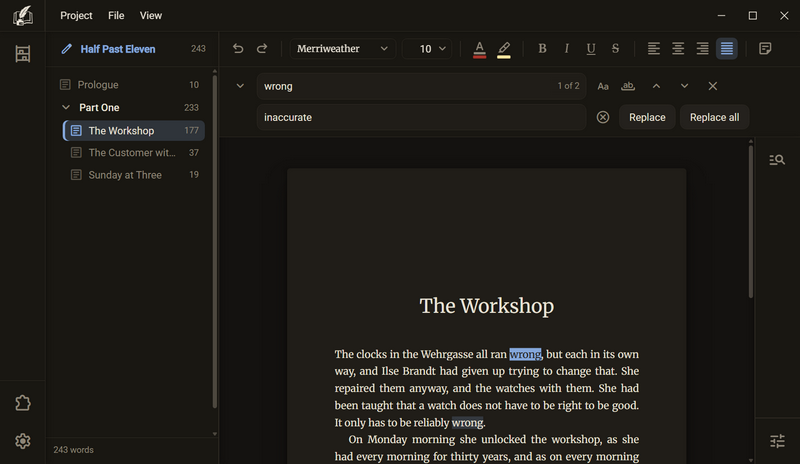
- Click the arrow at the far left of the bar. The second row opens, and the cursor is in it.
- Type the word in the search field and the new word in the field below.
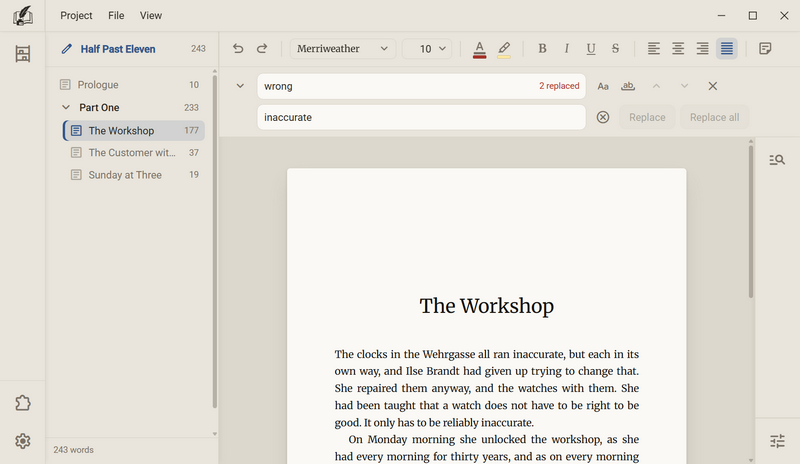
- Replace swaps the match that the counter names and goes to the next one. Replace all swaps every match in the open chapter at once.
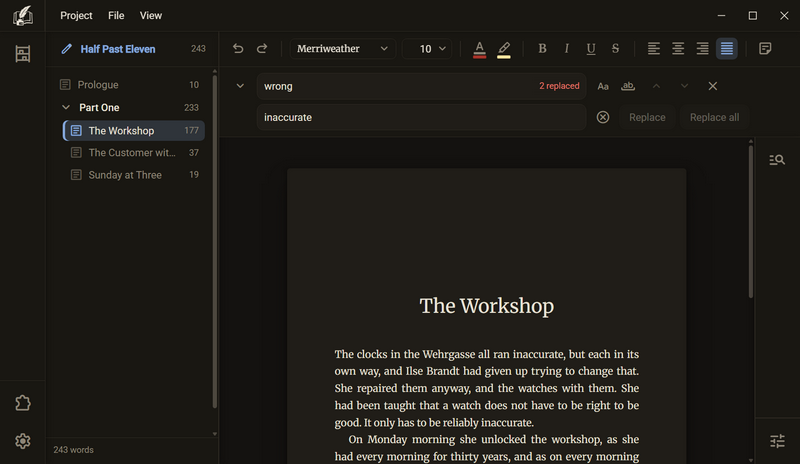
- Afterwards the search field says what happened: One replaced or, for example, 2 replaced. The message stays until you type something again.
Good to know
- Both buttons are pale as long as there is no match.
- An empty replace field deletes the match. The button with the cross in a circle (Clear the field) empties the field with one click, the cursor stays in it.
- Replace all is a single step for undo. Ctrl + Z takes back all replacements at once, not only the last one. More on this under Writing.
- The formatting is kept. A name in italics stands in italics after replacing.
- The new text is inserted exactly as it stands in the field. A dollar sign or an ampersand is a character like any other.
- If the new word contains the old one, for example watch and wristwatch, the search finds the new text again afterwards. Switch on Whole words only for that.
- Replacing happens in the open chapter, not in the whole book. For another chapter you change the chapter and repeat it. The bar stays open meanwhile.
- Only the text of the sheet is changed. Notes beside the sheet and footnotes stay as they are.
Where it searches
The search bar works in the open chapter. It searches the text of the sheet and nowhere else.
- For a word in the whole book there is the advanced search in the side column. It shows every document with matches and also searches notes and footnotes, but replaces nothing. It is described under The advanced search.
- You can combine both ways: use the advanced search to find out in which chapters a name occurs, then replace chapter by chapter with the search bar.
Still have a question?
Ask in the help channel on our Discord server (the server is German-speaking).
Go to the help channel arrow_forwardNot on the server yet? Join here