The settings
The settings are a window of their own with two sections. General applies to Regletto Writing as a whole. Project applies only to the project that is open right now.
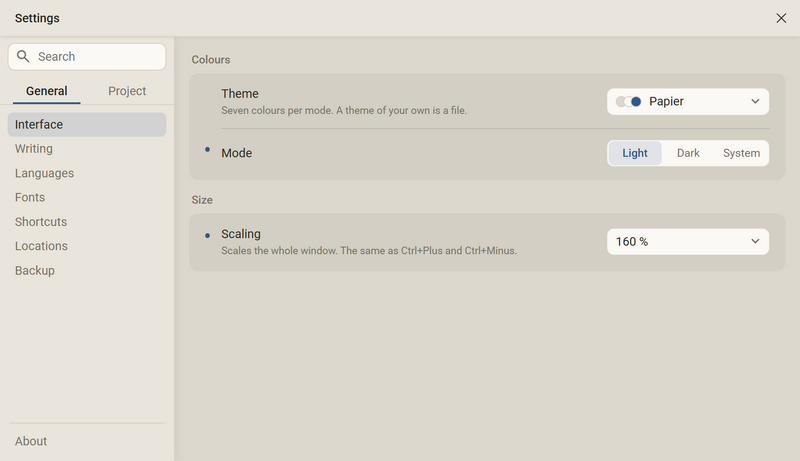
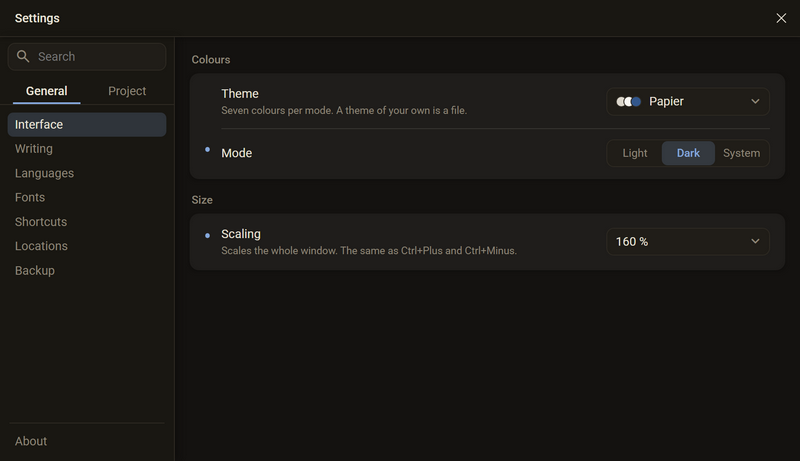
- Press Ctrl + , or click the gear. In the Projects window the gear is at the top left.
- At the top left, choose the section: General or Project.
- Below it, choose the category and change the setting.
- Close the window. There is no Apply, every change takes effect at once.
| Section and category | What is there |
|---|---|
| General Interface | Theme, mode and scaling. |
| Writing | What happens by itself while you type, and the spell check and grammar check. |
| Languages | The language of the interface and the language packages. |
| Fonts | The fonts of the program and your own. |
| Shortcuts | All shortcuts, with a search field. |
| Locations | The default folder and the folder of the settings. |
| Backup | How often and where backups are made, additional formats and tidying up old copies. |
| About | Version, update, terms of use, font licences and the reset. The category is at the very bottom of the list. |
| Project Basics | Name, author and project folder. |
| Dictionary Not marked Sources | The words you have added, the phrases you have waved away, and the sources of the project. |
Good to know
- The Project section is only there when a project is open. Without a project the window shows only General. Project → Project settings in the menu opens the settings straight in the Project section.
- A dot to the left of a row means that something here differs from the default. A click on the dot restores the default. Entries without a default have no dot, for example a folder, a name or the version.
- The search field at the top left searches the whole window. A result names the section and the category, and Open takes you there.
- Ctrl + Z undoes the last setting as long as the settings window is in front.
- Reset all settings is under About and asks first. In the General section everything that has a default goes back to it, shortcuts included. Folders, projects, books, titles and covers stay.
- The settings of a single book are not here. They are in the book dialog.
- The language of the interface and the language packages are covered on the Getting started page.
Theme and mode
You set the colours of the program with two choices: the theme and the mode. There are three themes: Papier, Pink and Amethyst. Papier is the default. The mode is Light, Dark or System.
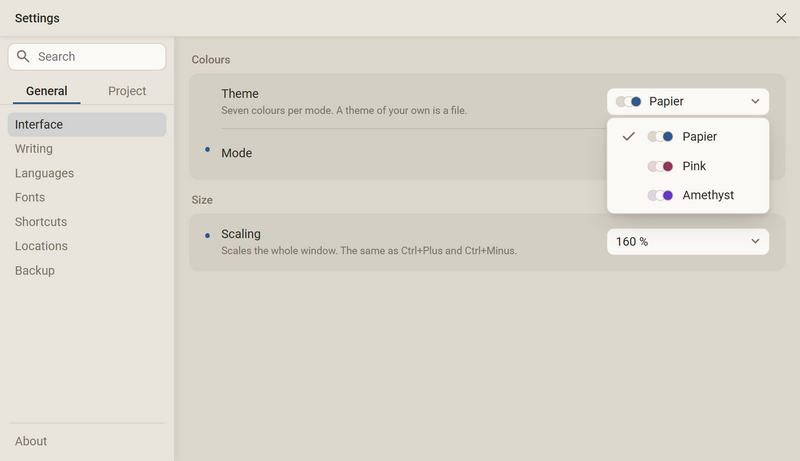
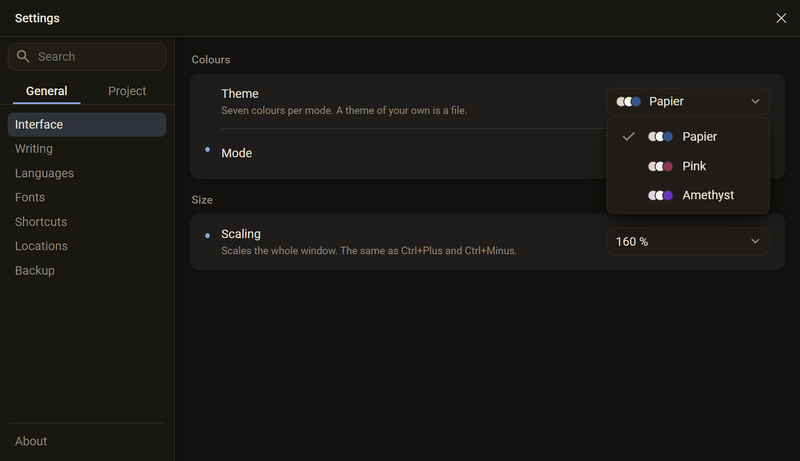
- Open Settings → Interface.
- At Theme, open the list and choose a theme.
- At Mode, choose between Light, Dark and System.
Good to know
- The choice takes effect at once. No restart is needed.
- System takes over the mode of the operating system and switches along as soon as the operating system does.
- A theme sets seven colours per mode. Nowhere in the program is a colour hard-coded, everything runs through these seven.
- A colour you have set in the text yourself and the covers of your books do not follow a theme. They stay as they are.
- Reset all settings resets theme and mode.
Scaling
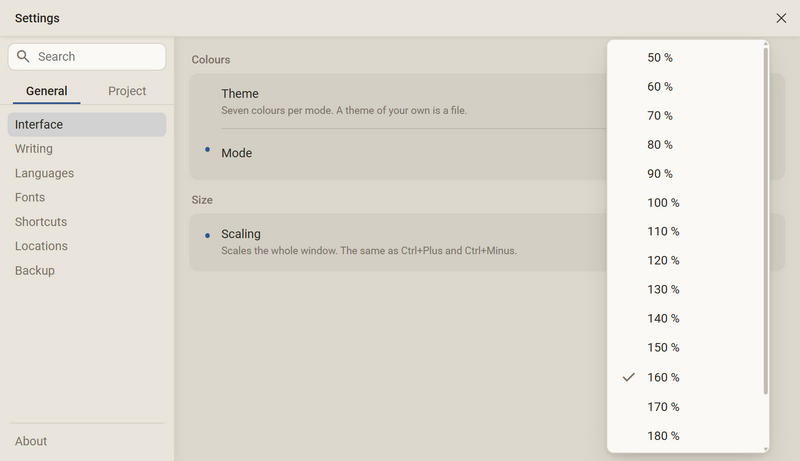
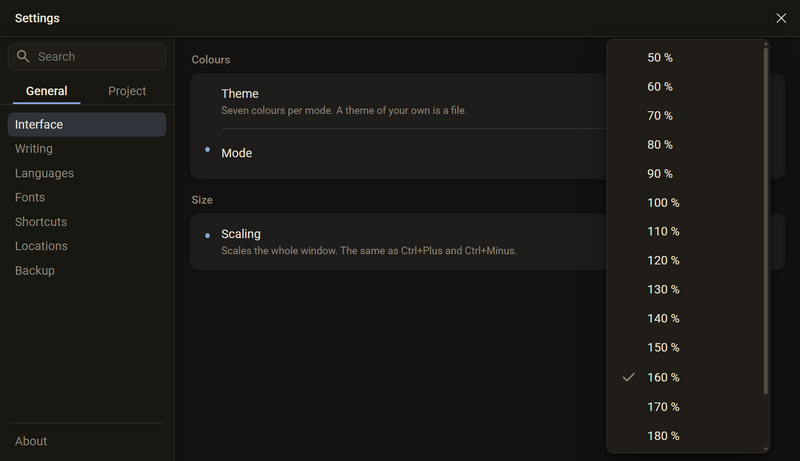
Scaling sets how large the whole window is drawn: bars, chapter tree, toolbar and sheet. The default is 100 %. The range is 50 % to 200 % in steps of 10.
| What | Key |
|---|---|
| Zoom in Zoom out | Ctrl + + Ctrl + - |
| Original size | Ctrl + 0 |
The same three entries are in the View → UI scaling menu. The View menu exists in the manuscript, while you can reach the setting from anywhere.
Good to know
- When you scale, a number appears in the window for a moment, about a second. It names the new scaling.
- The keys always apply to the whole window, even when the cursor is in the text. The paper has a scale of its own: Ctrl + Mouse wheel over the sheet.
- If the scale of the paper is not at 100 %, a marker in the corner of the desk shows the value. A click on the marker resets it.
- Scaling applies to the program, not to a single project. Switching projects changes nothing about it.
- The window has a minimum size, and it grows with the scaling. At 150 % it cannot be made as small as at 100 %.
- The three keys are fixed and cannot be reassigned.
The bars
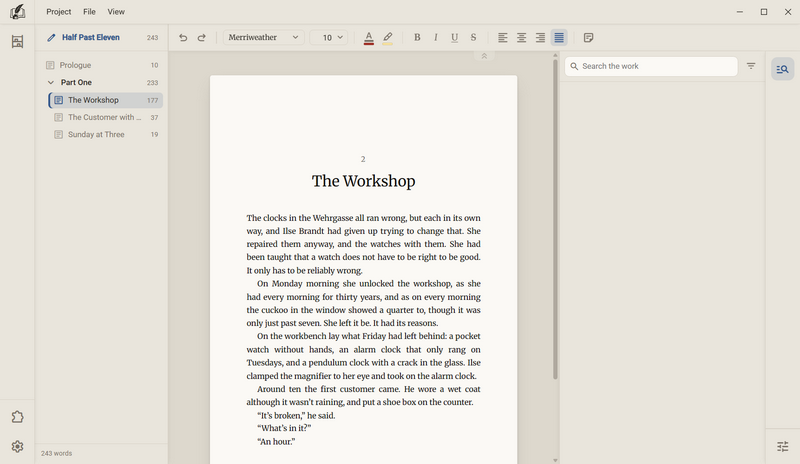
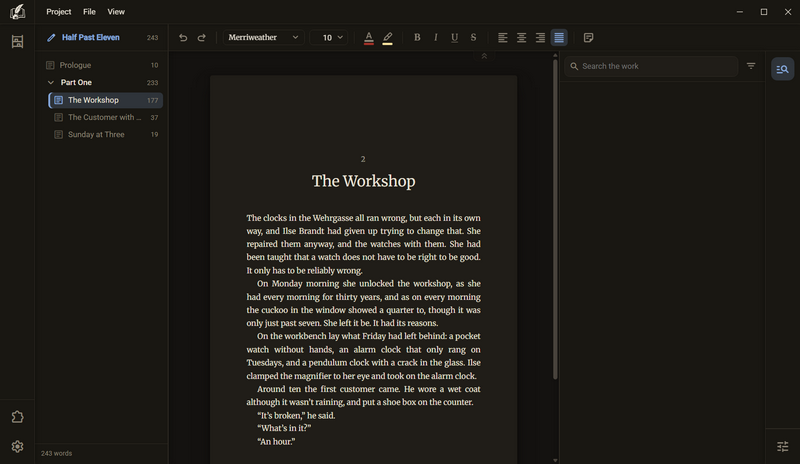
Four bars frame the sheet: the title bar at the top, the views rail on the left, the side column rail on the right and the toolbar above the sheet. Everything in between belongs to the text.
| Bar | Where | What is in it |
|---|---|---|
| Title bar | at the very top | The menus Project, File and View, on the right Minimise, Maximise and Close. |
| Views rail | left | The library, the add-ons and, at the bottom, the settings. |
| Side column rail | right | The panels of the side column and, at the bottom, the icon for customising. |
| Toolbar | above the sheet | The tools you have set up. |
Good to know
- You reach the menus with the keyboard too: Alt opens the menu bar. On the shelf only Project and File are there, and View joins them in the manuscript.
- The icons in the views rail have no tooltip. The shelf leads to the library, the puzzle piece to the add-ons, the gear to the settings.
- There is no back button. From the manuscript you get to the library with the shelf or with Ctrl + 2.
- Without an open project the shelf is missing. Add-ons and settings stay, because they belong to the program and not to a project.
- An add-on that is switched on can put an icon of its own in the middle of the views rail.
- The rails on the left and right always stand at the edge. You can put away the chapter tree with F9, the area of the side column with F10 and the toolbar with F8. Focus mode puts everything away at once.
- You change the width of the chapter tree and the side column at their divider, see Manuscript. The toolbar is described on the Writing page.
- The window cannot be dragged as narrow as you like. The two rails at the edges cost width.
Focus mode
Focus mode puts everything away except the sheet. The views rail, the chapter tree, the side column and the menu bar disappear. The sheet, the toolbar and the window controls stay.
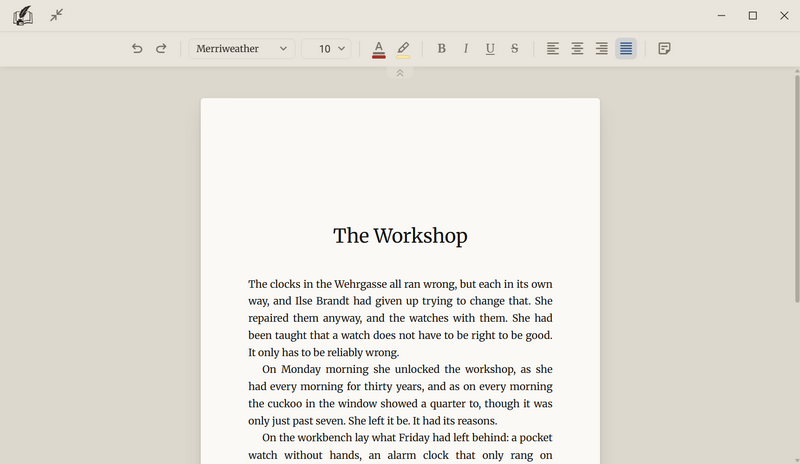
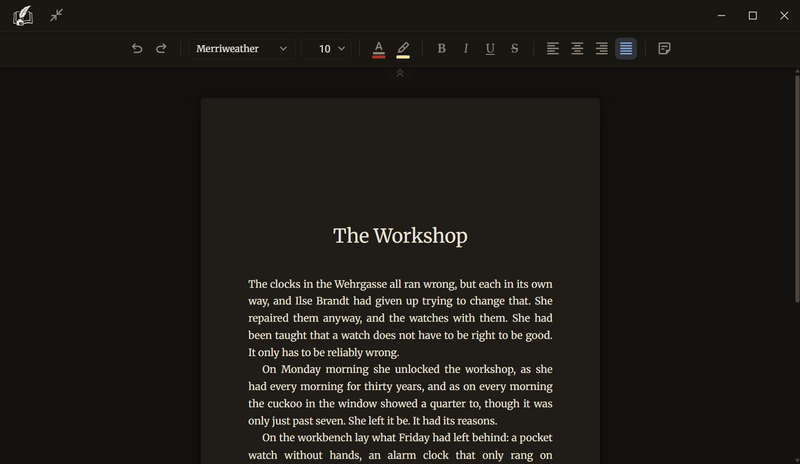
- In the manuscript, press F11 or choose View → Focus mode.
- If you want to see only the sheet, fold the toolbar shut with the tab below it. F8 does the same.
- To leave: click the Leave focus mode button to the right of the logo, or press Esc or F11.
Good to know
- F11 switches on and off, Esc only leaves the mode.
- The button to leave appears only while the mode is on. It shows an icon, and the name appears as a tooltip when you rest the pointer on it.
- The toolbar stays so that you can keep formatting. It moves to the middle above the sheet.
- The tab of the toolbar stays visible even when the bar is folded shut.
- Left or switched on by accident? Ctrl + Z switches the mode back.
- The chapter tree and side column go away with it. While the mode is on, neither F9 and F10 nor dragging their divider changes anything. After you leave, both stand as you left them.
- The key applies only in the manuscript. In the library there is nothing to put away.
- F11 can be reassigned under Settings → Shortcuts, in the Window group.
Shortcuts
The shortcuts come in two halves. You assign the shortcuts for Window, Chapter, Text and Going yourself. The shortcuts known from other writing programs are Fixed and cannot be changed.
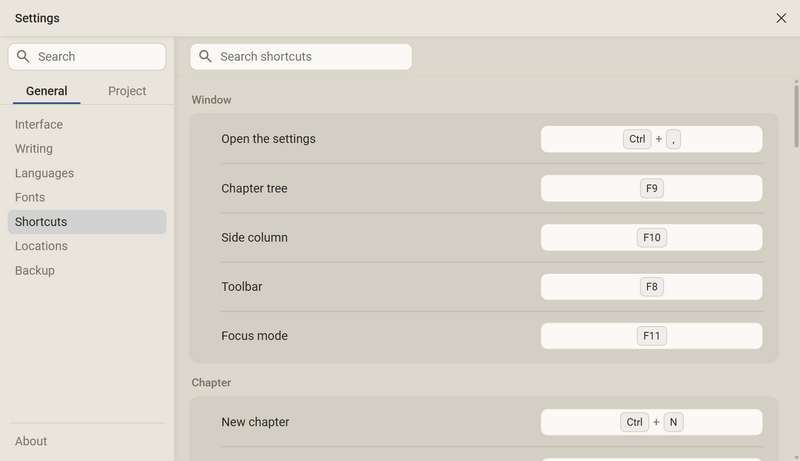
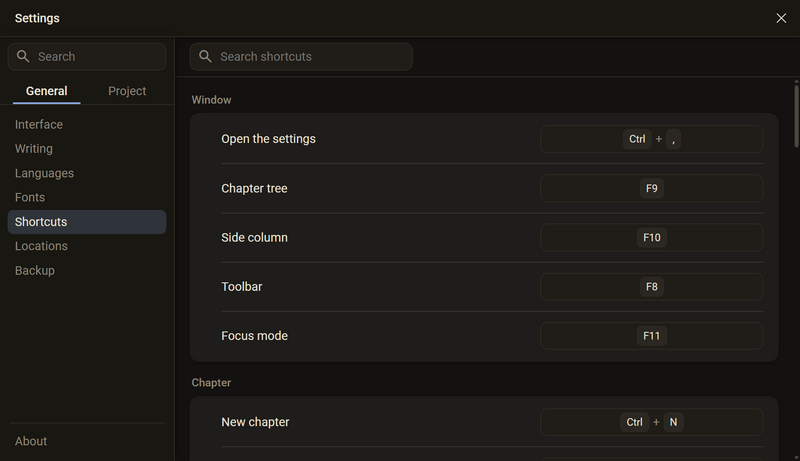
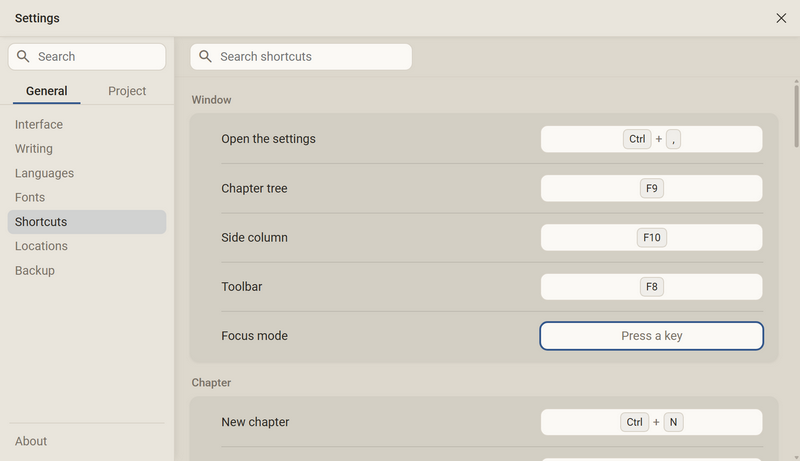
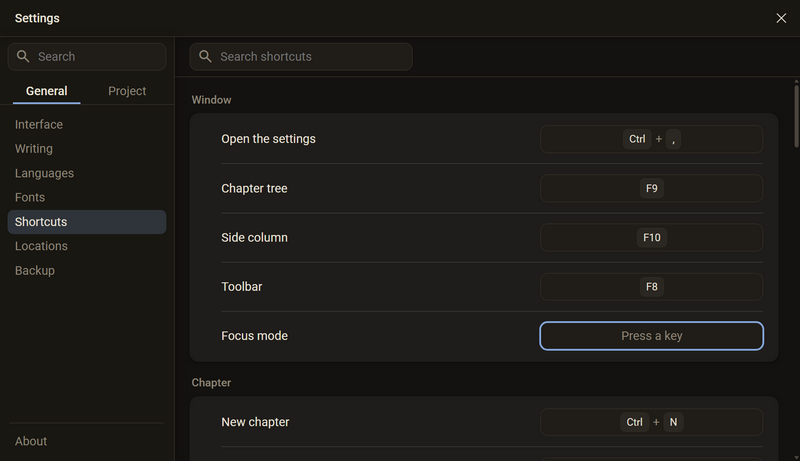
- Open Settings → Shortcuts. The field Search shortcuts finds a row by its name.
- Click the field of the row. It shows Press a key.
- Press the new combination. It takes effect at once.
- To cancel: Esc. The old shortcut stays. To remove a shortcut: Del or Backspace.
| Group | Row | Default |
|---|---|---|
| Window | Open the settings Chapter tree Side column Toolbar Focus mode | Ctrl + , F9 F10 F8 F11 |
| Chapter | New chapter New section Move up Move down Into section Out of section Import | Ctrl + N Ctrl + Shift + N Alt + ↑ Alt + ↓ Alt + → Alt + ← empty |
| Text | Language of this passage | empty |
| Going | To the projects To the library To the manuscript | Ctrl + 1 Ctrl + 2 Ctrl + 3 |
Good to know
- A combination needs Ctrl or Alt, or it is one of the keys F1 to F12. A letter alone or with Shift does not work, because it could no longer be typed.
- The field does not accept combinations with the system key or with the AltGr key.
- If another row already has the combination, it goes to the new row and the old row is empty afterwards. The bottom of the window says which row gave it up.
- If the combination is fixed, the field does not accept it and names the owner, for example Ctrl+B is fixed: Bold. It then keeps waiting for another key.
- A row may stay empty. Everything that has a shortcut you can also reach with the mouse. Import and Language of this passage have none by default.
- The dot next to a row restores the default shortcut.
- The shortcuts apply in all windows of the program, and at once. No restart is needed.
Fixed
These shortcuts stand at the end of the category as a reference list, without a field to change them.
| What | Key |
|---|---|
| Undo Redo Cut Copy Paste Select all Duplicate Find in the text Search the work | Ctrl + Z Ctrl + Y Ctrl + X Ctrl + C Ctrl + V Ctrl + A Ctrl + D Ctrl + F Ctrl + Shift + F |
| Bold Italic Underline Strikethrough Align left Centred Align right Justified Line break | Ctrl + B Ctrl + I Ctrl + U Ctrl + Shift + D Ctrl + L Ctrl + E Ctrl + R Ctrl + J Shift + Enter |
| Zoom in Zoom out Original size Rename Delete Menu bar Context menu Cancel | Ctrl + + Ctrl + - Ctrl + 0 F2 Del Alt Shift + F10 Esc |
Default folder
The default folder is the folder in which new projects are created. It is a suggestion: when you create a project you can choose a different place each time.
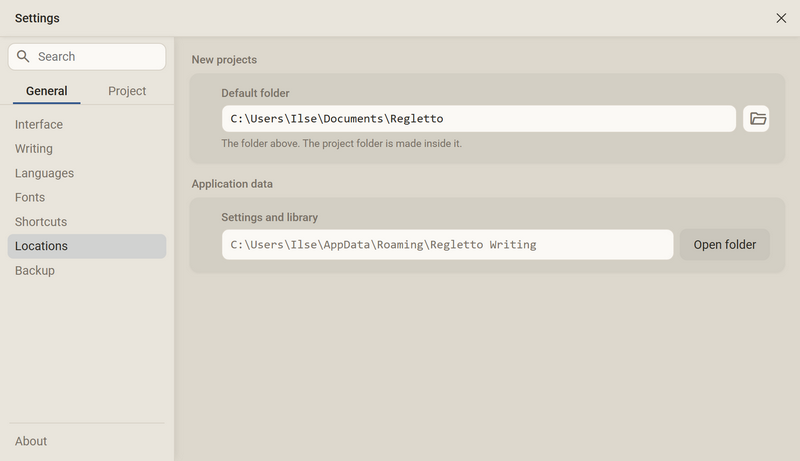
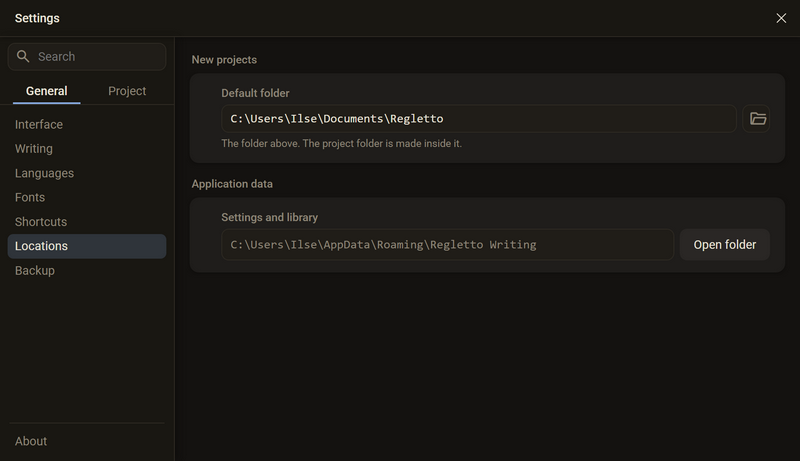
- Open Settings → Locations.
- At Default folder, click the folder icon and choose a folder. Or type the path into the field and press Enter.
- The folder applies from the next new project.
Good to know
- In the New project dialog the default folder is in the Location field. If you choose a different place there for a project, the program remembers it as the new default folder.
- In the Before you start dialog the program suggests the folder Regletto inside your Documents folder. The folder is only created with the first project.
- Changing the default folder moves nothing. Projects that already exist stay where they are.
- If the field is empty, the dialog offers the Documents folder.
- A project is a folder in the default folder, see Library and books.
- Below it, Settings and library shows where Regletto Writing keeps its settings and the list of your projects. Open folder shows the folder in the file manager.
Moving context menus
A context menu can be dragged away when it is in the way. This helps above all where the menu stays open while something changes on the sheet, for example with the style of a divider line: the menu would otherwise lie over the line you want to look at.
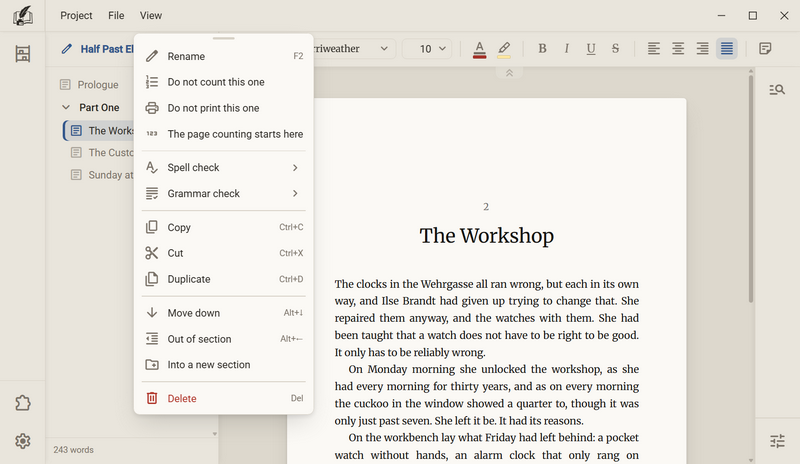
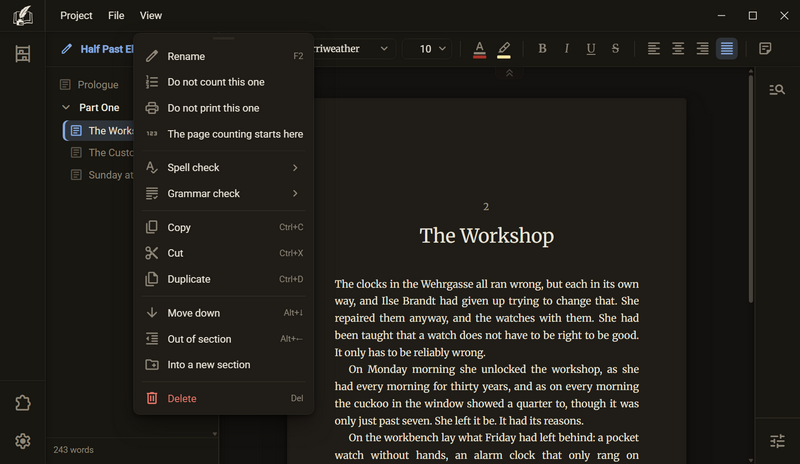
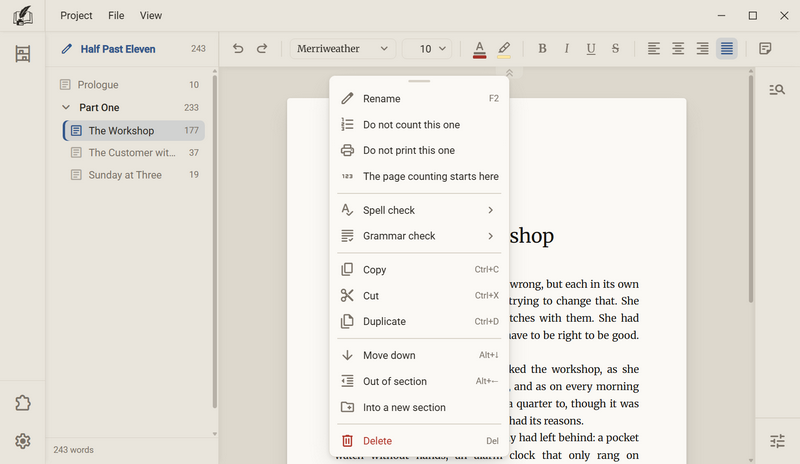
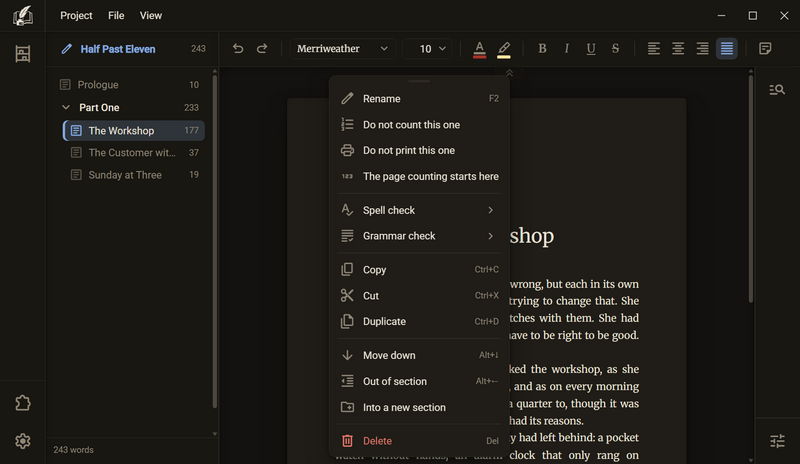
- Right-click where you want to change something.
- Grab the grip at the top of the menu with the left mouse button. It is the narrow strip with the short bar. Under the pointer the bar turns darker.
- Drag with the button held down. The menu follows.
- Let go. The menu stays where you put it and is still open. The row you were on stays the active one, and the arrow keys keep working.
Good to know
- Every menu that a right-click opens has the grip: in the sheet, in the chapter tree, on the toolbar and in the library.
- The menus of the menu bar, the lists under a field and the insert list behind the slash have no grip. They belong where they open.
- Dragging works only with the mouse. With the keyboard you move through the rows as before.
- The menu stays inside the window and stops at the top under the title bar. While you drag, it does not jump to the other side of the pointer.
- A submenu folds shut while you drag. It opens again at the new place as soon as you rest on the row.
- Long menus scroll. The grip stays at the top while they do.
- A click in the menu that does not hit a row does not close it. That applies to the edge, the gap beside a row, a separator line and a hint text.
- The menu is closed by a click beside it, with Esc, by scrolling and by a change in the window size.
- The program does not remember the place. The next context menu opens again where you clicked.
Ask in the help channel on our Discord server (the server is German-speaking).